
tcic_client_ui 0.0.1  tcic_client_ui: ^0.0.1 copied to clipboard
 pub.qcloudclass.com
TCIC SDK for Flutter
tcic_client_ui #
Tencent Cloud Real-time Interactive - Education Edition (formerly Low-code Interactive Classroom LCIC) is a multi-functional product integrating audio and video calling, interactive whiteboard, and live streaming. It can help you save 90% of development work. In the fields of education, healthcare, finance, and corporate training, you can quickly build various interactive live streaming business scenarios such as one-on-one teaching, interactive small classes, live large classes, and live streaming with goods.
TCIC Client is a Flutter plugin that includes all LCIC functions. You can quickly integrate LCIC functions through this plugin to realize interactive live streaming, interactive whiteboard, audio and video calling, and other functions.
Supported Platforms #
- Android
- iOS
Prerequisites #
Before using TCIC Client, you need to complete the following prerequisites:
Step 1: Create a New Application #
- Log in to the Real-time Interactive - Education Edition Console, enter the overview in the left navigation bar, and select Create Application.
- If you haven't created an application yet, you will enter the "Create Application" page by default. Enter the application name, such as TestLCIC.
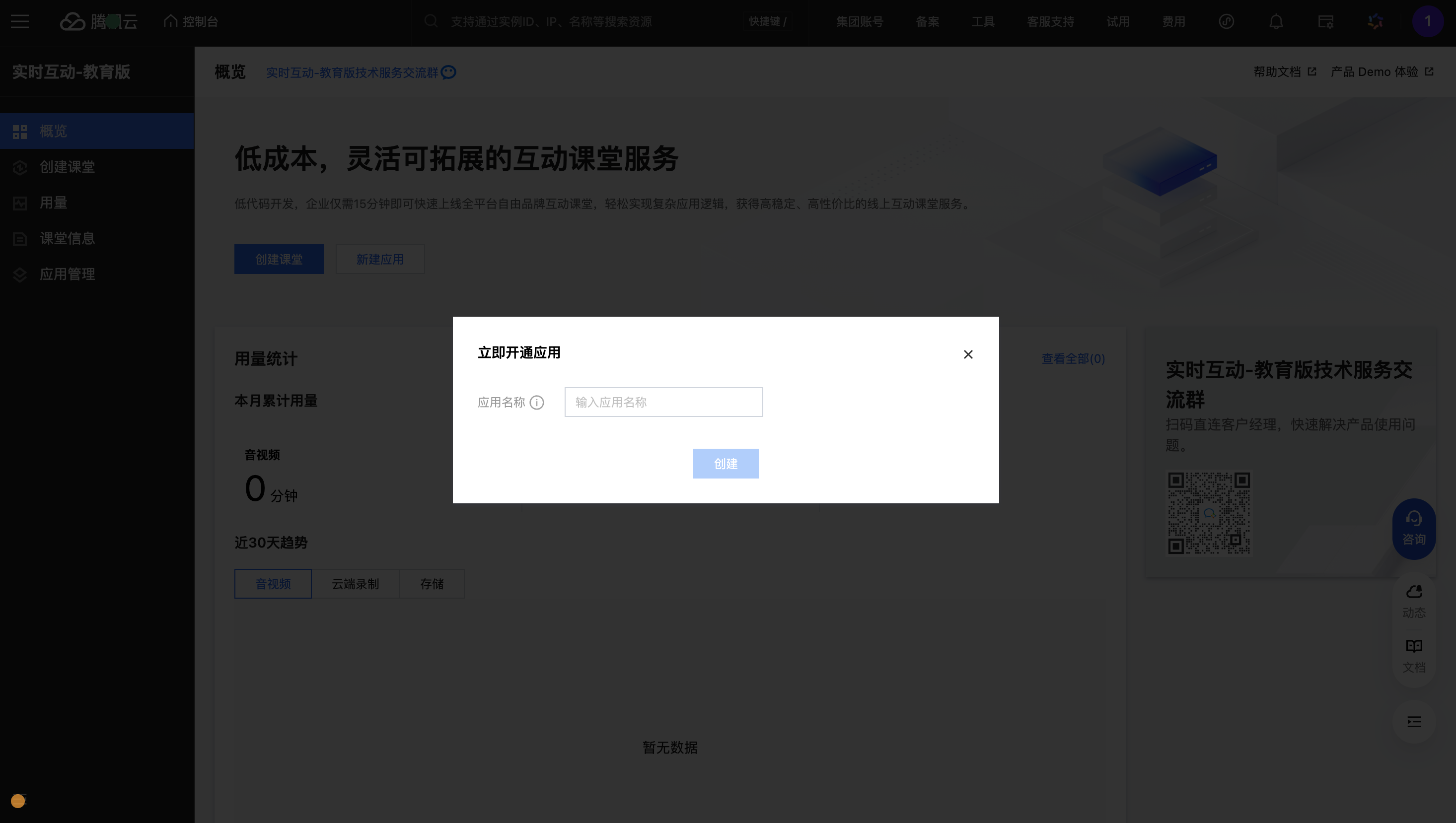
- If you have already created an application, you can go to Application Management and select Use Existing Application.

Note: Each account can receive one free trial application. To create a commercial application, you can create the corresponding version of the application on the purchase page according to your business needs. The application name only allows underscores, numbers, or Chinese and English characters.
Step 2: Get SDKAppId and SecretKey #
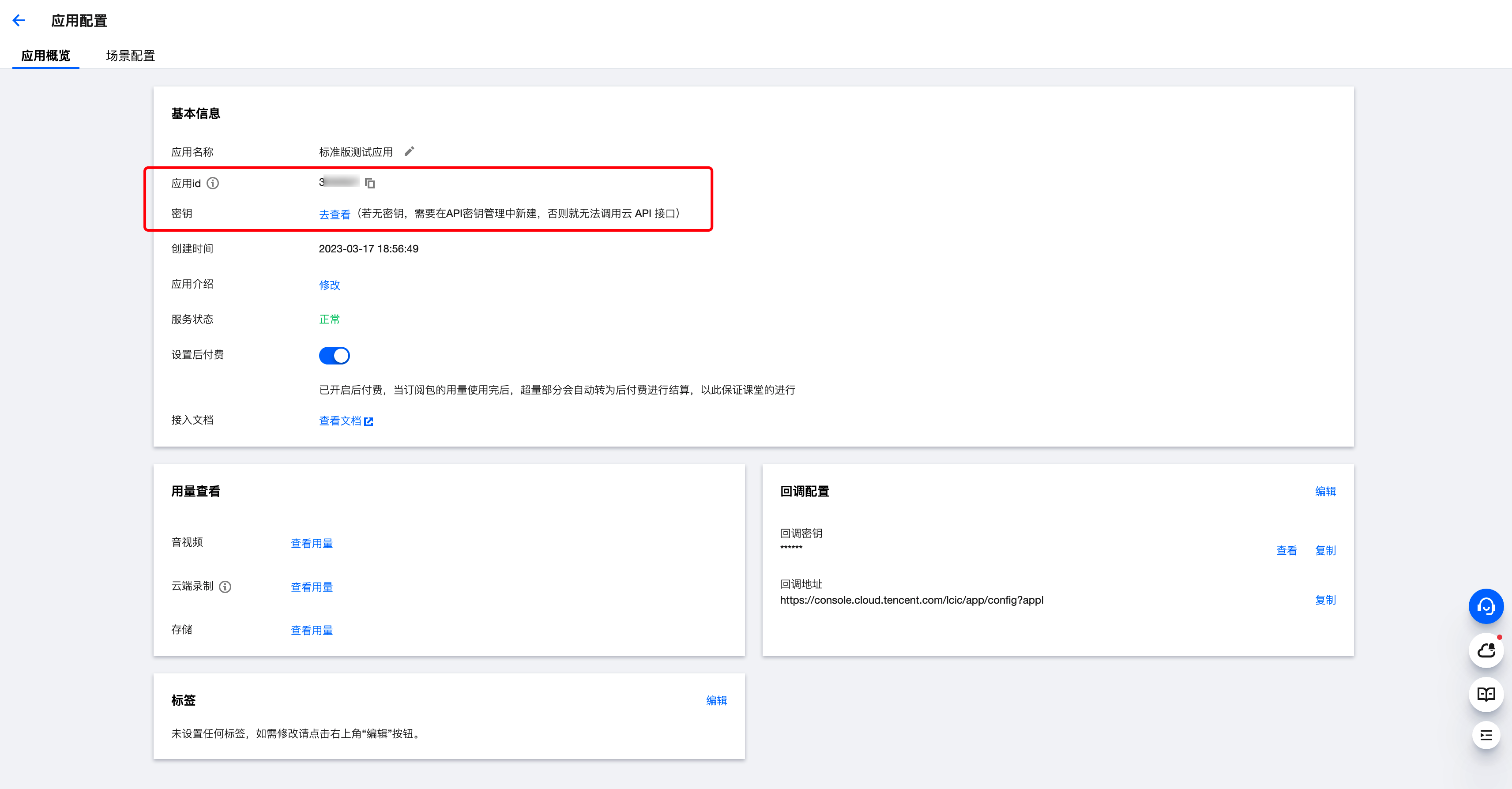
- Go to Application Management > Application Configuration to get the SDKAppId.
- Go to the Access Management (CAM) Console to get the secret key. If there is no secret key, you need to create it in API Key Management. For details, see Access Key Management.
Step 3: Get Parameters Required to Enter the Classroom #
- Call the cloud API interface RegisterUser to register a user and obtain the corresponding user ID (userid) information.
- Call the cloud API interface LoginUser to log in and obtain user authentication token information.
- Call the cloud API interface CreateRoom to create a classroom and obtain the classroom number (classid) information.
| Field | Type | Description | Remarks | Required |
|---|---|---|---|---|
| userid | string | User ID | Obtained through the RegisterUser interface. | Yes |
| classid | string | Classroom ID | Obtained through the CreateRoom interface. | Yes |
| token | string | Backend authentication parameter | Obtained through the LoginUser interface. | Yes |
| role | string | Role when entering the classroom, default is empty | Optional parameter: supervisor (patrol/content review), only registered patrol users in the application have permission. | No |
| lng | string | Language parameter, default is zh-CN | Currently supports Simplified Chinese, Traditional Chinese, English, Korean, Japanese, Arabic, and Vietnamese. You can splice the corresponding parameters to display the corresponding language. Parameters: zh-CN, zh-TW, en-US, ka, ja, ar, vi. | No |
| location | boolean | Whether to report latitude and longitude location information | Default is false (not reported). | No |
| layout | string | Page layout | Default is top layout (top). Currently only valid for video document mode. Supports double-row layout (double), right layout (right), left layout (left), and three-part layout (three). | No |
| boardColor | string | Whiteboard color | Whiteboard color setting, default is: #182E25, supports Hex format, and also supports rgba(0, 0, 0, .3) setting. | No |
| noEndClass | boolean | Disable end class | When a teaching assistant enters the room with this parameter, when the teaching assistant clicks to exit, the "End Class" button will be hidden, and only the "Leave" button will be displayed. | No |
Quick Start #
In the prerequisites, you have created an application and obtained the necessary classId, userId, and token parameters. You just need to pass these parameters into the component for use.
import 'package:tcic_client_ui/tcic_client_ui.dart';
import 'package:tcic_client_ui/controller/tcic_contoller.dart';
import 'package:tcic_client_ui/utils/model/enum/role_enum.dart';
import 'package:tcic_client_ui/utils/model/tcic_cofig_model.dart';

// Create controller
final controller = TCICController();

// Configure parameters
final config = TCICConfig(
  userId: 'user123',  /// User ID used when registering the user in the prerequisite steps
  classId: 'class456', /// Classroom ID created in the prerequisite steps
  role: RoleEnum.student,
  token: 'your_token_here', /// Token obtained by logging in the user in the prerequisite steps
  // Optional parameters
  isTestBackend: false, /// Whether to use the backend test environment
);

// According to your business scenario, navigate to the classroom page
Navigator.push(
  context,
  MaterialPageRoute(
    builder: (context) => TCICView(
      controller: controller,
      config: config,
    ),
  ),
);
Through the above steps, you have successfully integrated the classroom component, and you can use this component in your application to implement classroom functions.
Parameter Description #
TCICView Component Parameters #
| Parameter Name | Type | Required | Description |
|---|---|---|---|
| controller | TCICController | Yes | Controller instance |
| config | TCICConfig | Yes | Configuration information |
| callback | TCICCallback | No | Callback function |
TCICConfig Field Information #
| Field Name | Type | Required | Description |
|---|---|---|---|
| userId | String | Yes | User ID |
| classId | String | Yes | Classroom ID |
| token | String | Yes | Authentication token |
| role | RoleEnum | Yes | User role (student/teacher, etc.) |
| langConfig | TCICLangConfig | No | Language configuration |
| nameConfig | TCICNameConfig | No | Name configuration |
| fontConfig | TCICFontConfig | No | Font configuration |
| liveplayerConfig | TCICLivePlayerConfig | No | Live player configuration |
| isLatestBackend | bool | No | Whether to use the latest backend |
| isTestBackend | bool | No | Whether to use the test backend |
| componentConfig | List | No | Component configuration list |
TCICComponentConfig Field Information #
TCICComponentConfig is an abstract class used to configure various components in the classroom interface. By adding instances of specific component configuration classes to the componentConfig list, you can achieve custom configuration of each component.
Component Configuration Usage Example
// Create controller
final controller = TCICController();

// Configure parameters
final config = TCICConfig(
  userId: 'user123',
  classId: 'class456',
  role: RoleEnum.student,
  token: 'your_token_here',
  // Component configuration list
  componentConfig: [
    HeaderComponentConfig(
      isShow: true,
      enableHandsUp: true,
      iconConfig: HeaderIconConfig(
        micIcon: 'custom_mic_icon.png',
        cameraIcon: 'custom_camera_icon.png',
      ),
    ),
    MemebersComponentConfig(
      enableStageUpDownAction: true,
    ),
    MessageComponentConfig(),
    SetttingComponentConfig(),
    VideoComponentConfig(),
    WhiteboardComponentConfig(),
  ],
);

// According to your business scenario, navigate to the classroom page
Navigator.push(
  context,
  MaterialPageRoute(
    builder: (context) => TCICView(
      controller: controller,
      config: config,
    ),
  ),
);
HeaderComponentConfig Field Information #
HeaderComponentConfig is used to configure the header component, and its field information is as follows:
| Field Name | Type | Required | Description |
|---|---|---|---|
| isShow | bool | No | Whether to show the header component (default is true) |
| enableHandsUp | bool | No | Whether to show the raise hand button (default is true) |
| enableScreenShare | bool | No | Whether to show the screen share button (default is true) |
| enableMessage | bool | No | Whether to show the message button (default is true) |
| enableCoureseware | bool | No | Whether to show the courseware button (default is true) |
| enableSetting | bool | No | Whether to show the settings button (default is true) |
| enableMemberList | bool | No | Whether to show the member list (default is true) |
| showClassStatus | bool | No | Whether to show the class status (default is true) |
| showClassTime | bool | No | Whether to show the class time (default is true) |
| showOnlineMemberCount | bool | No | Whether to show the number of online members (default is true) |
| showQuitButton | bool | No | Whether to show the quit button (default is true) |
| showClassLogo | bool | No | Whether to show the class logo (default is true) |
| showClassName | bool | No | Whether to show the class name (default is true) |
| showClassInfo | bool | No | Whether to show the class information (default is true) |
| showNetworkStatus | bool | No | Whether to show the network status (default is true) |
| iconConfig | HeaderIconConfig | No | Custom header component icon configuration |
| headerBuilder | Widget Function() | No | Custom entire header component |
| headerLeftBuilder | Widget Function() | No | Custom header component left part |
| headerRightBuilder | Widget Function() | No | Custom header component right part |
| headerActionsBuilder | Widget Function() | No | Custom header component middle part |
HeaderIconConfig Field Information
HeaderIconConfig is used to configure the icons of the header component, and its field information is as follows:
| Field Name | Type | Required | Description |
|---|---|---|---|
| micIcon | String | No | Microphone icon |
| micDisableIcon | String | No | Microphone disabled icon |
| cameraIcon | String | No | Camera icon |
| cameraDisableIcon | String | No | Camera disabled icon |
| handupIcon | String | No | Raise hand icon |
| screenShareIcon | String | No | Screen share icon |
| messageIcon | String | No | Message icon |
| coursewareIcon | String | No | Courseware icon |
| settingIcon | String | No | Settings icon |
| membersIcon | String | No | Members icon |
MemebersComponentConfig Field Information #
MemebersComponentConfig is used to configure the members component, and its field information is as follows:
| Field Name | Type | Required | Description |
|---|---|---|---|
| enableStageUpDownAction | bool | No | Whether to enable stage up/down actions (default is true) |
MessageComponentConfig Field Information #
MessageComponentConfig is used to configure the message component, and its field information is as follows:
| Field Name | Type | Required | Description |
|---|---|---|---|
| messageItemBuilder | Widget Function(V2TimMessage) | No | Message item builder |
| messageHeaderBuilder | Widget Function(V2TimMessage) | No | Message header builder |
| messageBubbleBuilder | Widget Function(V2TimMessage, Widget) | No | Message bubble builder |
| messageRowBuilder | Widget Function(V2TimMessage) | No | Message row builder |
SetttingComponentConfig Field Information #
SetttingComponentConfig is used to configure the settings component, and its field information is as follows:
| Field Name | Type | Required | Description |
|---|---|---|---|
| enableAudioSetting | bool | No | Whether to enable audio settings (default is true) |
| enableVideoSetting | bool | No | Whether to enable video settings (default is true) |
| enableGeneralSetting | bool | No | Whether to enable general settings (default is true) |
| showMemberJoinExitInfo | bool | No | Whether to show member join/exit classroom information (default is true) |
| showMemberHansupInfo | bool | No | Whether to show member raise hand information (default is true) |
VideoComponentConfig Field Information #
VideoComponentConfig is used to configure the video component, and its field information is as follows:
| Field Name | Type | Required | Description |
|---|---|---|---|
| videoFloatBuilder | Widget Function() | No | Video floating layer builder |
| videoActionBuilder | Widget Function() | No | Video component action button builder |
WhiteboardComponentConfig Field Information #
WhiteboardComponentConfig is used to configure the whiteboard component, and its field information is as follows:
| Field Name | Type | Required | Description |
|---|---|---|---|
| enableCreateBoard | bool | No | Whether to enable create whiteboard (default is true) |
| enableBoardList | bool | No | Whether to enable whiteboard list (default is true) |
| enableSwitchPage | bool | No | Whether PPT courseware can be turned (default is true) |
TCICLangConfig Field Information #
TCICLangConfig is used to configure language information, and its field information is as follows:
| Field Name | Type | Required | Description |
|---|---|---|---|
| lang | TranslateLangEnum | Yes | Language type (zh, en, ja, ko, zhTw, etc.) |
TranslateLangEnum Values
TranslateLangEnum is used to define supported language types, and its values are as follows:
| Enum Value | Description |
|---|---|
| zh | Chinese |
| en | English |
| ja | Japanese |
| ko | Korean |
| zhTw | Traditional Chinese |
| fr | French |
| de | German |
| es | Spanish |
| ru | Russian |
TCICFontConfig Field Information #
TCICFontConfig is used to configure font information, and its field information is as follows:
| Field Name | Type | Required | Description |
|---|---|---|---|
| fontFamily | String | No | Font family name |
| fontPath | String | No | Font file path (relative to the assets directory) |
| fontUrl | String | No | Font file URL (web font) |
| enableCustomFont | bool | Yes | Whether to enable custom font (default is false) |
| fontWeights | Map<FontWeight, String> | No | Font weight configuration |
| fontStyles | Map<FontStyle, String> | No | Font style configuration |
FontWeight Values
FontWeight is used to define font weights, and its values are as follows:
| Enum Value | Description |
|---|---|
| w100 | Thin |
| w200 | Extra Light |
| w300 | Light |
| w400 | Regular |
| w500 | Medium |
| w600 | Semi Bold |
| w700 | Bold |
| w800 | Extra Bold |
| w900 | Black |
FontStyle Values
FontStyle is used to define font styles, and its values are as follows:
| Enum Value | Description |
|---|---|
| normal | Normal |
| italic | Italic |
TCICNameConfig Field Information #
TCICNameConfig is used to configure name display in different languages, and its field information is as follows:
| Field Name | Type | Required | Description |
|---|---|---|---|
| zh | NameConfigInfo | No | Chinese name configuration |
| en | NameConfigInfo | No | English name configuration |
| ja | NameConfigInfo | No | Japanese name configuration |
| ko | NameConfigInfo | No | Korean name configuration |
| zhTw | NameConfigInfo | No | Traditional Chinese name configuration |
NameConfigInfo Field Information
NameConfigInfo is used to define various names in specific languages, and its field information is as follows:
| Field Name | Type | Required | Description |
|---|---|---|---|
| teacher | String | No | Teacher |
| assistant | String | No | Teaching Assistant |
| student | String | No | Student |
| host | String | No | Host |
| coHost | String | No | Co-host |
| panelist | String | No | Panelist |
| viewer | String | No | Viewer |
| raiseHand | String | No | Raise Hand |
| lowerHand | String | No | Lower Hand |
| chat | String | No | Chat |
| whiteboard | String | No | Whiteboard |
| fileShare | String | No | File Share |
| screenShare | String | No | Screen Share |
Callback Functions #
TCICCallback supports the following callbacks:
onJoinedClassSuccess: Successfully joined the classroomafterExitedClass: After exiting the classroomonJoinedClassFailed: Failed to join the classroomonKickedOffClass: Kicked out of the classroomonMemberJoinedClass: Member joined the classroomonMemberLeaveClass: Member left the classroomonRecivedMessage: Received a messagebeforeExitedClass: Before exiting the classroom (return false to cancel exit)beforeRenderMessage: Before rendering a message (return false to not render)
Metadata
Publisher
Weekly Downloads
Metadata
TCIC SDK for Flutter
License
 unknown (license)
Dependencies
card_swiper, custom_pop_up_menu, device_info_plus, dio, event_bus, expandable, file_picker, fixnum, flutter, flutter_floating, flutter_foreground_task, flutter_screenutil, flutter_svg, freezed_annotation, get, json_annotation, keyboard_detection, live_flutter_plugin, logger, path, path_provider, permission_handler, photo_view, pointer_interceptor, shared_preferences, super_tooltip, tencent_cloud_chat_sdk, tencent_cloud_whiteboard, tencent_rtc_sdk, tencentcloud_cls_sdk_dart_producer, tencentcloud_cos_sdk_plugin_nobeacon, toastification, wakelock_plus

