
arcore_flutter_plus 1.0.1  arcore_flutter_plus: ^1.0.1 copied to clipboard
Updated Flutter plugin for ARCore SDK, Android platform to build new augmented reality experiences
arcore_flutter_plus 🚀 #
Introducing arcore flutter plus. This package allows you to experience Augmented Reality (AR) on Android devices using Google ARCore.
✨ Key Enhancements (What's New?) #
In addition to all the original features, this version includes:
- Fixed Model Loading: Give support for
.glband.sfb3d models. - Custom Shapes: Added support for new shapes like.
- Improved Documentation: Clearer examples for distance measurement and interactive model placement.
🙏 Credits & Origin #
This package is a upgraded version of the original arcore_flutter_plugin created by gdifrancesco. Since the original package has been inactive for several years, arcore_flutter_plus aims to keep the plugin alive by providing:
- Compatibility with modern Flutter 3.x versions.
- Support for updated Android SDKs.
- New custom features and bug fixes.
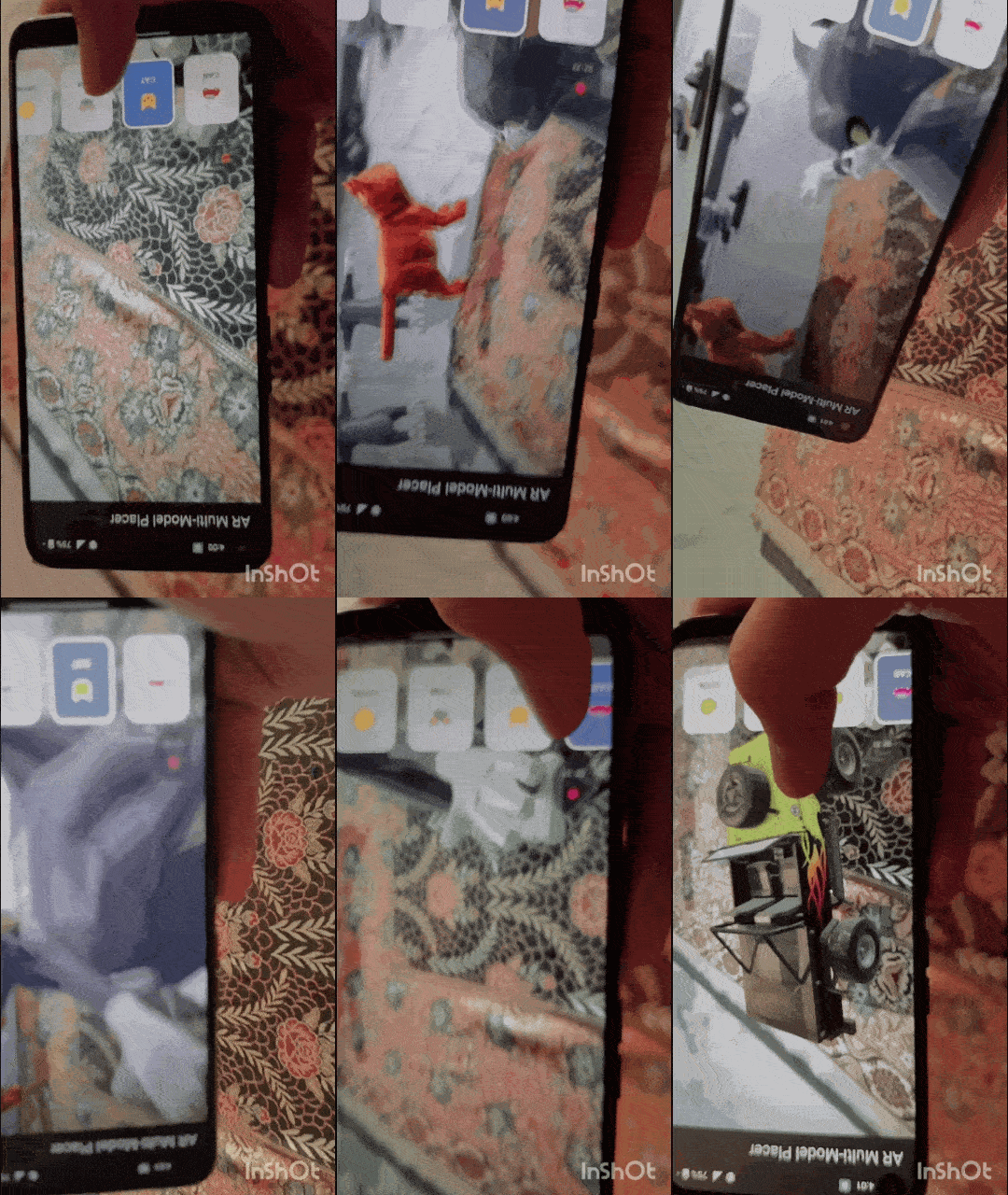
3D Model Placement |
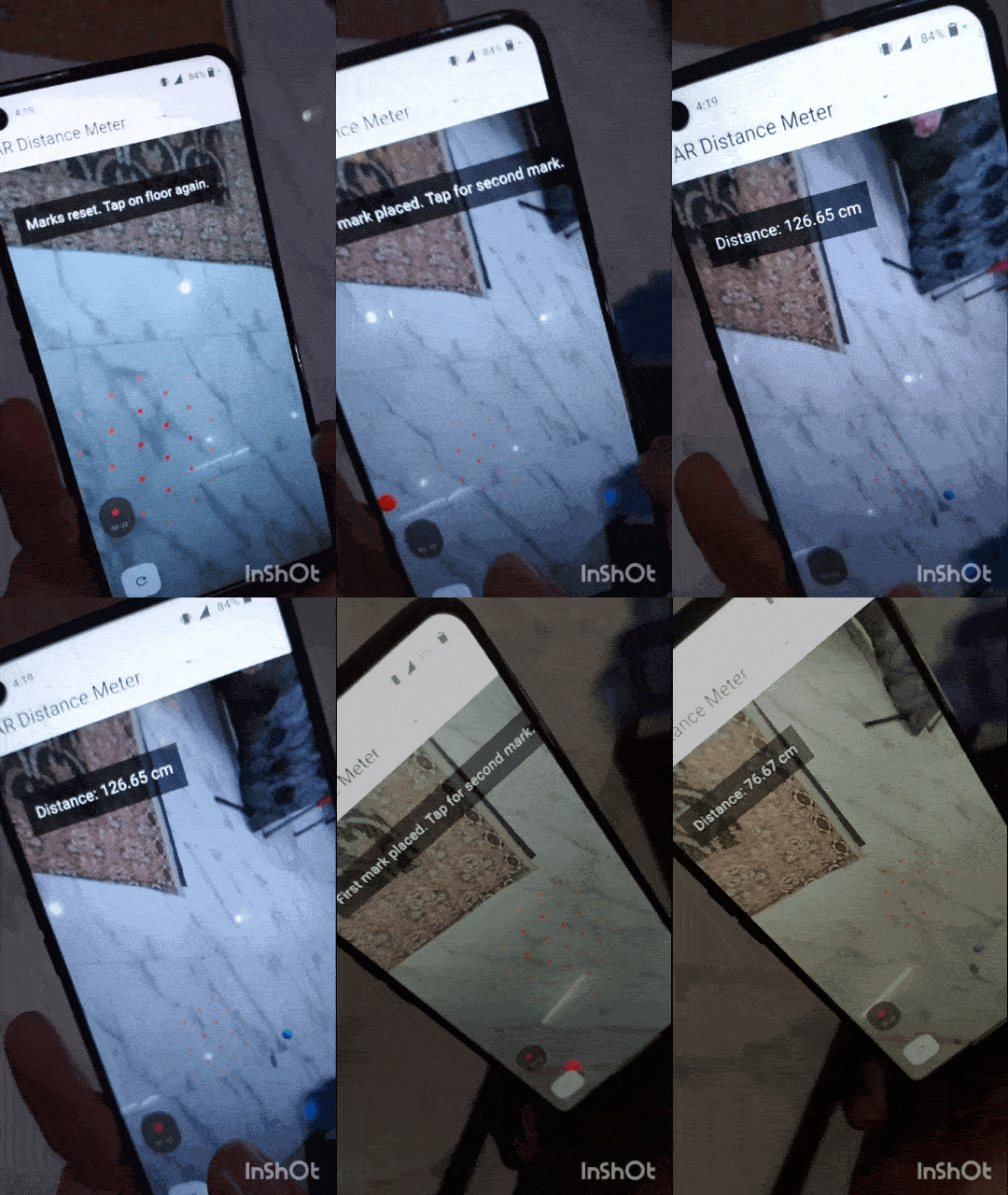
Distance Measurement |
🚀 Getting Started #
📱 Platform Support #
This package is Android-only because it relies on Google's ARCore SDK. (If you are looking for iOS AR support, consider using arkit_plugin)
1. Requirements #
- Android API Level: 24 (Android 7.0) or higher.
2. Installation #
Add this to your pubspec.yaml:
dependencies:
  arcore_flutter_plus: ^1.0.0
3. Add Permissions #
Ensure your AndroidManifest.xml includes Camera permissions:
<uses-permission android:name="android.permission.CAMERA" />
<uses-feature android:name="android.hardware.camera.ar" />
4. Adding assets and models #
Add your .glb models to android/app/src/main/assets/.
📖 Usage Example: Placing a Model
ArCoreReferenceNode node = ArCoreReferenceNode(
  name: "Tom",
  object3DFileName: "tom.glb",
  position: vector.Vector3(0, 0, -1.0),
);
arCoreController.addArCoreNode(node);
📱 Example Project #
You can find a complete, ready-to-run example project showcasing all features (including distance measurement, placing objects etc.) in the official examples repository:
🔗 arcore_flutter_examples
The simplest code example: #
void main() => runApp(
  const MaterialApp(
    debugShowCheckedModeBanner: false,
    home: AREmojiWorld(), ////-- uncomment to run this example
    // home: ARDistanceMeasurer(),
  ),
);

////--Example 1 to calculate distance b/w 2 marks on floor

class ARDistanceMeasurer extends StatefulWidget {
  const ARDistanceMeasurer({super.key});

  @override
  State<ARDistanceMeasurer> createState() => _ARDistanceMeasurerState();
}

class _ARDistanceMeasurerState extends State<ARDistanceMeasurer> {
  ArCoreController? arCoreController;

  // To store 2 points
  ArCoreNode? startNode;
  ArCoreNode? endNode;
  String distanceText = "Tap on floor to place marks";

  @override
  Widget build(BuildContext context) {
    return Scaffold(
      appBar: AppBar(title: const Text('AR Distance Meter')),
      body: Stack(
        children: [
          ArCoreView(
            onArCoreViewCreated: _onArCoreViewCreated,
            enableTapRecognizer: true,
            enablePlaneRenderer: true, // this will show dots
            planeColor: Colors.red,
          ),

          // Distance display karne ke liye UI
          Positioned(
            top: 50,
            left: 20,
            child: Container(
              padding: const EdgeInsets.all(12),
              color: Colors.black54,
              child: Text(
                distanceText,
                style: const TextStyle(color: Colors.white, fontSize: 18),
              ),
            ),
          ),
          Positioned(
            bottom: 30,
            left: 20,
            child: FloatingActionButton(
              onPressed: _resetMarks,
              child: const Icon(Icons.refresh),
            ),
          ),
        ],
      ),
    );
  }

  void _onArCoreViewCreated(ArCoreController controller) {
    arCoreController = controller;
    // Plane detection configuration
    arCoreController?.onPlaneTap = _handleOnPlaneTap;
  }

  void _handleOnPlaneTap(List<ArCoreHitTestResult> hits) {
    if (hits.isEmpty) return;
    final hit = hits.first;

    if (startNode == null) {
      // 1st mark
      startNode = _createMark(hit.pose.translation, Colors.red);
      arCoreController?.addArCoreNode(startNode!);
      setState(() {
        distanceText = "First mark placed. Tap for second mark.";
      });
    } else if (endNode == null) {
      // 2nd mark
      endNode = _createMark(hit.pose.translation, Colors.blue);
      arCoreController?.addArCoreNode(endNode!);

      // Distance calculate
      _calculateDistance();
    }
  }

  ArCoreNode _createMark(vector.Vector3 position, Color color) {
    final material = ArCoreMaterial(color: color, metallic: 1.0);
    final sphere = ArCoreSphere(materials: [material], radius: 0.03);
    return ArCoreNode(shape: sphere, position: position);
  }

  void _calculateDistance() {
    if (startNode == null || endNode == null) return;

    // .value lagana zaroori hai kyunki position ek ValueNotifier hai
    final startPos = startNode!.position!.value;
    final endPos = endNode!.position!.value;

    // Distance Formula implementation
    double dx = endPos.x - startPos.x;
    double dy = endPos.y - startPos.y;
    double dz = endPos.z - startPos.z;

    // math.sqrt use  as prefix imported hai
    double distance = math.sqrt(dx * dx + dy * dy + dz * dz);

    setState(() {
      distanceText = "Distance: ${(distance * 100).toStringAsFixed(2)} cm";
    });
  }

  void _resetMarks() {
    if (startNode != null)
      arCoreController?.removeNode(nodeName: startNode!.name);
    if (endNode != null) arCoreController?.removeNode(nodeName: endNode!.name);
    startNode = null;
    endNode = null;
    setState(() {
      distanceText = "Marks reset. Tap on floor again.";
    });
  }

  @override
  void dispose() {
    arCoreController?.dispose();
    super.dispose();
  }
}
Documentation #
Classes provided by the plugin #
There are a total of 13 classes provided by this plugin.
- ArCoreView
- ArCoreController
- ArCoreFaceView
- ArCoreFaceController
- ArCoreSphere
- ArCoreCylinder
- ArCoreCube
- ArCoreNode
- ArCoreMaterial
- ArCoreHitTestResult
- ArCoreRotatingNode
- ArCorePlane
- ArCoreReferenceNode
ArCoreView #
This class returns the view type. There are two types of views in it.
AUGMENTEDFACE STANDARDVIEW
There are 4 properties in it:
- onArCoreViewCreated
- enableTapRecognizer
- enableUpdateListener
- type
onArCoreViewCreated #
This property takes a ArCoreController.
enableTapRecognizer
Initially, set to false. It is used as an argument by the MethodChannel.
enableUpdateListener
Initially, set to false. It is used as an argument by the MethodChannel.
type
It is a view type, it is either AUGMENTEDFACE, STANDARDVIEW*. It is set to STANDARDVIEW by default.
ArCoreController #
This controller is used to add an ArNode using the addArCoreNode function, add an ArCoreNode with an anchor using the addArCoreNodeWithAnchor function, and also remove a node using the removeNode function.
ArCoreFaceView #
It is a stateful widget that returns a ArCoreAndroidView. It has two properties enableAugmentedFaces, onArCoreViewCreated.
Initially, enableAugmentedFaces is set to false. onArCoreViewCreated takes a function with ArCoreController argument.
ArCoreFaceController #
It used dispose and loadMesh method to control the FaceView.
ArCoreSphere #
It is ArCoreShape, takes a radius & ArCoreMaterial.
ArCoreCylinder #
It is an ArCoreShape, takes a radius, height, & ArCoreMaterial.
ArCoreCube #
It is ArCoreShape, takes a size i.e. Vector3 & ArCoreMaterial.
ArCoreNode #
This widget is used to provide the position, shape, scale, rotation, name.
ArCoreMaterial #
It is used to describe the outlook of the virtual object created by the user.
It has color,textureBytes, metallic, roughness, reflection.
ArCoreRotatingNode #
It is an ArCoreNode with a degreesPerSecond property which is a double value.
ArCorePlane #
It takes the x, y coordinate of the plane, ArCorePose & ArCorePlaneType.
There are three types of plane:
- HORIZONTAL_UPWARD_FACING
- HORIZONTAL_DOWNWARD_FACING
- VERTICAL
ArCoreReferenceNode #
It is ArCoreNode, it has all the properties that the ArCoreNode has also it has objectUrl and object3DFileName.
objectUrl #
URL of glft object for remote rendering.
object3DFileName #
Filename of sfb, glb object in android/app/src/main/assets folder.
Metadata
Documentation
Publisher
unverified uploader
Weekly Downloads
Metadata
Updated Flutter plugin for ARCore SDK, Android platform to build new augmented reality experiences
Repository (GitHub)
View/report issues
License
 MIT (license)
Dependencies
equatable, flutter, meta, vector_math
More
Packages that depend on arcore_flutter_plus
Packages that implement arcore_flutter_plus

