
bimas_document_scanner 1.0.6  bimas_document_scanner: ^1.0.6 copied to clipboard
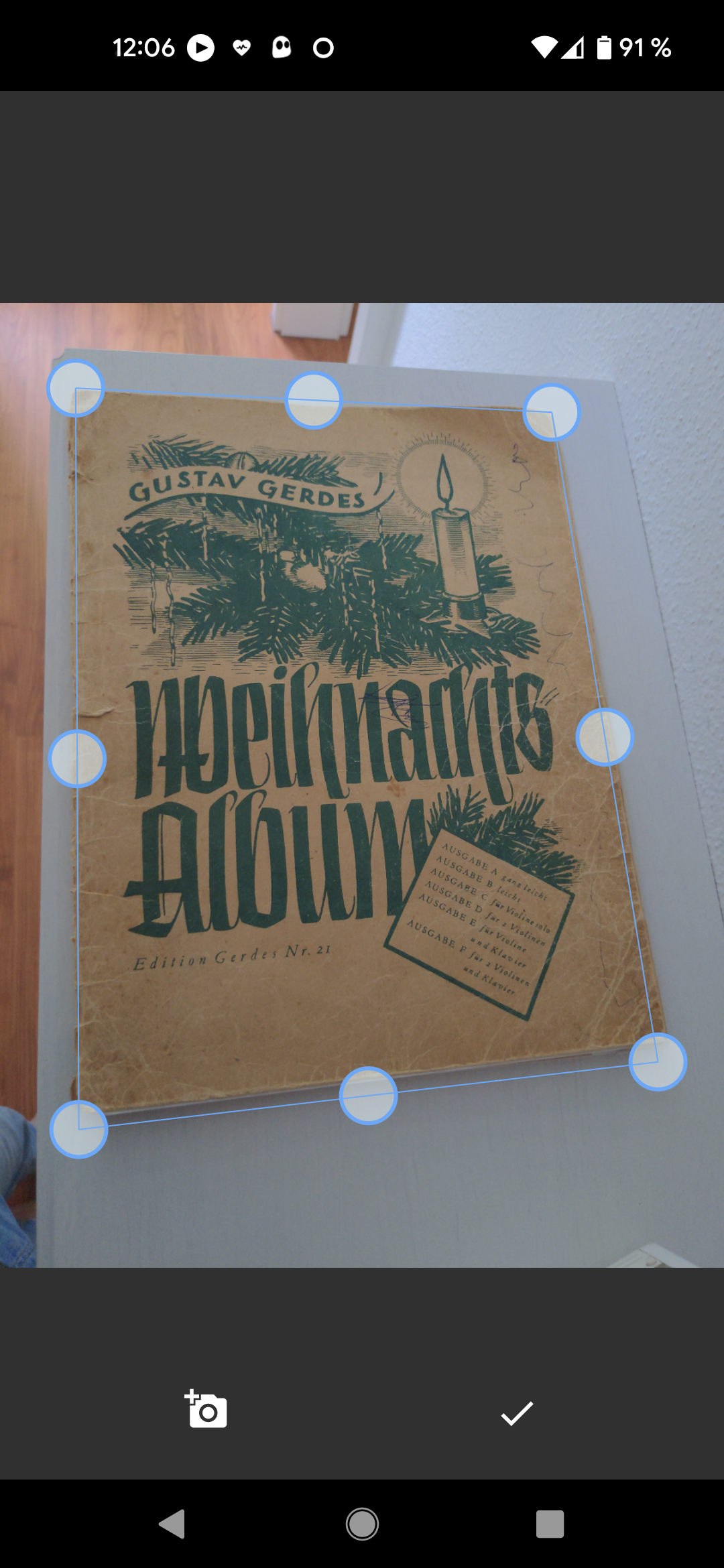
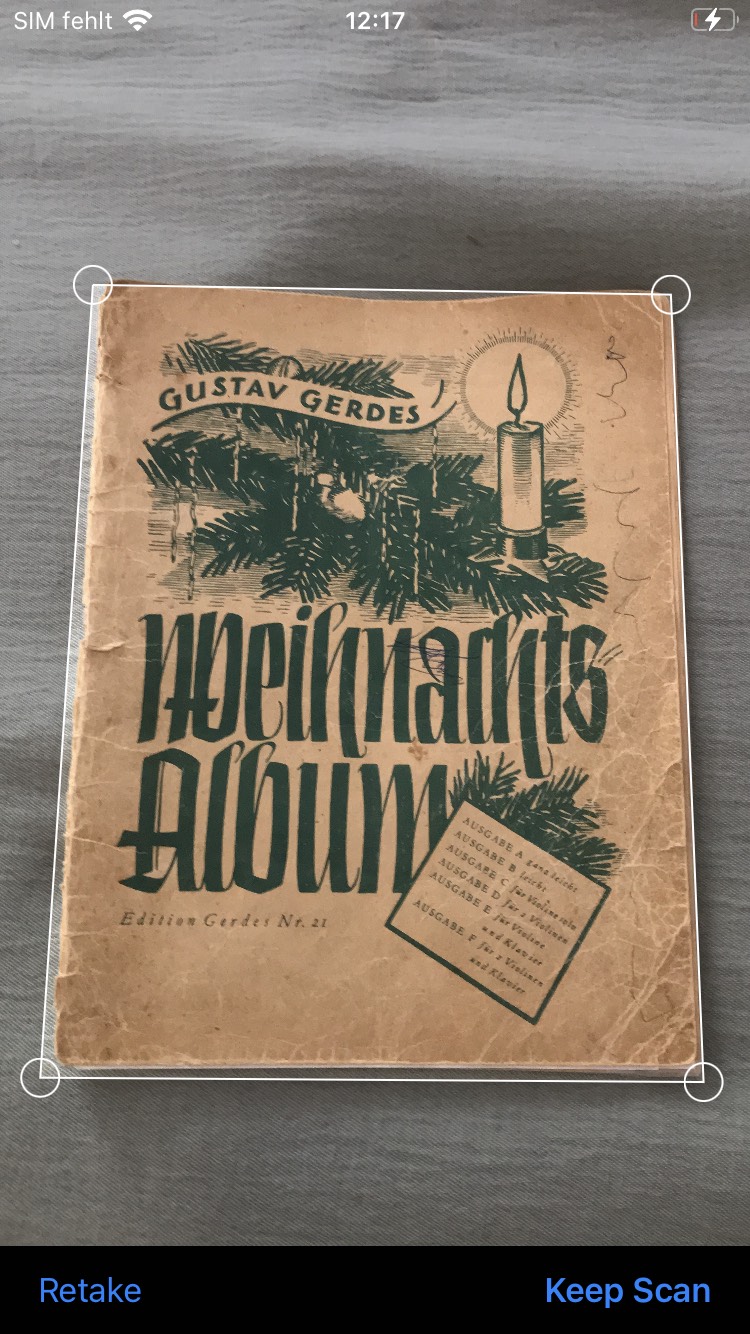
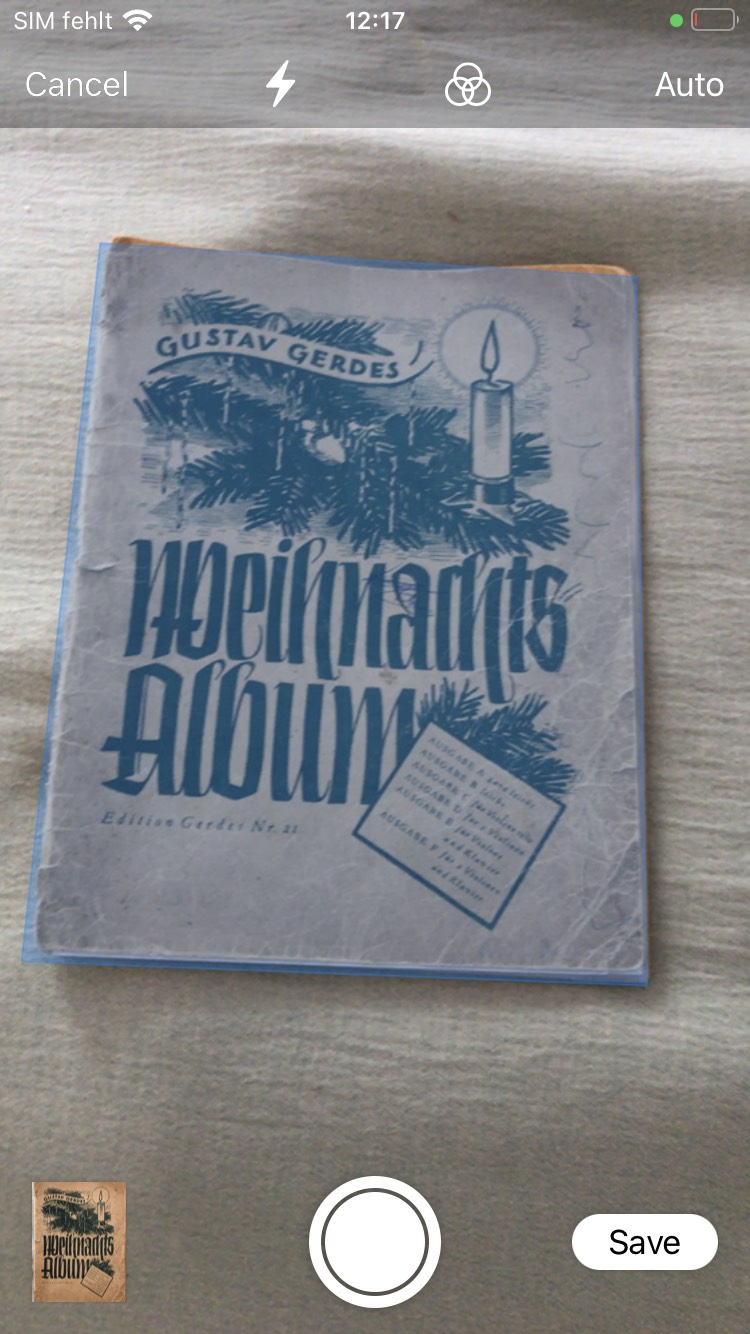
Scan and crop automatically on iOS and Android with edge detection.
Bimas Document Scanner #
Bimas Document Scanner is a Flutter-based document scanner application that enables you to capture images of paper documents and convert them into digital files effortlessly. This application is designed to run on Android and iOS devices with minimum API levels of 21 and 13, respectively.
Key Features #
- Fast and easy document scanning.
- Conversion of document images into digital files.
- Support for both Android and iOS platforms.
- Minimum requirements: API 21 on Android, iOS 13 on iOS.
- Limit the number of scannable files on Android.
- Allows selection of images from the gallery on Android.
- Portuguese (pt-BR) localization support.
A state of the art document scanner with automatic cropping function.
Project Setup #
Follow the steps below to set up your Flutter project on Android and iOS.
Android #
Minimum Version Configuration
Ensure you meet the minimum version requirements to run the application on Android devices.
In the android/app/build.gradle file, verify that minSdkVersion is at least 21:
android {
    ...
    defaultConfig {
        ...
        minSdkVersion 21
        ...
    }
    ...
}
IOS #
Minimum Version Configuration
Ensure you meet the minimum version requirements to run the application on iOS devices.
In the ios/Podfile file, make sure the iOS platform version is at least 13.0:
platform :ios, '13.0'
Permission Configuration
-
Add a String property to the app's Info.plist file with the key NSCameraUsageDescription and the value as the description for why your app needs camera access.
-
The permission_handler dependency used by cunning_document_scanner use macros to control whether a permission is enabled. Add the following to your
Podfilefile:post_install do |installer| installer.pods_project.targets.each do |target| ... # Here are some configurations automatically generated by flutter # Start of the permission_handler configuration target.build_configurations.each do |config| # You can enable the permissions needed here. For example to enable camera # permission, just remove the `#` character in front so it looks like this: # # ## dart: PermissionGroup.camera # 'PERMISSION_CAMERA=1' # # Preprocessor definitions can be found at: https://github.com/Baseflow/flutter-permission-handler/blob/master/permission_handler_apple/ios/Classes/PermissionHandlerEnums.h config.build_settings['GCC_PREPROCESSOR_DEFINITIONS'] ||= [ '$(inherited)', ## dart: PermissionGroup.camera 'PERMISSION_CAMERA=1', ] end # End of the permission_handler configuration end end
How to use ? #
The easiest way to get a list of images is:
import 'package:bimas_document_scanner/document_scanner.dart';

final imagesPath = await DocumentScanner.getPictures();
Android Specific #
There are some features in Android that allow you to adjust the scanner that will be ignored in iOS:
final imagesPath = await DocumentScanner.getPictures(
   noOfPages: 1, // Limit the number of pages to 1
   isGalleryImportAllowed: true, // Allow the user to also pick an image from his gallery
);
Custom Scanner (Force Portuguese UI)
By default, Android uses Google ML Kit Document Scanner which automatically translates based on the device's system language. If you need the scanner to respect your app's locale setting instead, you can force the use of the custom scanner:
final imagesPath = await DocumentScanner.getPictures(
   useCustomScanner: true, // Forces custom UI that respects app locale (Portuguese if configured)
);
Note: The custom scanner provides a simpler UI with manual cropping, while ML Kit provides automatic edge detection and a more polished experience. Choose based on your needs:
- ML Kit (default): Better UX, automatic detection, but uses device language
- Custom Scanner: Respects app locale, but requires manual crop adjustment
iOS Specific #
On iOS it is possible to configure which image format should be used to save of the document scans. Available options are PNG (default) or JPEG. In certain situations the JPEG format could drastically reduce the file size of the final scan. If you choose to use JPEG you can also specify a compression quality, where 0.0 is highest compression (lowest quality) and 1.0 (default) is the lowest compression (highest quality). Example usage is:
import 'package:bimas_document_scanner/document_scanner.dart';
import 'package:bimas_document_scanner/ios_options.dart';

// Returns images in JPEG format with a compression quality of 50%.
final imagesPath = await DocumentScanner.getPictures(
   iosScannerOptions: IosScannerOptions(
      imageFormat: IosImageFormat.jpg,
      jpgCompressionQuality: 0.5,
   ).toMap(),
);
Installation #
Add this to your package's pubspec.yaml file:
dependencies:
  bimas_document_scanner: ^1.0.4
Then run:
flutter pub get
Localization #
The plugin supports automatic localization based on the device's system language. The native document scanners work as follows:
Android #
- Google ML Kit Document Scanner: Automatically translates to Portuguese when the device system language is set to Portuguese (Brazil or Portugal).
- The ML Kit scanner supports multiple languages and will automatically use the device's system language.
- No additional configuration is required - the translation happens automatically.
Important: If you're seeing the scanner in English on Android, check your device's system language settings. The scanner will display in Portuguese when the device is configured with Portuguese language.
You can also add supported locales in your app's build.gradle to restrict the APK size:
android {
    defaultConfig {
        resConfigs "en", "pt"
    }
}
iOS #
- VNDocumentCameraViewController: Uses the localization files included in the plugin.
- The plugin includes Portuguese (pt-BR) translations that are automatically used when the device is set to Portuguese.
To ensure all iOS localizations work properly, add supported localizations in your Info.plist:
<key>CFBundleLocalizations</key>
<array>
    <string>pt-BR</string>
    <string>pt</string>
    <string>en</string>
</array>
Supported Languages: Both platforms support multiple languages automatically based on the device's system language settings.
Contributions #
Contributions are welcome. If you want to contribute to the development of Bimas Document Scanner, follow these steps:
- Fork the repository.
- Create a branch for your contribution:
git checkout -b your_feature - Make your changes and commit:
git commit -m 'Add a new feature' - Push the branch:
git push origin your_feature - Open a pull request on GitHub.
Issues and Support #
If you encounter any issues or have questions, please open an issue. We're here to help.## License
This project is licensed under the MIT License. See the LICENSE file for more details.
Metadata
Publisher
unverified uploader
Weekly Downloads
Metadata
Scan and crop automatically on iOS and Android with edge detection.
License
 unknown (license)
Dependencies
flutter, permission_handler, permission_handler_platform_interface, plugin_platform_interface
More
Packages that depend on bimas_document_scanner
Packages that implement bimas_document_scanner

