
wifi_indicator 1.0.3  wifi_indicator: ^1.0.3 copied to clipboard
A WiFi indicator widget that supports real-time network monitoring, multiple signal states, and filled/outline styles
WiFi Indicator #
A small, customizable Flutter package that draws a WiFi indicator using Canvas and monitors platform connectivity using connectivity_plus + provider under the hood.
This package provides a compact WiFi icon widget that can be used as a live network indicator or as a static icon on all platforms (mobile, web, desktop).

UseCases #
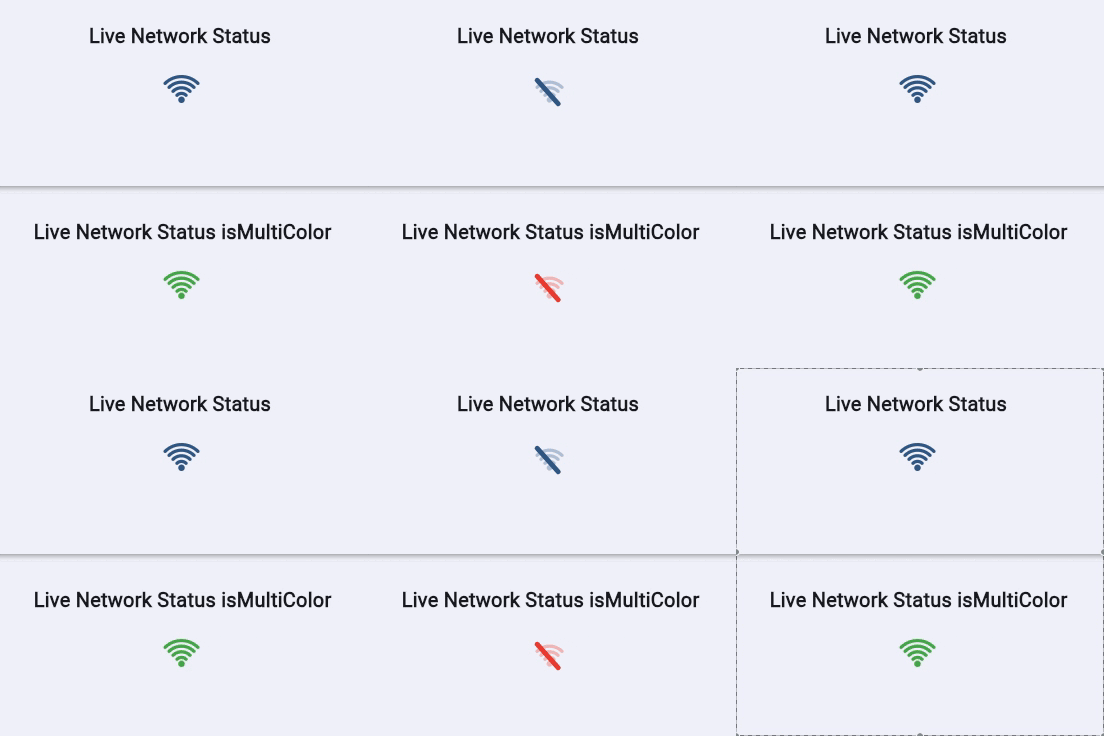
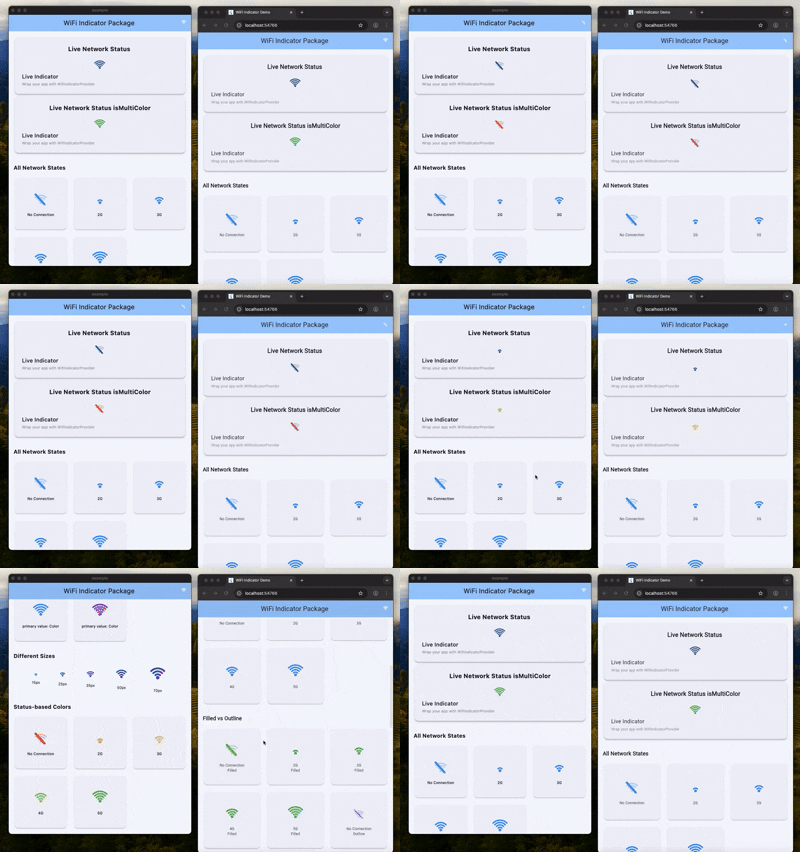
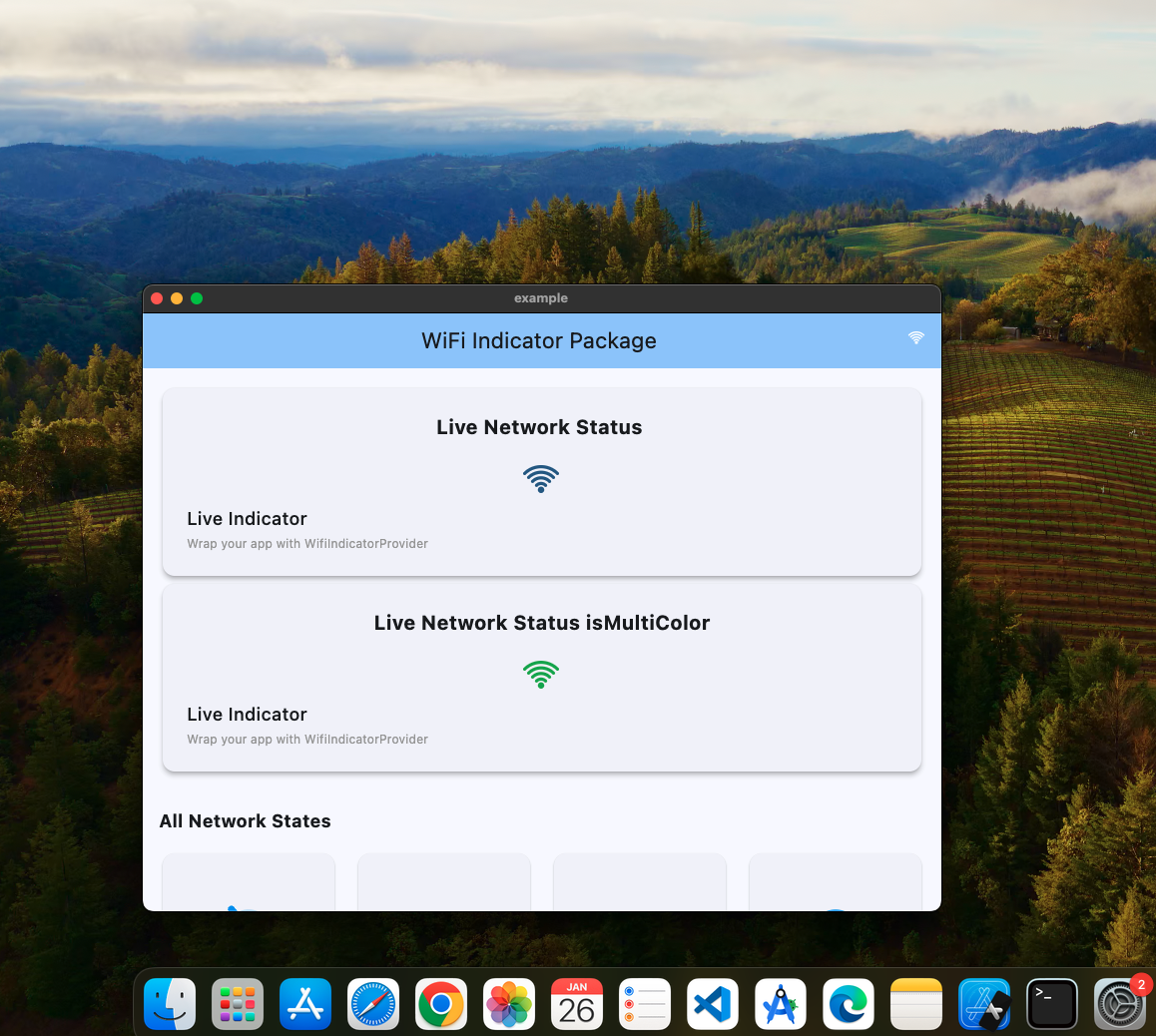
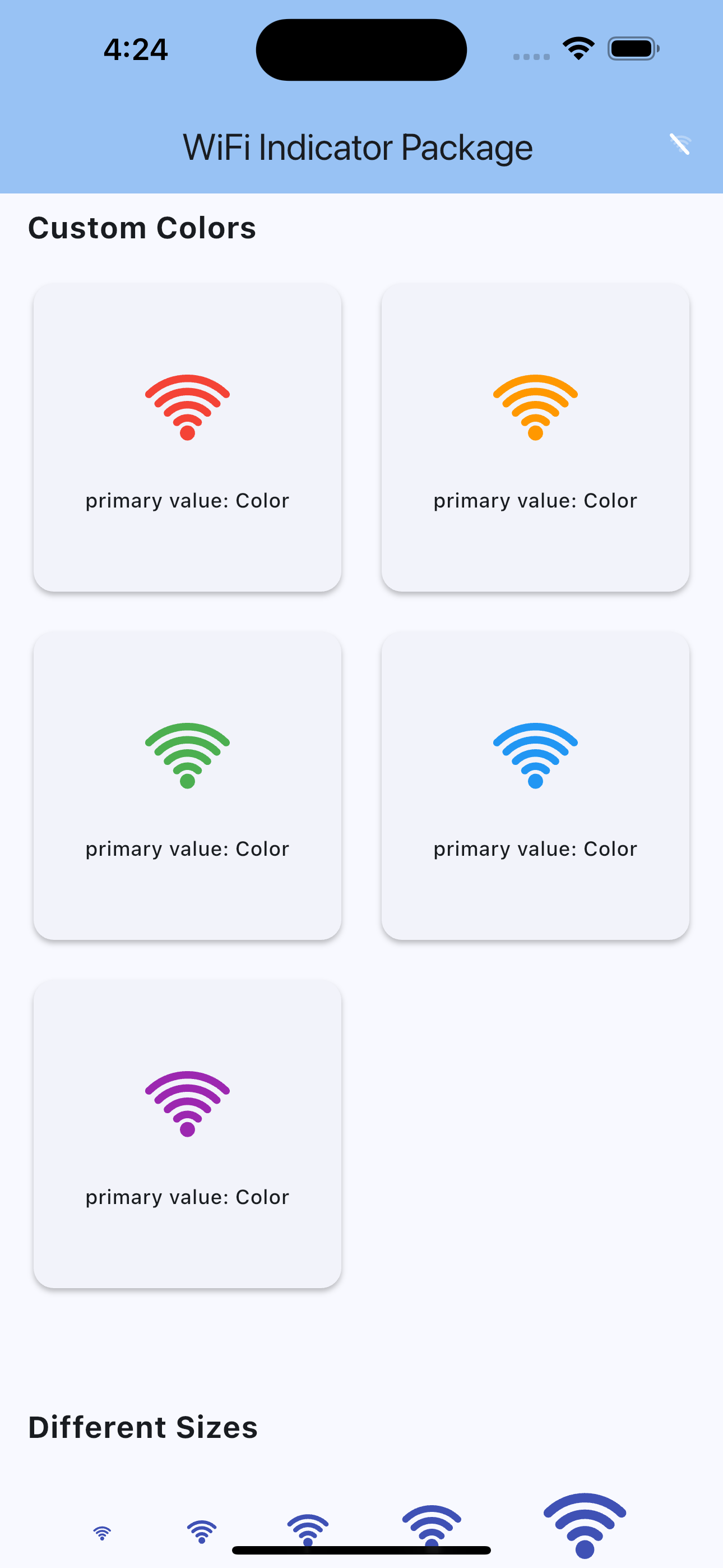
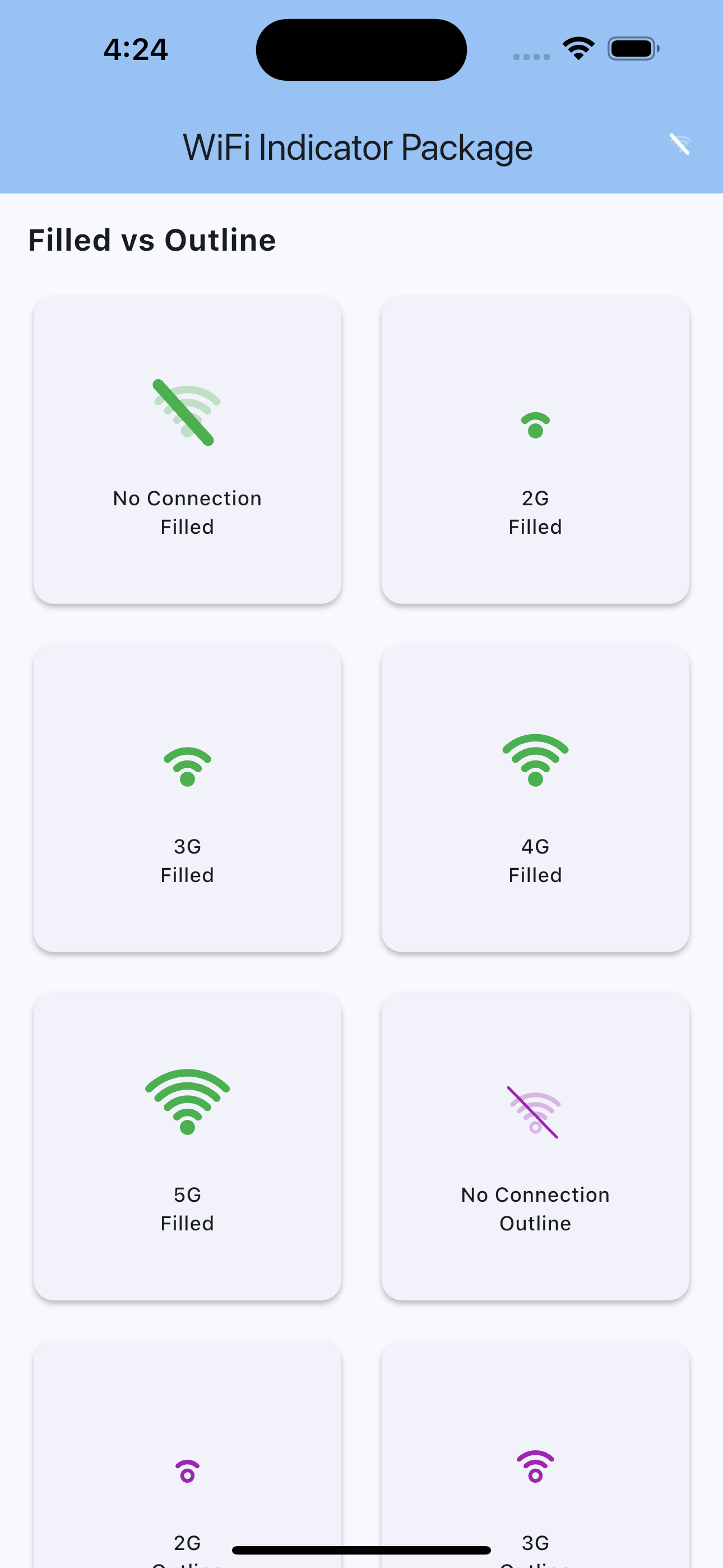
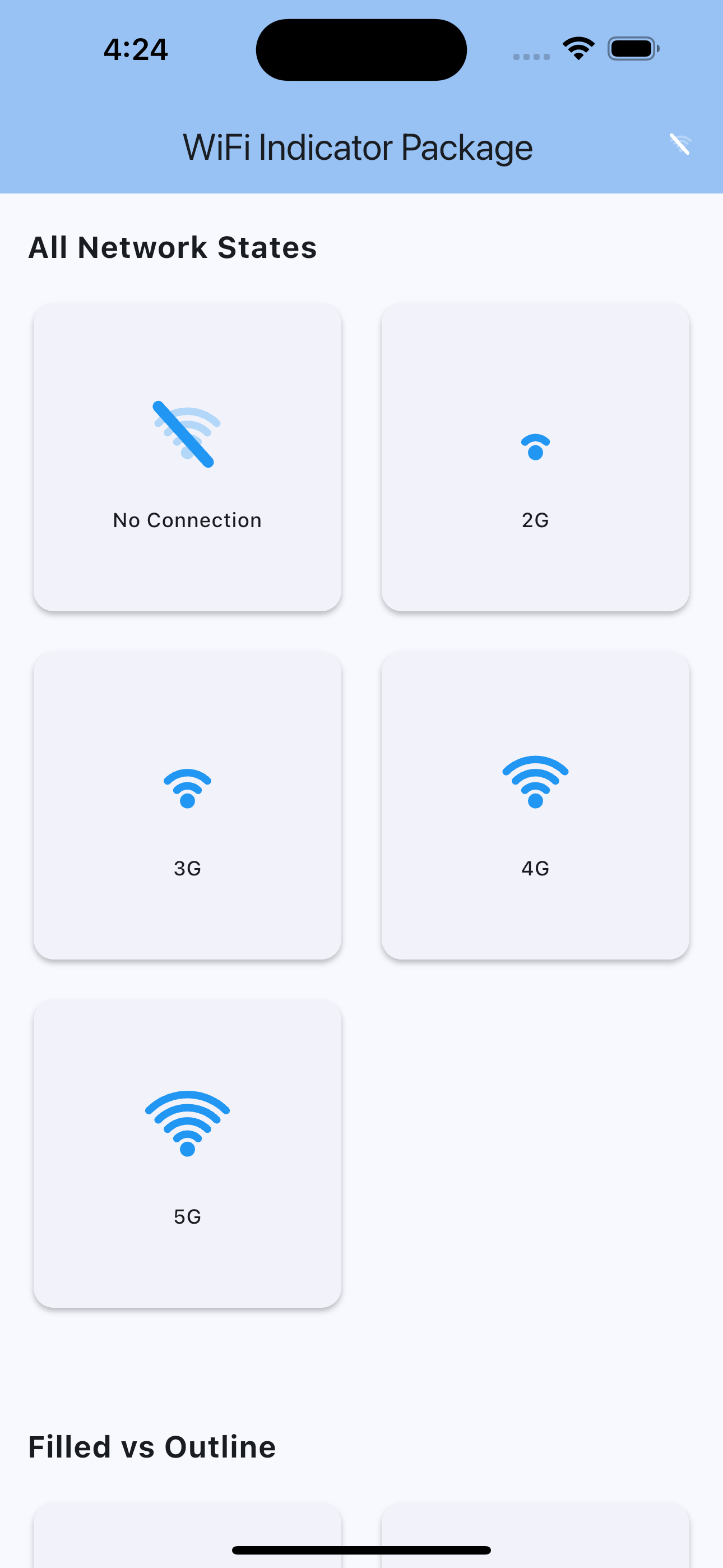
Platform Support #
| Android | iOS | macOS | Web | Linux | Windows |
|---|---|---|---|---|---|
| ✅ | ✅ | ✅ | ✅ | ✅ | ✅ |
Features #
- Real-time network monitoring using
connectivity_plus. - Lightweight state management with
provider(exposed asWifiIndicatorProvider). - Canvas-drawn WiFi icons: Filled and Outline variants.
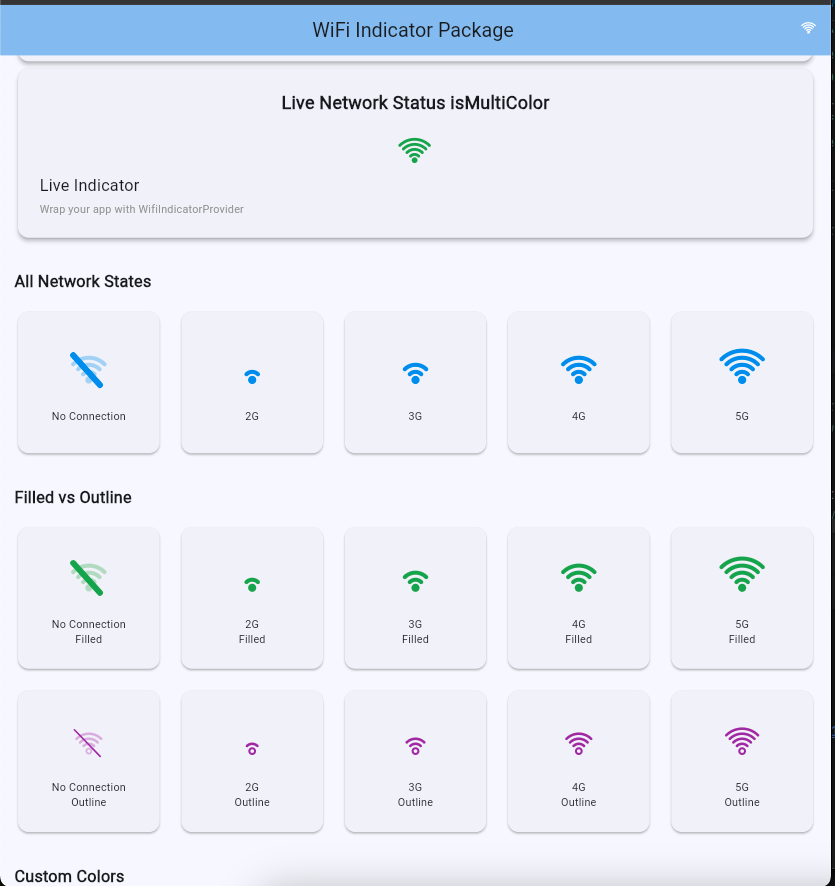
- Signal-strength aware icons (No connection / 2G / 3G / 4G / 5G mapped to 0..4 bars).
- Built-in recovery animation: when connection is regained, a short step animation builds bars like macOS, then settles to the real status.
- Fully configurable color per-status via
statusColors.
Installation #
Add the package to your pubspec.yaml (this package already depends on connectivity_plus and provider):
dependencies:
  flutter:
    sdk: flutter
  wifi_indicator: ^1.0.3
If you are using the example in this repo, run:
cd example
flutter pub get
flutter run -d chrome
Quick Usage #
Wrap your app (or a subtree) with WifiIndicatorProvider so the package can monitor connectivity changes. Place WifiIndicator where you want the icon to appear.
import 'package:flutter/material.dart';
import 'package:wifi_indicator/wifi_indicator.dart';

void main() => runApp(
  WifiIndicatorProvider(
    child: MaterialApp(home: Scaffold(body: Center(child: Home()))),
  ),
);

class Home extends StatelessWidget {
  @override
  Widget build(BuildContext context) {
    return Row(
      mainAxisAlignment: MainAxisAlignment.center,
      children: [
        // Live indicator that follows device connectivity
        WifiIndicator(size: 36, type: WifiIndicatorType.filled),

        const SizedBox(width: 24),

        // Static indicator for documentation / UI (overrideStatus)
        WifiIndicator(
          size: 36,
          type: WifiIndicatorType.outline,
          overrideStatus: NetworkStatus.fast, // force 4G/3 bars look
        ),
      ],
    );
  }
}
Notes:
WifiIndicatorautomatically listens to network updates fromWifiIndicatorProvider(which instantiates the internalNetworkProvider).- To show a static state (for design or testing), provide
overrideStatus.
Multi-color guide (per-status colors) #
You can pass a map of NetworkStatus to Color to the WifiIndicator so each status uses a color you choose:
final statusColors = {
  NetworkStatus.none: Colors.red,
  NetworkStatus.slow: Colors.orange,
  NetworkStatus.medium: Colors.yellow.shade700,
  NetworkStatus.fast: Colors.lightGreen,
  NetworkStatus.veryFast: Colors.green,
};

WifiIndicator(
  size: 40,
  type: WifiIndicatorType.filled,
  statusColors: statusColors,
  overrideStatus: NetworkStatus.veryFast,
);
This is convenient for dashboards where you want color to reflect severity or quality.
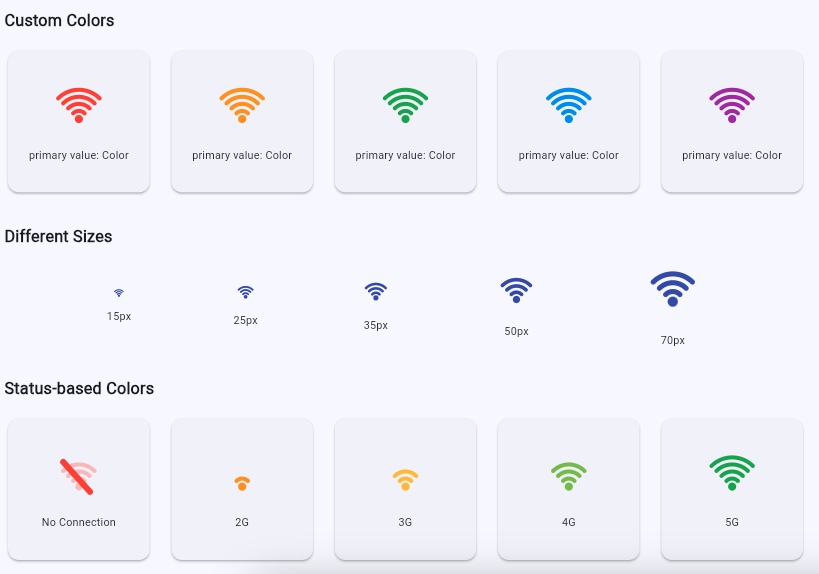
Example app & Screenshots #
- The
example/folder contains a demo app that showcases:- Live indicator in the app bar
- Grids of all statuses for
filledandoutlinestyles - Color variations and sizes
- Status-based color grid
API summary #
WifiIndicatorProvider— wrap your app and enables connectivity monitoring.WifiIndicator— the widget. Constructor highlights:size(double) — width/height in logical pixels.type(WifiIndicatorType.filled|WifiIndicatorType.outline).color(Color) — default color whenstatusColorsnot provided.statusColors(Map<NetworkStatus, Color>) — per-status color overrides.overrideStatus(NetworkStatus) — force the displayed status.
Contributing #
Contributions are welcome. Please open issues for bugs or feature requests. For PRs, follow standard Flutter package guidelines and include platform checks for web/desktop if adding native code Github.
❤️ Support Development #
If this saved you time: Buy Me a Coffee ☕
📄 License #
MIT License © 2025 Github
Additional information #
If you encounter any issues please report them here.
Metadata
Publisher
unverified uploader
Weekly Downloads
Metadata
A WiFi indicator widget that supports real-time network monitoring, multiple signal states, and filled/outline styles
Repository (GitHub)
View/report issues
Topics
#wifi #wifi-indicator #network-status #connectivity-plus #status-indicator
Documentation
License
 MIT (license)
Dependencies
connectivity_plus, flutter, provider

