
sqflite_live 1.0.1  sqflite_live: ^1.0.1 copied to clipboard
 nemr.dev
Sqflite live server for viewing db data on web-based local server.
sqflite_live #
A Dart package that spins up a local HTTP/WebSocket server to provide a live, real-time view of your SQLite database (sqflite) in the browser or any networked device.
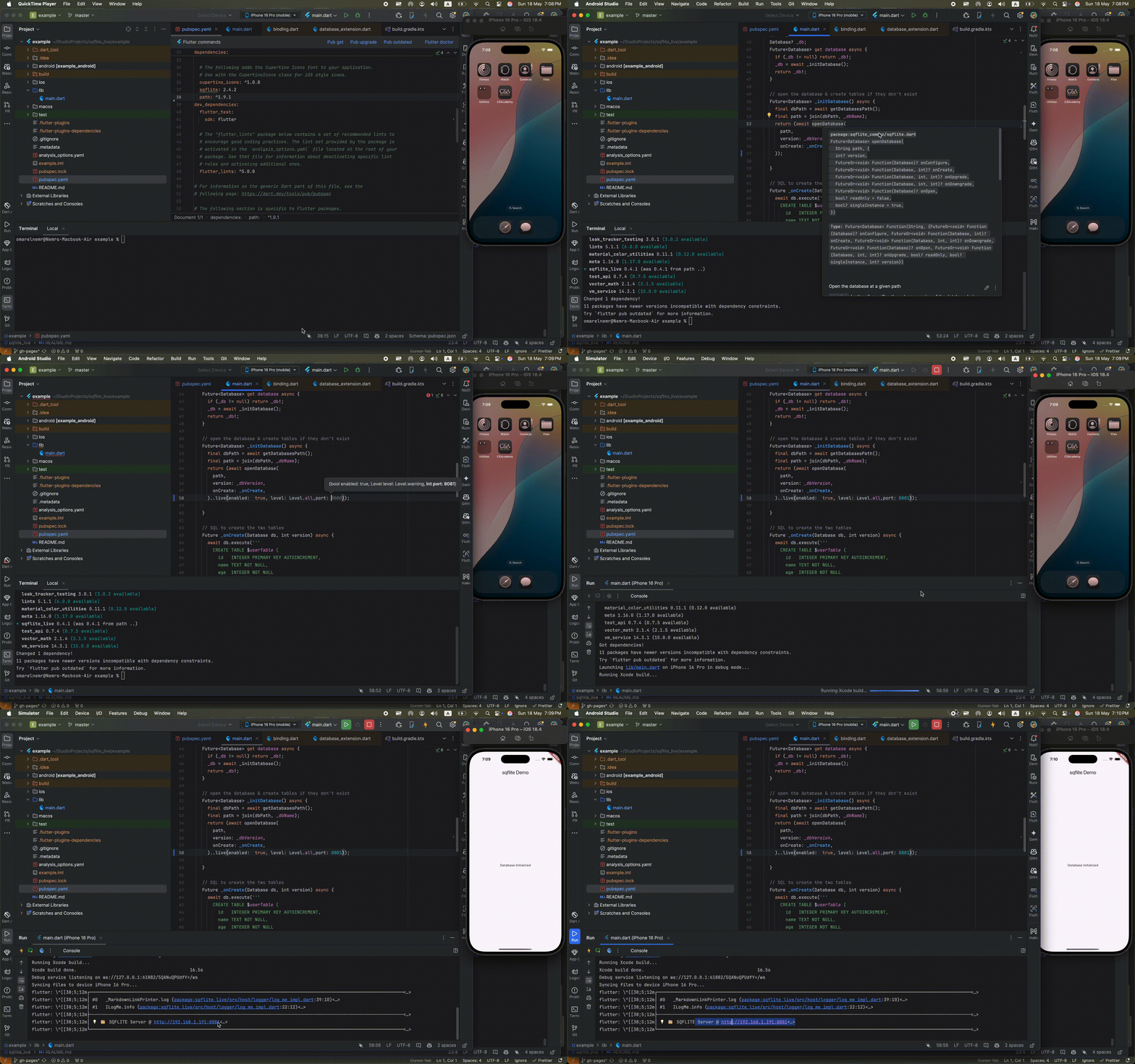
Demo #
Features #
- ✅ Runs a local server with a symbolic link to your sqflite db file.
- ✅ Runs on any device on the same network using the provided link.
- ✅ Just refresh for updates.(on any CRUD operation just refresh your browser)
- ✅ Deletes all unneeded data after closing the server.
- ❌ Adding a widget for showing that the server is running.
Credits #
This package utilizes a custom version of sqlite_viewer for displaying and interacting with the SQLite database.
Installation #
Add the package to your pubspec.yaml:
dependencies:
  sqflite_live: ^1.0.0
Then run:
flutter pub get
Example Usage #
In your Flutter app, simply call .live() on your database instance. For example:
import 'package:path/path.dart';
import 'package:sqflite/sqflite.dart';
import 'package:sqflite_live/sqflite_live.dart';

Future<Database> _initDatabase() async {
  final dbPath = await getDatabasesPath();
  final path = join(dbPath, 'my_database.db');

  return (await openDatabase(
    path,
    version: 1,
    onCreate: (db, version) async {
      await db.execute(
        'CREATE TABLE items(id INTEGER PRIMARY KEY, name TEXT)',
      );
    },
  ))
    // Start the live server on port 8080
    ..live(port: 8080);
}
Now run your app and open your browser (or any device on the same network) to:
http://<YOUR_DEVICE_IP>:8080
to view and interact with live database updates.
Platform-Specific Permissions #
Most Apps doesn't need these permissions and work correctly without them, but if you want to access the sqlite viewer from other devices on the same network, you need to add some permissions.
Android #
if you are using an emulator and you want to access the sqlite viewer from host, run in your terminal:
adb -s emulator-5554 forward tcp:8081 tcp:8081
replace emulator-5554 with your emulator ID and 8081 with your selected port.
it's advised to use this in debug mode only as you can use AndroidManifest.xml inside your debug folder.
In android/app/src/main/AndroidManifest.xml, ensure you have:
<manifest xmlns:android="http://schemas.android.com/apk/res/android" package="com.example.app">
  <!-- Allow HTTP server to receive and send traffic -->
  <uses-permission android:name="android.permission.INTERNET" />

  <application
    android:label="${applicationName}"
    android:usesCleartextTraffic="true"  <!-- Enable clear-text (HTTP) traffic -->
    ...>
  </application>
</manifest>
If targeting Android 9+ and you want to restrict cleartext to local LAN only, create android/app/src/main/res/xml/network_security_config.xml:
<network-security-config>
  <domain-config cleartextTrafficPermitted="true">
    <domain includeSubdomains="true">10.0.2.2</domain>
    <domain includeSubdomains="true">192.168.*.*</domain>
  </domain-config>
</network-security-config>
Then reference it in your AndroidManifest.xml:
<application
  android:networkSecurityConfig="@xml/network_security_config"
  android:usesCleartextTraffic="false"
  ...>
iOS #
it's advised to use this in debug mode only as you can create a info-development.plist
In ios/Runner/Info.plist, add:
<key>NSLocalNetworkUsageDescription</key>
<string>This app needs to host a local HTTP server to provide a live view of the database on other devices.</string>

<key>NSBonjourServices</key>
<array>
  <string>_http._tcp</string>
</array>
After installation, iOS will prompt:
“"YourApp" Would Like to Find and Connect to Devices on Your Local Network.”
Be sure the user grants this, or go to Settings → Privacy → Local Network.
macOS #
it's advised to use this in debug mode only as you can create a info-development.plist
For Flutter desktop apps, add these entitlements and Info.plist entries.
macos/Runner/DebugProfile.entitlements & Release.entitlements:
<key>com.apple.security.network.client</key>
<true/>
<key>com.apple.security.network.server</key>
<true/>
macos/Runner/Info.plist:
<key>NSLocalNetworkUsageDescription</key>
<string>This app hosts a local HTTP server for live database debugging.</string>

<key>NSBonjourServices</key>
<array>
  <string>_http._tcp</string>
</array>
Reinstall the app to see the Local Network permission prompt in System Settings.
License #
BSD 3-clause license © Omar Elnemr
Metadata
Publisher
Weekly Downloads
Metadata
Sqflite live server for viewing db data on web-based local server.
Repository (GitHub)
View/report issues
Documentation
License
 BSD-3-Clause (license)
Dependencies
archive, equatable, flutter, logger, mime, path, path_provider, sqflite

