
sqflite_dev 1.0.6  sqflite_dev: ^1.0.6 copied to clipboard
Web-based SQLite workbench for Flutter and pure Dart development
sqflite_dev #
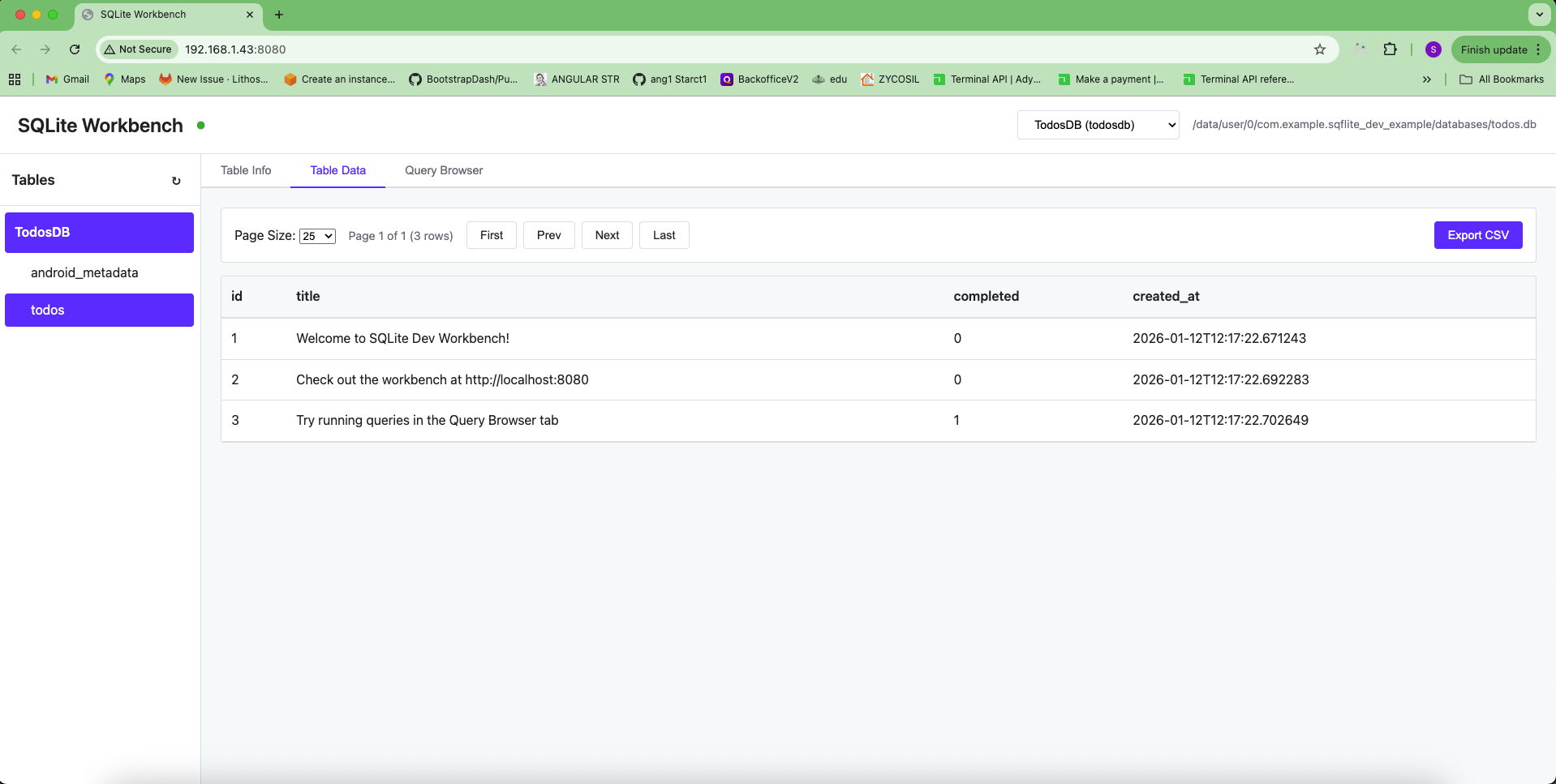
A developer dependency package that provides a web-based SQLite workbench for Flutter and pure Dart apps during development. Works with both sqflite (mobile) and sqflite_common_ffi (desktop).
⚠️ Important #
This package is only for development use. Add it to your dev_dependencies, not dependencies. It will not be included in production builds.
Features #
- 🌐 Web-based workbench accessible from any device on your network
- 📊 View and manage multiple SQLite databases simultaneously
- 📋 Browse tables with pagination
- 🔍 View table schemas, indexes, and CREATE statements
- 💻 SQL query editor with syntax highlighting
- 📤 Export data to CSV
- 📱 Works on both mobile (iOS/Android) and desktop (Linux/Windows/macOS) platforms
- 🔄 Real-time connection status
Platform Compatibility #
- Mobile (iOS/Android/macOS): Use with
sqflitepackage - Desktop (Linux/Windows/macOS/Web): Use with
sqflite_common_ffipackage
Installation #
Add this package to your dev_dependencies in pubspec.yaml:
dev_dependencies:
  sqflite_dev: ^1.0.6
Then run:
flutter pub get
Note: Make sure you also have either sqflite (for mobile) or sqflite_common_ffi (for desktop) in your dependencies section.
Usage #
Method 1: Using WorkbenchHelper (Recommended - Similar to sqflite_orm) #
This is the easiest way, similar to sqflite_orm's webDebug option:
import 'package:sqflite/sqflite.dart'; // or sqflite_common_ffi for desktop
import 'package:sqflite_dev/sqflite_dev.dart';

void main() async {
  WidgetsFlutterBinding.ensureInitialized();

  // For desktop platforms, initialize FFI first
  // import 'package:sqflite_common_ffi/sqflite_ffi.dart';
  // sqfliteFfiInit();
  // databaseFactory = databaseFactoryFfi;

  // Open your database
  final db = await openDatabase(
    'my_database.db',
    version: 1,
    onCreate: (db, version) {
      // Your schema creation code
    },
  );

  // Enable workbench
  db.enableWorkbench(
    webDebug: true,
    webDebugPort: 8080,
    webDebugName: 'MyAppDB',
  );

  runApp(MyApp());
}
Method 2: Manual Enable #
You can also enable the workbench manually:
import 'package:sqflite/sqflite.dart';
import 'package:sqflite_dev/sqflite_dev.dart';

void main() async {
  WidgetsFlutterBinding.ensureInitialized();

  // Open your database
  final db = await openDatabase('my_database.db');

  // Enable workbench (only works in debug mode)
  db.enableWorkbench();

  runApp(MyApp());
}
Desktop (Linux/Windows/macOS) with sqflite_common_ffi #
import 'package:sqflite_common_ffi/sqflite_ffi.dart';
import 'package:sqflite_dev/sqflite_dev.dart';

void main() async {
  // Initialize FFI
  sqfliteFfiInit();
  databaseFactory = databaseFactoryFfi;

  // Open your database
  final db = await openDatabase('my_database.db');

  // Enable workbench
  db.enableWorkbench(
    webDebug: true,
    webDebugPort: 8080,
    webDebugName: 'MyDatabase',
  );

  runApp(MyApp());
}
Multiple Databases #
You can register multiple databases:
final db1 = await openDatabase('main.db');
db1.enableWorkbench(webDebugName: 'MainDB');

final db2 = await openDatabase('cache.db');
db2.enableWorkbench(webDebugName: 'CacheDB');

final db3 = await openDatabase('user.db');
db3.enableWorkbench(webDebugName: 'UserDB');
All databases will be accessible through the same web portal. Use the database selector in the header to switch between them.
Custom Port #
By default, the workbench runs on port 8080. You can change it:
// Using enableWorkbench directly
db.enableWorkbench(webDebugPort: 3000);

// Or using WorkbenchHelper
WorkbenchHelper.autoEnable(db, webDebugPort: 3000);
If the port is already in use, the server will try the next available port.
Accessing the Workbench #
Once you run your app in debug mode, the workbench server will start automatically. You'll see output in your console:
═══════════════════════════════════════════════════════════
sqflite_dev: Workbench server started!
  Local:   http://localhost:8080
  Network: http://192.168.1.100:8080
═══════════════════════════════════════════════════════════
- Local: Access from the same device running the app
- Network: Access from any device on the same network (your development PC, other devices, etc.)
Workbench Features #
Database Management #
- View all registered databases
- Switch between databases using the dropdown selector
- See database path and connection status
Table Operations #
- Table List: View all tables in the left sidebar, grouped by database
- Table Info Tab:
- View table schema (columns, types, constraints)
- See indexes
- View CREATE TABLE statement
- Table Data Tab:
- Browse table data with pagination (10, 25, 50, 100 rows per page)
- Sort columns by clicking headers
- Export data to CSV
- Query Browser Tab:
- Execute SQL queries (SELECT, INSERT, UPDATE, DELETE)
- View query results
- Query history
- Export results to CSV
- Keyboard shortcut:
Ctrl+Enterto execute
Security Considerations #
- ✅ Should be in
dev_dependencies(excluded from production builds) - ✅ Accessible only on your local network
- ✅ User controls enablement via
webDebugparameter - ⚠️ Never use in production - this is a development tool only
- ⚠️ Always set
webDebug: falsein production code - even though it's in dev_dependencies, be explicit
Troubleshooting #
Workbench doesn't start #
- Make sure
webDebug: trueis set when callingWorkbenchHelper.autoEnable()orenableWorkbench() - Check that the package is in
dev_dependencies - Verify the port isn't blocked by a firewall
- Ensure the database is opened before calling
enableWorkbench()orWorkbenchHelper.autoEnable()
Can't access from another device #
- Ensure both devices are on the same network
- Check the network IP address shown in the console output
- Verify your firewall allows connections on the port
- On mobile devices, make sure the device and your PC are on the same Wi-Fi network
Web UI not loading #
- The web UI is now embedded in the package (no external files needed)
- If you see connection errors, check the browser console for details
- Make sure you're accessing the correct URL (check console output for the exact address)
Tables not showing #
- Make sure the database is opened and registered
- Try refreshing the tables list using the refresh button (↻) in the sidebar
- Check the browser console for errors
- Verify the database has tables (empty databases won't show tables)
License #
This package is licensed under the MIT License. See the LICENSE file for details.
Contributing #
Contributions are welcome! Please feel free to submit issues or pull requests.
Metadata
Publisher
unverified uploader
Weekly Downloads
Metadata
Web-based SQLite workbench for Flutter and pure Dart development
Repository (GitHub)
View/report issues
Documentation
License
 MIT (license)
Dependencies
path, shelf, shelf_cors_headers, sqflite_common

