
save_points_chart 1.7.0  save_points_chart: ^1.7.0 copied to clipboard
Modern Flutter charting library with 17 chart types, Material 3 design, smooth animations, and zero dependencies.
Save Points Chart 📊 #
A modern, high-performance Flutter charting library with full theme support, featuring 17 chart types, Material 3 design, smooth animations, and interactive context menus with visual border highlighting.


🌐 Live Demo #
Try it out in your browser: Live Demo →
🎥 Demo #
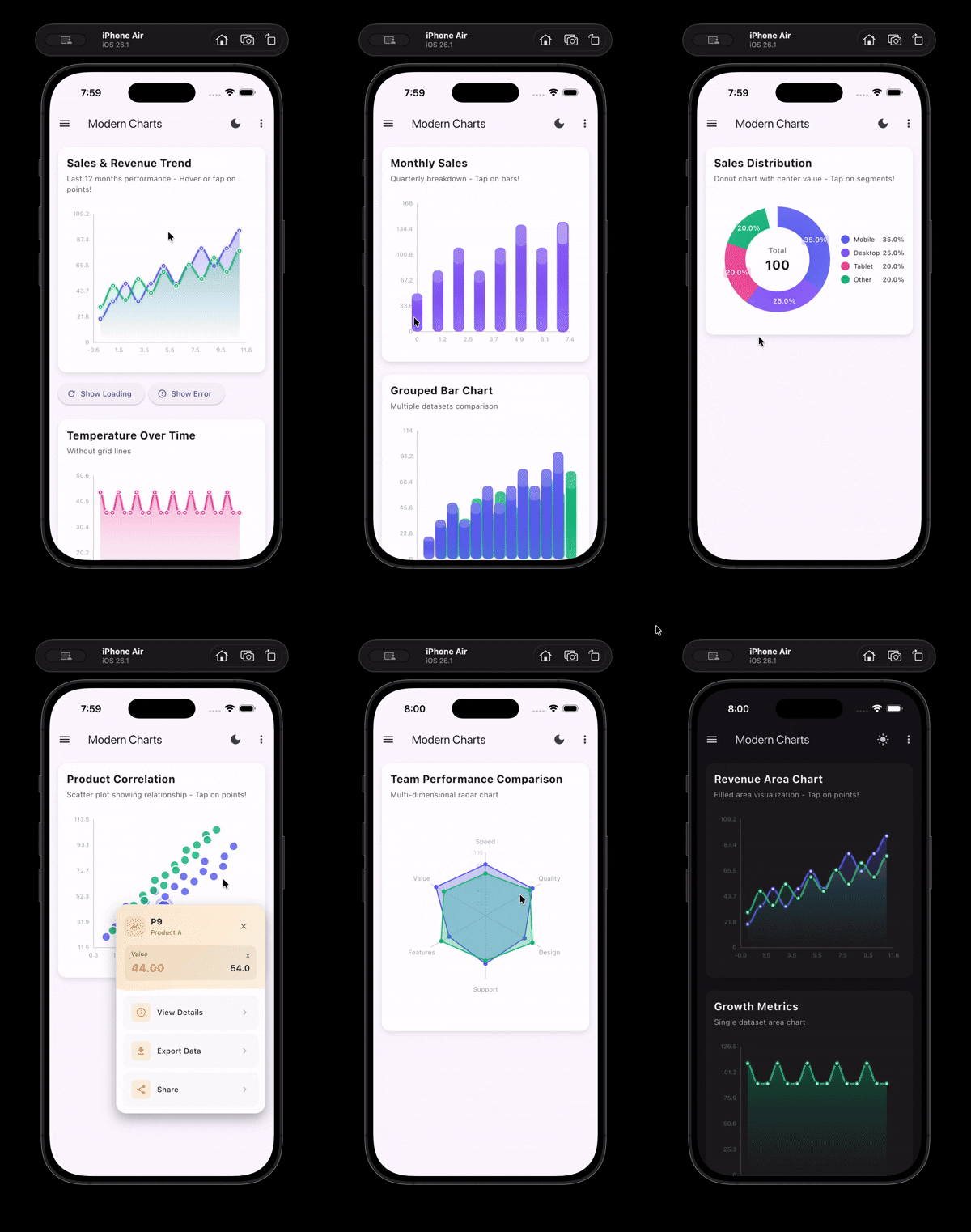
🎯 Features #
- 17 Chart Types: Line, Bar, Area, Stacked Area, Pie, Donut, Radial, Sparkline, Scatter, Bubble, Radar, Gauge, Spline, Step Line, Stacked Column, Pyramid, and Funnel charts
- Zero Dependencies: No external packages required - uses only Flutter SDK
- Modern Design: Material 3, Neumorphism, and Glassmorphism effects
- Full Theme Support: Automatic light/dark theme adaptation with InheritedWidget
- Interactive Context Menus: Awesome context menus on tap with actions
- Click Interaction: All charts support click interaction with visual border highlighting
- Visual Border Highlighting: White borders (3-4px) appear on selected elements for clear feedback
- Haptic Feedback: Tactile feedback on all chart interactions for better UX
- Hover Support: Mouse hover effects on Line, Bar, Area, Scatter, Bubble, and Radial charts
- High Performance: Optimized rendering with cached calculations and minimal rebuilds
- Smooth Animations: Beautiful entrance animations for all chart types
- Clean Architecture: Modular, reusable, and maintainable code
- Highly Customizable: Extensive configuration options
📦 Installation #
Add this to your package's pubspec.yaml file:
dependencies:
  save_points_chart: ^1.5.2
Then run:
flutter pub get
Note: This package has zero external dependencies! Charts work perfectly without any state management - just pass a
ChartThemedirectly. The includedThemeProvideruses Flutter's built-inInheritedWidgetfor theme management.
🚀 Quick Start #
import 'package:save_points_chart/save_points_chart.dart';

LineChartWidget(
  dataSets: [
    ChartDataSet(
      label: 'Day 1',
      color: Colors.blue,
      dataPoint: ChartDataPoint(x: 0, y: 10),
    ),
    ChartDataSet(
      label: 'Day 2',
      color: Colors.blue,
      dataPoint: ChartDataPoint(x: 1, y: 20),
    ),
    ChartDataSet(
      label: 'Day 3',
      color: Colors.blue,
      dataPoint: ChartDataPoint(x: 2, y: 15),
    ),
  ],
  theme: ChartTheme.light(),
  title: 'Sales Trend',
  subtitle: 'Last 3 months',
)
The demo showcases all 17 chart types with interactive features, click interactions, border highlighting, animations, and theme switching.
The video is also included in the published package on pub.dev.
📦 Dependencies #
- Zero external dependencies! - Uses only Flutter SDK
- No external charting library - Uses custom
CustomPainterimplementations for full control - Built-in state management -
ThemeProvideruses Flutter'sInheritedWidget(no provider package needed)
🏗️ Architecture #
lib/
├── models/          # Data models (ChartDataPoint, PieData, ChartDataSet)
├── theme/           # Theme configuration (ChartTheme)
├── painters/        # Custom painters (BaseChartPainter, LineChartPainter, etc.)
├── widgets/          # Chart widgets (Line, Bar, Area, Stacked Area, Pie, Donut, Radial, Sparkline, Scatter, Bubble, Radar, Gauge, Spline, Step Line, Stacked Column, Pyramid, Funnel)
├── providers/        # Theme provider for state management
├── data/            # Sample data generators
└── screens/         # Demo screens
🎨 Design Decisions #
Chart Implementation: Custom CustomPainter #
Why Custom Implementation?
- ✅ Zero external dependencies - No charting library required
- ✅ Full control - Complete customization of every aspect
- ✅ Lightweight - No unnecessary features or bloat
- ✅ High performance - Optimized rendering with direct canvas access
- ✅ Theme-aware - Built from the ground up with theme support
- ✅ Maintainable - Simple, understandable code structure
Architecture:
BaseChartPainter- Common utilities (grid, axes, labels)- Specialized painters for each chart type
- Efficient rendering with minimal repaints
- Smooth animations through Flutter's animation system
Theme System #
- Adaptive Colors: Automatically adjusts based on light/dark mode
- Material 3: Uses Material Design 3 principles
- Gradient Support: Modern gradient fills for visual appeal
- Shadow System: Configurable elevation and shadows
- Glassmorphism: Optional frosted glass effect
- Neumorphism: Optional soft shadow effect
🚀 Usage #
Basic Example #
import 'package:flutter/material.dart';
import 'package:save_points_chart/save_points_chart.dart';

LineChartWidget(
  dataSets: [
    ChartDataSet(
      label: 'Day 1',
      color: Colors.blue,
      dataPoint: ChartDataPoint(x: 0, y: 10),
    ),
    ChartDataSet(
      label: 'Day 2',
      color: Colors.blue,
      dataPoint: ChartDataPoint(x: 1, y: 20),
    ),
    ChartDataSet(
      label: 'Day 3',
      color: Colors.blue,
      dataPoint: ChartDataPoint(x: 2, y: 15),
    ),
  ],
  theme: ChartTheme.light(),
  title: 'Sales Trend',
  subtitle: 'Last 3 months',
)
With Theme Provider (Optional) #
If you want to use the included ThemeProvider for automatic theme switching, wrap your app with it:
Complete App Setup:
import 'package:flutter/material.dart';
import 'package:save_points_chart/save_points_chart.dart';

void main() {
  runApp(const MyApp());
}

class MyApp extends StatelessWidget {
  const MyApp({super.key});

  @override
  Widget build(BuildContext context) {
    return ThemeProvider(
      child: _MaterialAppWithTheme(),
    );
  }
}

class _MaterialAppWithTheme extends StatelessWidget {
  const _MaterialAppWithTheme();

  @override
  Widget build(BuildContext context) {
    final themeProvider = ThemeProvider.of(context);

    return MaterialApp(
      theme: ThemeData.light(),
      darkTheme: ThemeData.dark(),
      themeMode: themeProvider.themeMode,
      home: MyHomePage(),
    );
  }
}
Using ThemeProvider in Widgets:
// Get theme provider anywhere in your widget tree
final themeProvider = ThemeProvider.of(context);

// Access chart theme
LineChartWidget(
  dataSets: dataSets,
  theme: themeProvider.chartTheme,
  useGlassmorphism: true,
)

// Toggle theme
IconButton(
  icon: Icon(themeProvider.isDarkMode ? Icons.light_mode : Icons.dark_mode),
  onPressed: () => themeProvider.toggleTheme(),
)
Note: ThemeProvider uses Flutter's built-in InheritedWidget, so no external dependencies are required! The widget automatically rebuilds when the theme changes.
Click Interaction & Visual Feedback #
All charts support click interaction with visual border highlighting. When you tap on chart elements (points, bars, segments), they show a prominent white border (3-4px) for clear visual feedback:
LineChartWidget(
  dataSets: dataSets,
  theme: chartTheme,
  onPointTap: (point, datasetIndex, pointIndex, position) {
    // Selected point will show white border automatically
    // Handle tap event
  },
)
Interactive Context Menu #
All charts support interactive context menus on tap with haptic feedback:
LineChartWidget(
  dataSets: dataSets,
  theme: chartTheme,
  onPointTap: (point, datasetIndex, pointIndex, position) {
    ChartContextMenuHelper.show(
      context,
      point: point,
      position: position,
      datasetIndex: datasetIndex,
      elementIndex: pointIndex,
      datasetLabel: 'Sales',
      theme: chartTheme,
      onViewDetails: () {
        // Handle view details
      },
      onExport: () {
        // Handle export
      },
      onShare: () {
        // Handle share
      },
    );
  },
)
Custom Height #
All charts support customizable height for flexible layouts:
LineChartWidget(
  dataSets: dataSets,
  theme: chartTheme,
  height: 400.0, // Custom height in pixels
  title: 'Sales Trend',
)
If height is not specified, charts use default heights optimized for each chart type.
Header and Footer #
All charts support optional header and footer widgets for additional content:
LineChartWidget(
  dataSets: dataSets,
  theme: chartTheme,
  title: 'Sales Trend',
  header: Container(
    padding: EdgeInsets.all(8.0),
    child: Text('Additional info above chart'),
  ),
  footer: Container(
    padding: EdgeInsets.all(8.0),
    child: Text('Additional info below chart'),
  ),
)
The header appears below the subtitle (if provided), and the footer appears below the chart. Both are optional and can contain any Flutter widget.
Hover Support #
Line, Bar, Area, Scatter, Bubble, and Radial charts support mouse hover with visual feedback:
LineChartWidget(
  dataSets: dataSets,
  theme: chartTheme,
  onPointHover: (point, datasetIndex, pointIndex) {
    // Handle hover - point is null when mouse exits
    if (point != null) {
      print('Hovering over: ${point.y}');
    }
  },
)

BarChartWidget(
  dataSets: dataSets,
  theme: chartTheme,
  onBarHover: (point, datasetIndex, barIndex) {
    // Handle bar hover
    if (point != null) {
      print('Hovering over bar: ${point.y}');
    }
  },
)

BubbleChartWidget(
  dataSets: dataSets,
  theme: chartTheme,
  onBubbleHover: (point, datasetIndex, pointIndex) {
    // Handle bubble hover
    if (point != null) {
      print('Hovering over bubble: ${point.y}');
    }
  },
)
Bubble Chart Example #
Bubble charts visualize three-dimensional data where x, y represent position and size represents a third dimension:
// Store dataSets to reuse in callbacks (important!)
final bubbleDataSets = [
  BubbleDataSet(
    label: 'Region A',
    color: Colors.blue,
    dataPoints: [
      BubbleDataPoint(x: 10, y: 20, size: 50, label: 'Point 1'),
      BubbleDataPoint(x: 15, y: 30, size: 75, label: 'Point 2'),
      BubbleDataPoint(x: 20, y: 25, size: 60, label: 'Point 3'),
    ],
  ),
  BubbleDataSet(
    label: 'Region B',
    color: Colors.pink,
    dataPoints: [
      BubbleDataPoint(x: 12, y: 22, size: 55, label: 'Point 1'),
      BubbleDataPoint(x: 18, y: 35, size: 80, label: 'Point 2'),
    ],
  ),
];

BubbleChartWidget(
  dataSets: bubbleDataSets,
  theme: chartTheme,
  title: 'Regional Performance',
  subtitle: 'Bubble chart with size dimension',
  minBubbleSize: 5.0,
  maxBubbleSize: 30.0,
  onBubbleTap: (point, datasetIndex, pointIndex, position) {
    // Always validate indices to prevent RangeError
    if (datasetIndex < 0 || datasetIndex >= bubbleDataSets.length) {
      return;
    }
    final dataSet = bubbleDataSets[datasetIndex];
    if (pointIndex < 0 || pointIndex >= dataSet.dataPoints.length) {
      return;
    }

    final bubblePoint = dataSet.dataPoints[pointIndex];
    print('Tapped: ${bubblePoint.label} - Size: ${bubblePoint.size}');

    // Show context menu
    ChartContextMenuHelper.show(
      context,
      point: point,
      position: position,
      datasetIndex: datasetIndex,
      elementIndex: pointIndex,
      datasetLabel: dataSet.label,
      theme: chartTheme,
      onViewDetails: () {
        // Handle view details
      },
    );
  },
)
Important: Always store your dataSets in a variable and reuse it in callbacks. Don't regenerate data in callbacks (e.g., SampleData.generateBubbleData()[datasetIndex]) as this can cause RangeError if the data structure changes or indices are invalid.
🎛️ Customization Options #
All charts support extensive customization:
- Colors: Theme-aware adaptive colors
- Gradients: Linear gradients for fills and backgrounds
- Line Thickness: Configurable stroke width
- Border Radius: Rounded corners
- Shadows: Elevation and shadow effects
- Axis Styling: Customizable axis appearance
- Grid Lines: Toggle grid visibility
- Legends: Show/hide legends
- Tooltips: Interactive tooltips
- Padding & Spacing: Configurable spacing
- Height: Customizable chart height for flexible layouts
- Header & Footer: Optional header and footer widgets for additional content
⚡ Performance Optimizations #
- Minimal Rebuilds: Charts only rebuild when data changes
- Cached Styling: Theme objects are cached and reused
- Efficient Rendering: Optimized paint operations
- Lightweight Animations: Smooth 60fps animations
- Lazy Loading: Data processed only when needed
🌓 Theme Switching #
The ThemeProvider supports automatic theme switching between:
- Light mode - Always use light theme
- Dark mode - Always use dark theme
- System mode - Follows device system settings
The theme automatically updates all charts and widgets that use ThemeProvider.of(context).chartTheme.
📱 Example App #
Try the live demo: https://startling-concha-05444f.netlify.app/
Or check out the example app in the repository to see all chart types in action.
📊 Chart Types #
Line Chart #
- Smooth curves
- Gradient area fills
- Interactive tooltips with haptic feedback
- Mouse hover support with visual feedback
- Multiple datasets
Bar Chart #
- Grouped or stacked bars
- Rounded corners
- Gradient fills
- Customizable spacing
- Mouse hover support with elevation effects
- Haptic feedback on tap
Area Chart #
- Filled areas with gradients
- Smooth curves
- Multiple datasets overlay
- Interactive point tapping
Stacked Area Chart #
- Cumulative multi-series visualization
- Stacked layers for trend comparison
- Multiple datasets required
- Smooth gradient fills
- Interactive point tapping
Pie Chart #
- Percentage labels
- Customizable colors
- Legend support
- Smooth animations
Donut Chart #
- Center value display
- Similar to pie with center space
- Modern donut design
Radial Chart #
- Multi-dimensional data
- Radar/spider chart
- Performance metrics visualization
- Mouse hover support with glow effects
- Haptic feedback on tap
Sparkline Chart #
- Compact inline charts
- Positive/negative color coding
- Trend visualization
Scatter Chart #
- Relationship visualization
- Correlation analysis
- Multiple data series support
- Interactive point tapping
- Mouse hover support
Bubble Chart #
- Three-dimensional data visualization (x, y position + size dimension)
- Size-based encoding for third variable
- Multiple data series support with distinct colors
- Interactive bubble tapping with haptic feedback
- Mouse hover support with visual feedback
- Customizable bubble size range (minBubbleSize, maxBubbleSize)
- Context menu support on tap
- Visual border highlighting on selection
- Smooth entrance animations
Radar Chart #
- Multi-dimensional data comparison
- Spider/web chart visualization
- Multiple series overlay
- Customizable grid levels
- Performance metrics display
Gauge Chart #
- Single metric visualization
- KPI and progress indicators
- Customizable segments
- Semi-circular or circular gauge
- Center label and unit display
- Interactive chart tapping
Spline Chart #
- Smooth bezier curves
- Gradient area fills
- Interactive point tapping with border highlighting
- Multiple datasets support
Step Line Chart #
- Step function visualization
- Horizontal and vertical segments
- Interactive point tapping with border highlighting
- Area fill support
Stacked Column Chart #
- Multiple datasets stacked vertically
- Interactive bar tapping with border highlighting
- Gradient fills per segment
- Customizable bar width
Pyramid Chart #
- Hierarchical data visualization
- Largest to smallest segments
- Interactive segment tapping with border highlighting
- Gradient fills
Funnel Chart #
- Sales funnel and conversion tracking
- Top to bottom narrowing
- Interactive segment tapping with border highlighting
- Gradient fills
🎨 Design Effects #
Glassmorphism #
Enable with useGlassmorphism: true for a frosted glass effect with backdrop blur.
Neumorphism #
Enable with useNeumorphism: true for soft shadows and embossed appearance.
📝 Example Screens #
The demo screen includes:
- Drawer navigation for chart type selection
- Theme toggle button
- Design effect selector (Glassmorphism/Neumorphism)
- Multiple chart examples per type
- Responsive layout
✅ Best Practices #
Data Handling in Callbacks #
Always store your dataSets and reuse them in callbacks. Don't regenerate data in callbacks as this can cause RangeError exceptions.
❌ Wrong:
BubbleChartWidget(
  dataSets: SampleData.generateBubbleData(),
  onBubbleTap: (point, datasetIndex, pointIndex, position) {
    // This can cause RangeError if data structure changes!
    final dataSet = SampleData.generateBubbleData()[datasetIndex];
    final bubblePoint = dataSet.dataPoints[pointIndex];
  },
)
✅ Correct:
final bubbleDataSets = SampleData.generateBubbleData();

BubbleChartWidget(
  dataSets: bubbleDataSets,
  onBubbleTap: (point, datasetIndex, pointIndex, position) {
    // Validate indices to prevent RangeError
    if (datasetIndex < 0 || datasetIndex >= bubbleDataSets.length) {
      return;
    }
    final dataSet = bubbleDataSets[datasetIndex];
    if (pointIndex < 0 || pointIndex >= dataSet.dataPoints.length) {
      return;
    }
    final bubblePoint = dataSet.dataPoints[pointIndex];
    // Safe to use bubblePoint now
  },
)
Index Validation #
Always validate indices in callbacks before accessing array elements. This prevents RangeError exceptions and makes your app more robust:
onBubbleTap: (point, datasetIndex, pointIndex, position) {
  // Validate datasetIndex
  if (datasetIndex < 0 || datasetIndex >= dataSets.length) {
    return; // Invalid dataset index
  }

  // Validate pointIndex
  final dataSet = dataSets[datasetIndex];
  if (pointIndex < 0 || pointIndex >= dataSet.dataPoints.length) {
    return; // Invalid point index
  }

  // Now safe to access
  final point = dataSet.dataPoints[pointIndex];
  // ... handle tap
}
This pattern applies to all chart types with interactive callbacks (Line, Bar, Area, Scatter, Bubble, Radial, etc.).
🔧 Extending #
To add new chart types:
- Create a new widget in
lib/widgets/ - Follow the existing pattern
- Use
ChartContainerfor consistent styling - Support
ChartThemefor theme awareness
🐛 Recent Improvements #
Latest Features #
Enhanced Customization (Latest)
- Added
heightproperty to all chart widgets for customizable sizing - Added
headerandfooterproperties to all chart widgets for additional content - Enhanced padding and clipping in chart painters for better visualization
- Improved X-axis padding calculation to prevent point clipping
- Refactored data handling with labels directly on data points for better clarity
Impact: Charts now offer more flexible layouts and customization options, making it easier to integrate charts into various UI designs.
Bug Fixes #
Fixed RangeError in Bubble Chart Callbacks
- Fixed
RangeErrorthat occurred when accessing data in bubble chart callbacks - Added proper bounds checking for
datasetIndexandpointIndexin all examples - Improved data handling by storing dataSets and reusing them in callbacks instead of regenerating
- This fix prevents crashes when invalid indices are passed to callbacks
Impact: All bubble chart implementations now include proper index validation, making the library more robust and preventing runtime exceptions.
📄 License #
This project is open source and available for use.
🤝 Contributing #
Contributions are welcome! Please feel free to submit a Pull Request.
📧 Support #
For issues, questions, or suggestions, please open an issue on GitHub.
Metadata
Publisher
unverified uploader
Weekly Downloads
Metadata
Modern Flutter charting library with 17 chart types, Material 3 design, smooth animations, and zero dependencies.
Homepage
Repository (GitHub)
View/report issues
License
 unknown (license)

