
mapchart 0.3.0  mapchart: ^0.3.0 copied to clipboard
 caduandrade.net
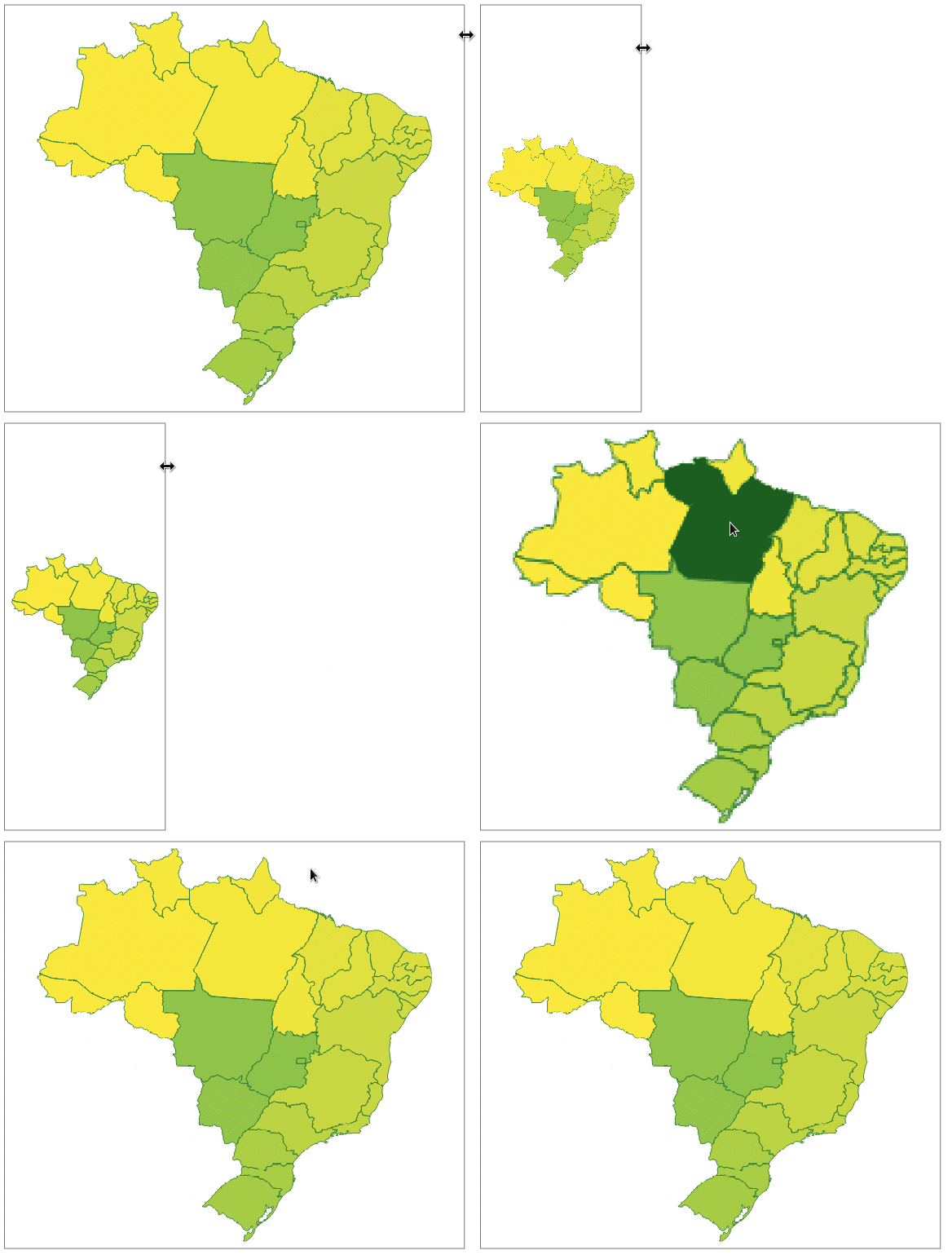
Vector map chart for Flutter. Highly customizable. Compatible with GeoJSON. Pure Flutter.


Map Chart #
- Displays GeoJSON geometries
- Multi resolution with geometry simplification
- Highly customizable
- Interactable
- Pure Flutter (no WebView/JavaScript)
Get started #
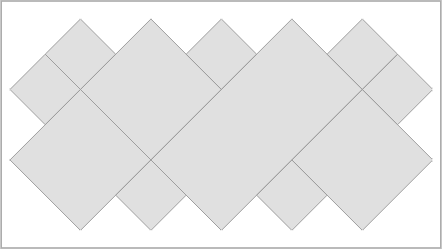
A simplified GeoJSON will be used in the examples to demonstrate the different possibilities of themes. This GeoJSON has only 4 features with the following properties:
| Id | Name | Satellites | Distance |
|---|---|---|---|
| venus | Venus | 108200000 | |
| earth | Earth | Moon | 149600000 |
| mars | Mars | Phobos, Deimos | 227900000 |
| mercury | Mercury | 57910000 |
To view the full content, use this link.
The following examples will assume that GeoJSON has already been loaded into a String.
Reading GeoJSON from String
    MapChartDataSource dataSource =
        await MapChartDataSource.geoJSON(geojson: geojson);
Creating the Widget
MapChart map = MapChart(dataSource: dataSource);
Changing the default colors #
    MapChart map = MapChart(
        dataSource: dataSource,
        theme: MapChartTheme(
            color: Colors.yellow,
            contourColor: Colors.red,
            hoverColor: Colors.orange));

Color by property value #
Sets a color for each property value in GeoJSON. If a color is not set, the default color is used.
Mapping the property key
    MapChartDataSource dataSource =
        await MapChartDataSource.geoJSON(geojson: geojson, valueKeys: ['Id']);
Setting the colors for the property values
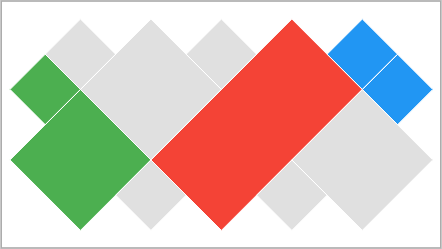
    MapChartTheme theme =
        MapChartTheme.value(contourColor: Colors.white, key: 'Id', colors: {
      'earth': Colors.green,
      'mars': Colors.red,
      'venus': Colors.orange
    }, hoverColors: {
      'earth': Colors.green[900]!,
      'mars': Colors.red[900]!,
      'venus': Colors.orange[900]!
    });

    MapChart map = MapChart(dataSource: dataSource, theme: theme);

Color by rule #
The feature color is obtained from the first rule that returns a non-null color. If all rules return a null color, the default color is used.
Mapping the property key
    MapChartDataSource dataSource = await MapChartDataSource.geoJSON(
        geojson: geojson, valueKeys: ['Distance']);
Setting the rules
    MapChartTheme theme = MapChartTheme.rule(
        contourColor: Colors.white,
        hoverColor: Colors.grey[700]!,
        colorRules: [
          (feature) {
            return feature.getValue('Distance') < 100000000
                ? Colors.green
                : null;
          },
          (feature) {
            return feature.getValue('Distance') < 200000000
                ? Colors.blue
                : null;
          }
        ]);

    MapChart map = MapChart(dataSource: dataSource, theme: theme);
Contour #
Thickness
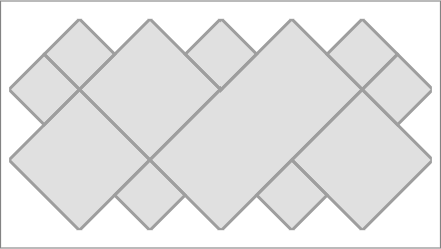
    MapChart map = MapChart(
        dataSource: dataSource, theme: MapChartTheme(contourThickness: 3));
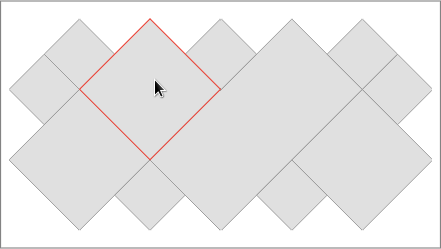
Hover contour color
    MapChart map = MapChart(
        dataSource: dataSource,
        theme: MapChartTheme(hoverContourColor: Colors.red));
Hover #
Listener
    MapChart map = MapChart(
        dataSource: dataSource,
        theme: MapChartTheme(hoverColor: Colors.grey[700]),
        hoverListener: (MapFeature? feature) {
          if (feature != null) {
            int id = feature.id;
            print('Hover - Feature id: $id');
          }
        });
Rule
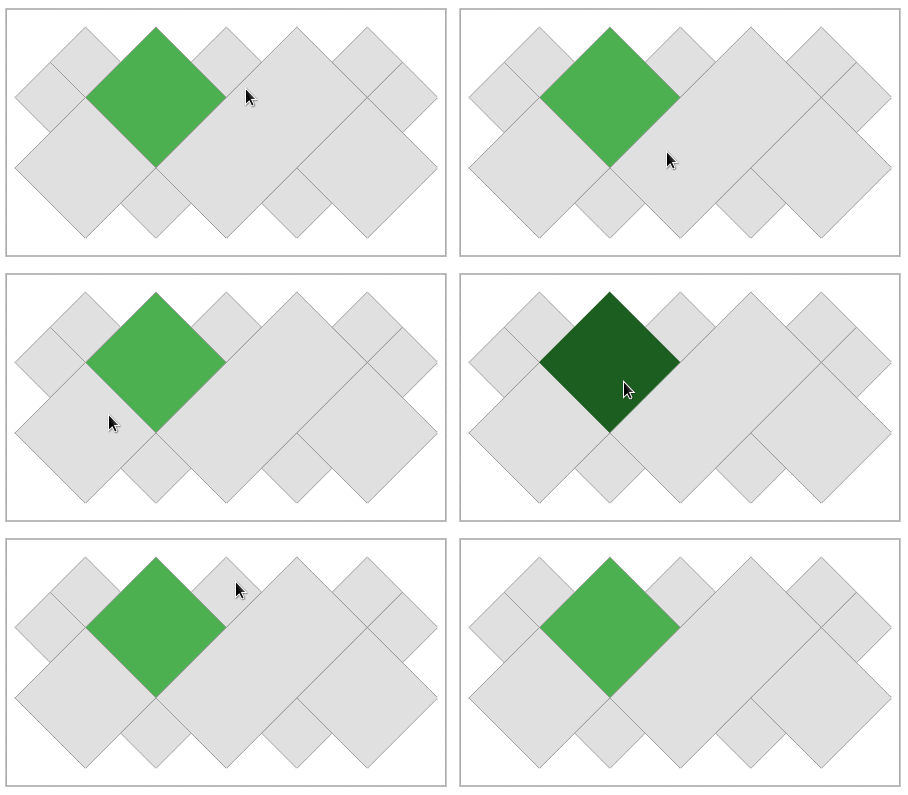
Enabling hover by property value
    MapChartDataSource dataSource =
        await MapChartDataSource.geoJSON(geojson: geojson, valueKeys: ['Id']);
    // coloring only the 'earth' feature
    MapChartTheme theme = MapChartTheme.value(
        key: 'Id',
        colors: {'earth': Colors.green},
        hoverColor: Colors.green[900]!);

    // enabling hover only for the 'earth' feature
    MapChart map = MapChart(
      dataSource: dataSource,
      theme: theme,
      hoverRule: (feature) {
        return feature.getValue('Id') == 'earth';
      },
    );
Click listener #
    MapChart map = MapChart(
        dataSource: dataSource,
        theme: MapChartTheme(hoverColor: Colors.grey[800]!),
        clickListener: (feature) {
          print(feature.id);
        });
Agenda for the next few days #
- More theming features.
- Legend.
- Release the final version (1.0.0). The API may have some small changes.
Metadata
Publisher
Weekly Downloads
Metadata
Vector map chart for Flutter. Highly customizable. Compatible with GeoJSON. Pure Flutter.
Repository (GitHub)
View/report issues
License
 unknown (license)

