
hyper_snackbar 0.2.3  hyper_snackbar: ^0.2.3 copied to clipboard
A highly customizable and animated snackbar package for Flutter.


Hyper Snackbar 🚀 #


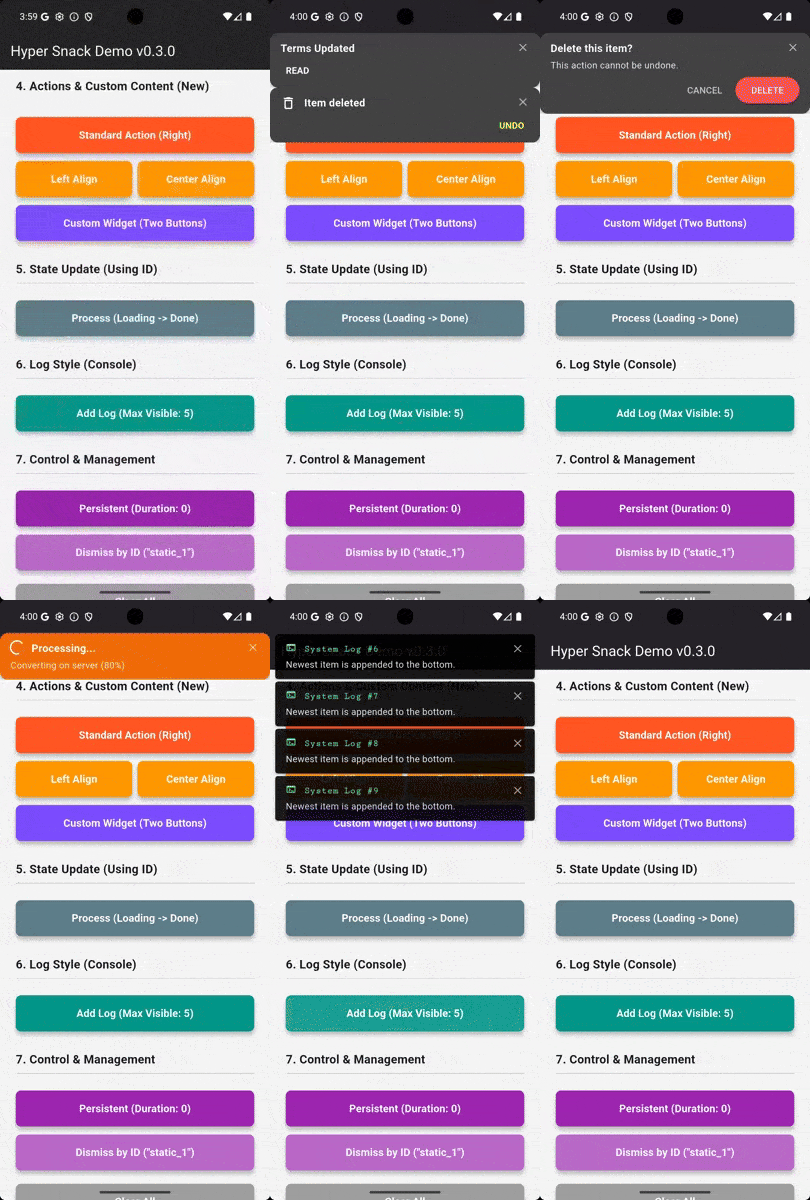
A highly customizable, animated, and stackable snackbar manager for Flutter. Designed for modern apps that need more than just a simple toast.

✨ Features #
- Stackable: Display multiple notifications simultaneously without overlap.
- Highly Customizable: Custom borders, margins, fonts, shadows, and tap actions.
- Smart Updates: Update the content (text, icon, color) of an existing snackbar by ID without animation glitches.
- Interactive: Support for action buttons (e.g., "Undo") and tap gestures on the bar itself.
- Flexible Positioning: Show at the Top or Bottom of the screen.
- Log Style: Option to append new notifications to the bottom of the list (console log style).
- Presets: Ready-to-use methods for Success, Error, Warning, and Info.
📦 Installation #
Add this to your package's pubspec.yaml file:
dependencies:
  hyper_snackbar: ^0.2.3
🚀 Setup (Important) #
To use HyperSnackbar from anywhere in your code (e.g., ViewModels, BLoCs), you must register the navigatorKey in your MaterialApp.
import 'package:hyper_snackbar/hyper_snackbar.dart';

void main() {
  runApp(const MyApp());
}

class MyApp extends StatelessWidget {
  const MyApp({super.key});

  @override
  Widget build(BuildContext context) {
    return MaterialApp(
      title: 'My App',
      // ▼ If you want to show snackbars without `BuildContext`, register the key here.
      navigatorKey: HyperSnackbar.navigatorKey,
      home: const HomePage(),
    );
  }
}
💡 Usage #
Basic Usage #
The API is now static, so you can call it directly without creating an instance. The show method uses named parameters for a more intuitive experience.
// Simply call the static method `show`!
HyperSnackbar.show(
  title: 'Success!',
  message: 'Data has been saved successfully.',
  backgroundColor: Colors.green,
);
Using BuildContext #
For cases where you need to use a local BuildContext (e.g., to navigate from a snackbar tap), you can pass it as an optional parameter.
// The snackbar will use the theme from this context
HyperSnackbar.show(
  title: 'Tap Me!',
  onTap: () {
    // This navigation requires the local context
    Navigator.of(context).push(...);
  },
  context: context, // Pass the context here
);
Using Extension (Optional) #
The convenient extension method on BuildContext has also been updated.
context.showHyperSnackbar(
  title: 'Hello from a Widget!',
  message: 'This is easy, right?',
);
1. Basic Presets #
Simple one-liners for common scenarios.
import 'package:hyper_snackbar/hyper_snackbar.dart';

// Success
HyperSnackbar.showSuccess(title: 'Saved successfully');

// Error
HyperSnackbar.showError(
  title: 'Connection Failed',
  message: 'Please check your internet connection.'
);

// Warning
HyperSnackbar.showWarning(title: 'Low Storage');

// Info
HyperSnackbar.showInfo(title: 'New Message Received');
2. Advanced Customization & Reusability #
Option A: Direct Customization (Recommended for one-offs)
Customize everything directly in the show method.
HyperSnackbar.show(
  title: 'Modern Notification',
  message: 'With custom border, font, and tap action.',
  backgroundColor: Color(0xFF212121),

  // Custom Design
  border: Border.all(color: Colors.white24, width: 1),
  borderRadius: 8,
  margin: EdgeInsets.all(16),
  titleStyle: TextStyle(fontSize: 18, fontWeight: FontWeight.bold),

  // Action Button
  action: HyperSnackAction(
    label: 'UNDO',
    textColor: Colors.amber,
    onPressed: () => print('Undo pressed'),
  ),
  context: context,
);
Option B: Reusing Configuration (For consistent styling)
If you need to reuse a style across your app, define a HyperConfig object and use the showFromConfig method.
// 1. Define your base style
final warningStyle = HyperConfig(
  backgroundColor: Colors.orange,
  icon: Icon(Icons.warning, color: Colors.white),
  position: HyperSnackPosition.bottom,
);

// 2. Use it anywhere, overriding only what you need
HyperSnackbar.showFromConfig(
  warningStyle.copyWith(
    title: 'Low Battery',
    message: 'Only 15% remaining.',
  ),
);
3. Update by ID (Loading -> Done) ⚡ #
This is the killer feature. You can update the state of a snackbar by providing a unique id.
const String processId = 'upload_process';

// 1. Show Loading state
HyperSnackbar.show(
  id: processId, // Unique ID
  title: 'Uploading...',
  displayDuration: null, // Keep it visible
  icon: CircularProgressIndicator(color: Colors.white),
);

// ... do some work ...

// 2. Update to "Done" state (using the same ID)
HyperSnackbar.show(
  id: processId, // Same ID replaces the content
  title: 'Upload Complete!',
  backgroundColor: Colors.green,
  icon: Icon(Icons.check_circle, color: Colors.white),
  displayDuration: Duration(seconds: 3), // Auto-dismiss after 3s
);
4. Log Style (Stacking Direction) #
By default, new items appear at the top. You can append them to the bottom like a chat or log.
HyperSnackbar.show(
  title: 'System Log',
  message: 'Newest item is at the bottom.',
  position: HyperSnackPosition.top,
  newestOnTop: false, // <--- Append to bottom
  enterAnimationType: HyperSnackAnimationType.top, // Use 'top' as unified animation type
);
5. Manually Dismissing #
You can dismiss a specific snackbar by ID, or clear all of them at once.
// Dismiss specific snackbar
HyperSnackbar.dismissById('upload_process');

// Clear all snackbars with animation (default)
HyperSnackbar.clearAll();

// Clear all snackbars immediately without animation
HyperSnackbar.clearAll(animated: false);
6. Fine-tuning Animations #
You can control the speed, direction, and curve for entry and exit, especially useful for fade or scale effects.
HyperSnackbar.show(
  title: 'Custom Fade Effect',
  message: 'Using linear curve for smooth fade.',
  backgroundColor: Colors.black,

  // Time: 0.6 seconds
  enterAnimationDuration: const Duration(milliseconds: 600),

  // Type: Fade In (Overrides default slide)
  enterAnimationType: HyperSnackAnimationType.fade,
  exitAnimationType: HyperSnackAnimationType.fade,

  // Curve: Slow start, ideal for visibility during short fades
  enterCurve: Curves.easeIn,
);
Using with GoRouter #
If you are using go_router, simply assign HyperSnackbar.navigatorKey to the navigatorKey property of your GoRouter configuration. This allows you to show snackbars even during navigation transitions.
final _router = GoRouter(
  navigatorKey: HyperSnackbar.navigatorKey, // Add this line
  routes: [ ... ],
);
⚙️ Configuration (HyperConfig) #
| Property | Type | Default | Description |
|---|---|---|---|
| Content | |||
title |
String |
Required | The main title text. |
message |
String? |
null |
The subtitle text. |
icon |
Widget? |
null |
Icon widget displayed on the left. |
action |
HyperSnackAction? |
null |
Action button definition (label & callback). |
| Style | |||
backgroundColor |
Color |
Grey[800] |
Background color of the snackbar. |
textColor |
Color |
White |
Color for title and message. |
borderRadius |
double |
12.0 |
Corner radius. |
border |
BoxBorder? |
null |
Border around the snackbar. |
margin |
EdgeInsets |
zero |
Outer margin (e.g., for floating effect). |
padding |
EdgeInsets |
16, 12 |
Inner padding. |
elevation |
double |
4.0 |
Shadow elevation. |
titleStyle |
TextStyle? |
null |
Custom style for the title. |
messageStyle |
TextStyle? |
null |
Custom style for the message. |
| Behavior | |||
id |
String? |
null |
Unique ID for updating content dynamically. |
onTap |
VoidCallback? |
null |
Callback when the entire bar is tapped. |
displayDuration |
Duration? |
4s |
Set null for persistent (sticky) notification. |
enableSwipe |
bool |
true |
Allow users to swipe to dismiss. |
showCloseButton |
bool |
true |
Show 'X' button on the right. |
newestOnTop |
bool |
true |
false appends new items to the bottom. |
| Animation | |||
enterAnimationType |
Enum |
.top |
Animation type for entry (e.g., slide from top, fade in). |
exitAnimationType |
Enum |
.left |
Animation type for exit (e.g., slide to left, fade out). |
enterAnimationDuration |
Duration |
300ms |
Duration of entry animation. |
exitAnimationDuration |
Duration |
500ms |
Duration of exit animation. |
enterCurve |
Curve |
easeOutQuart |
Animation curve for entry. |
exitCurve |
Curve |
easeOut |
Animation curve for exit. |
🛠 Methods #
| Method | Description |
|---|---|
show(...) |
Shows a new snackbar using named parameters. |
showFromConfig(HyperConfig config) |
Shows a snackbar from a pre-defined HyperConfig object. |
showSuccess(...) |
Preset for success messages (Green). |
showError(...) |
Preset for error messages (Red). |
showWarning(...) |
Preset for warning messages (Orange). |
showInfo(...) |
Preset for info messages (Blue). |
dismissById(String id) |
Dismisses the snackbar with the specified ID. |
clearAll({bool animated = true}) |
Dismisses all currently visible snackbars. Defaults to animated dismissal. |
isSnackbarOpen |
bool getter. Returns true if any snackbar is currently visible. |
isSnackbarOpenById(String id) |
Returns true if the snackbar with the specified ID is currently visible. |
❤️ Contributing #
Contributions are welcome! Please feel free to submit a Pull Request.
📄 License #
MIT License
Metadata
Publisher
unverified uploader
Weekly Downloads
Metadata
A highly customizable and animated snackbar package for Flutter.
Repository (GitHub)
View/report issues
License
 unknown (license)

