
auth_uae_pass 0.0.7  auth_uae_pass: ^0.0.7 copied to clipboard
Production-ready UAE PASS SDK for Flutter. Supports seamless login, Biometric FaceID (SOP3), and secure profile retrieval for UAE citizens and visitors.
UAE PASS Flutter SDK: Secure Login & Identity for UAE Apps #
The definitive, production-ready Flutter package for UAE PASS, the United Arab Emirates' official digital identity solution. Built for security, speed, and seamless developer experience (DX), this SDK handles native app redirects, deep link resumption, and OIDC token flows out of the box with over 120+ customizable UI variations.


🌟 Why this UAE PASS SDK? #
- ⚡ Lazy Initialization: Optimize app startup by initializing the SDK only when needed.
- 📂 Full Profile Retrieval: Get authenticated user data including Emirates ID (IDN), Email, and Full Name.
- 🛡️ SOP Level Detection: Automatically detect verification levels (
sop1,sop2,sop3) for high-security applications. - 📱 Cold Start Support: Robust deep link handling even if the app was killed in the background.
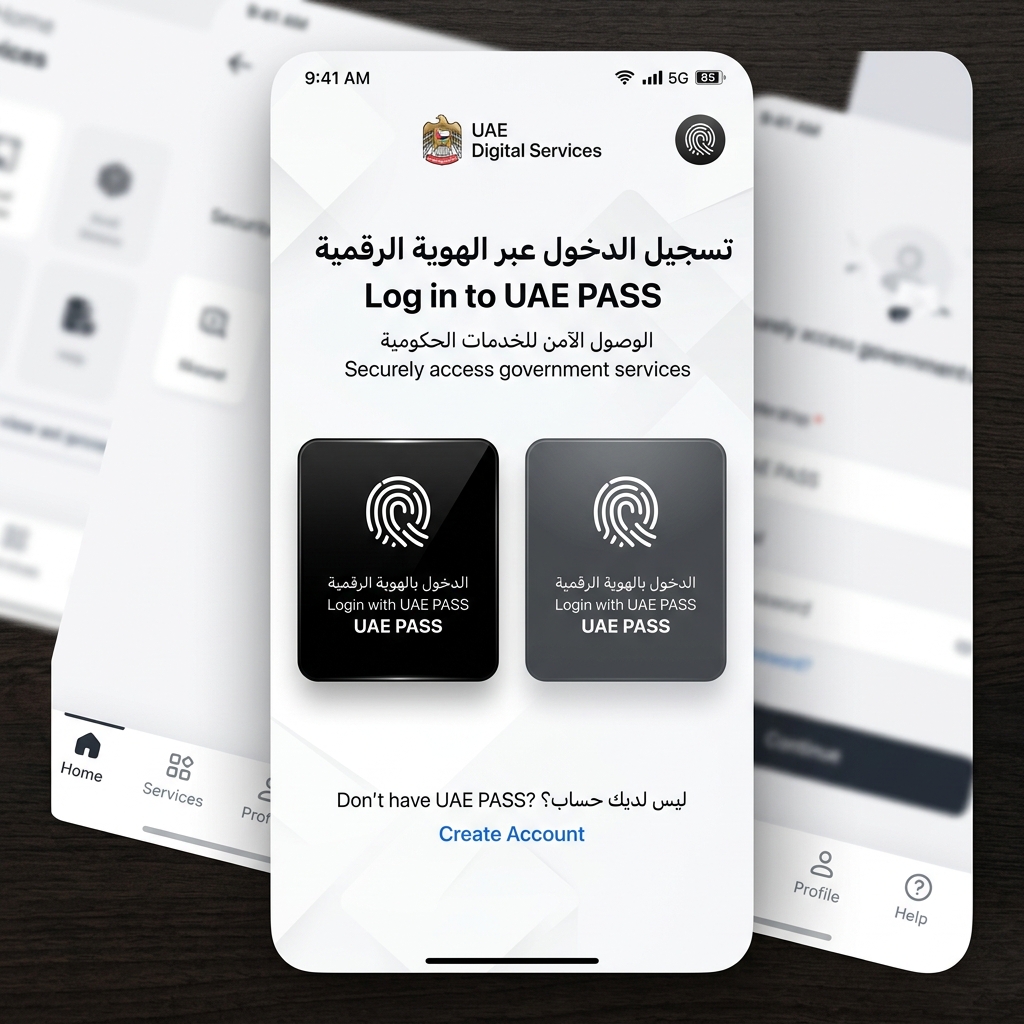
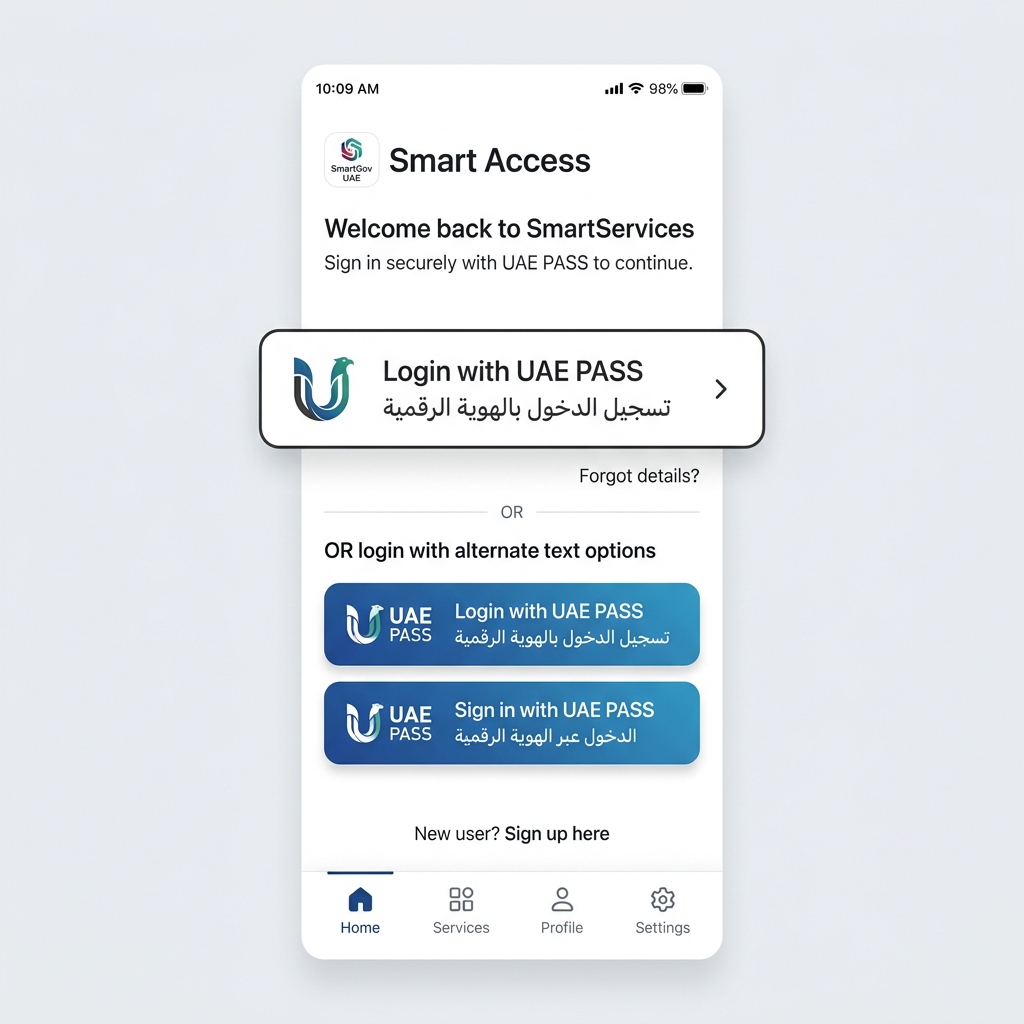
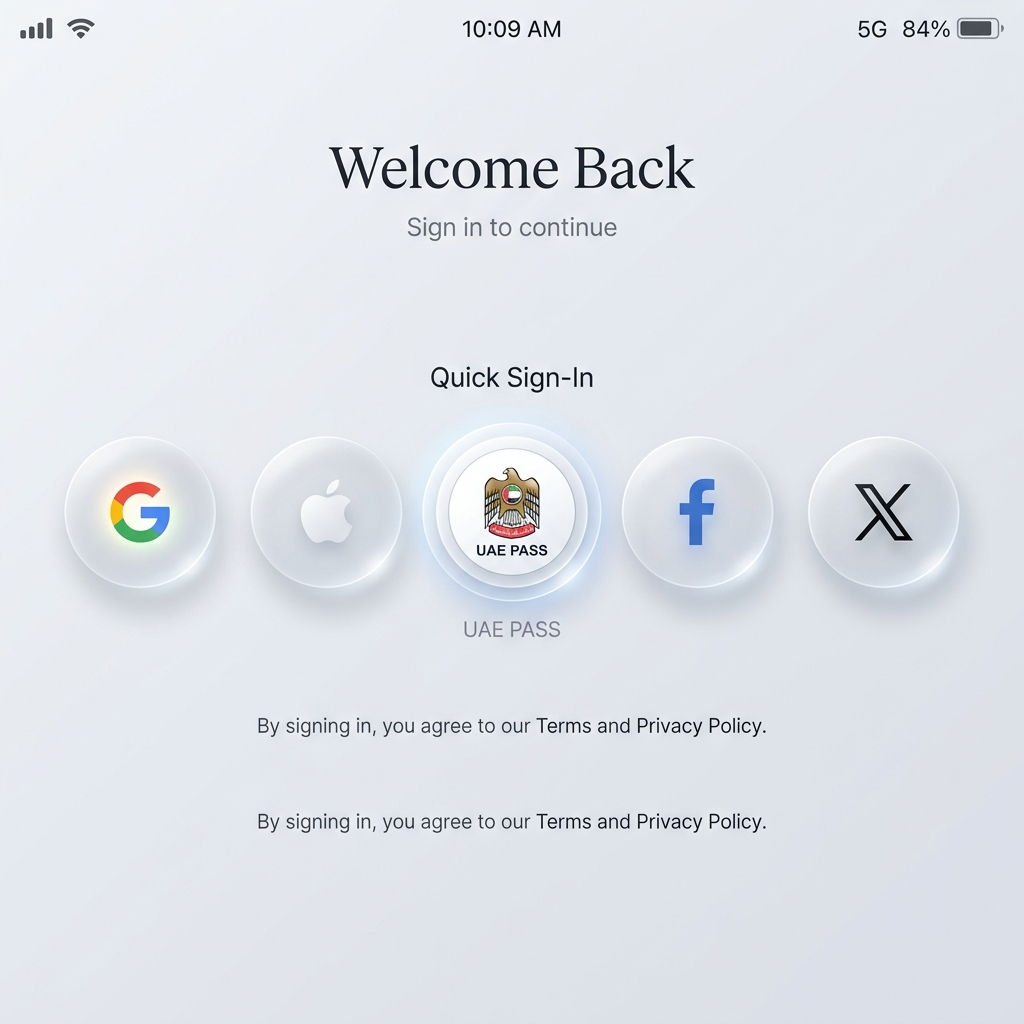
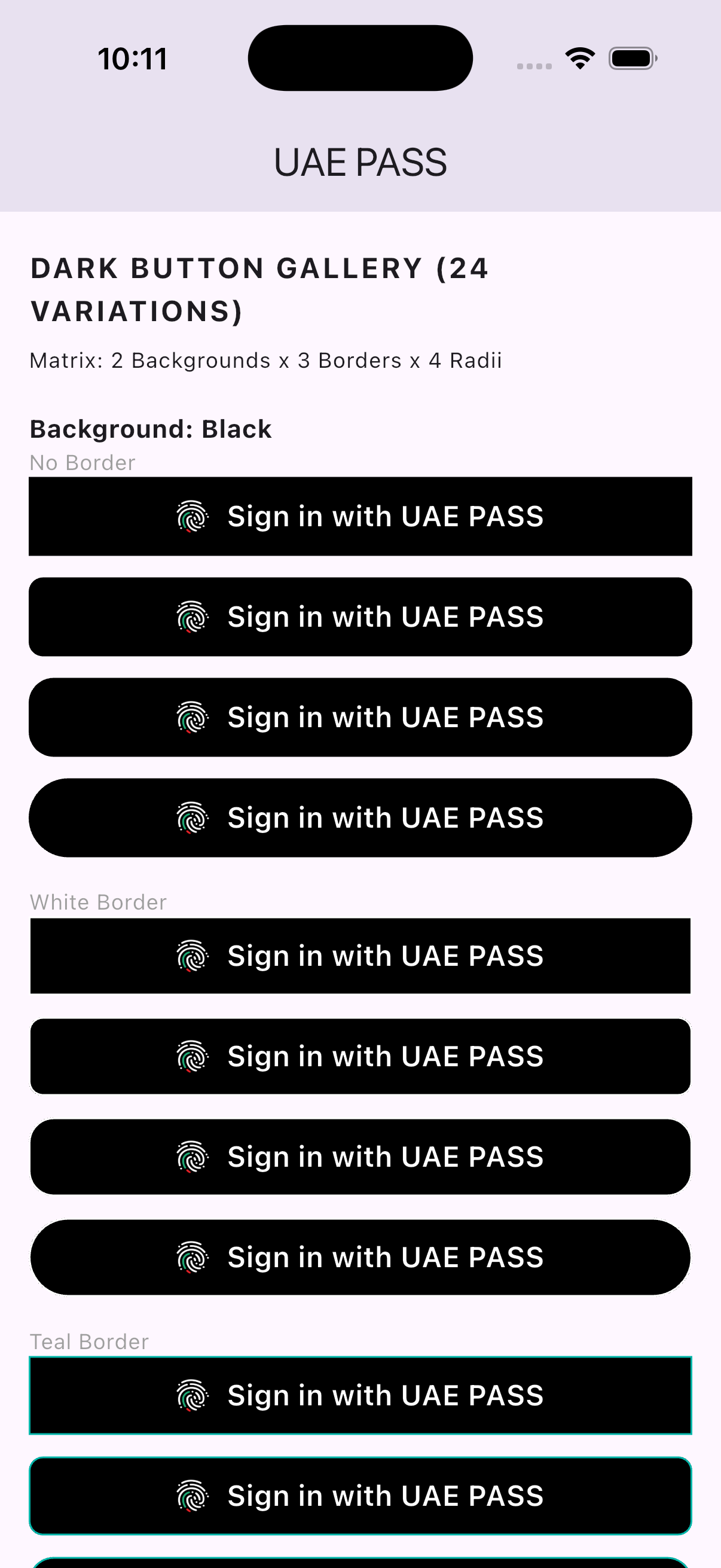
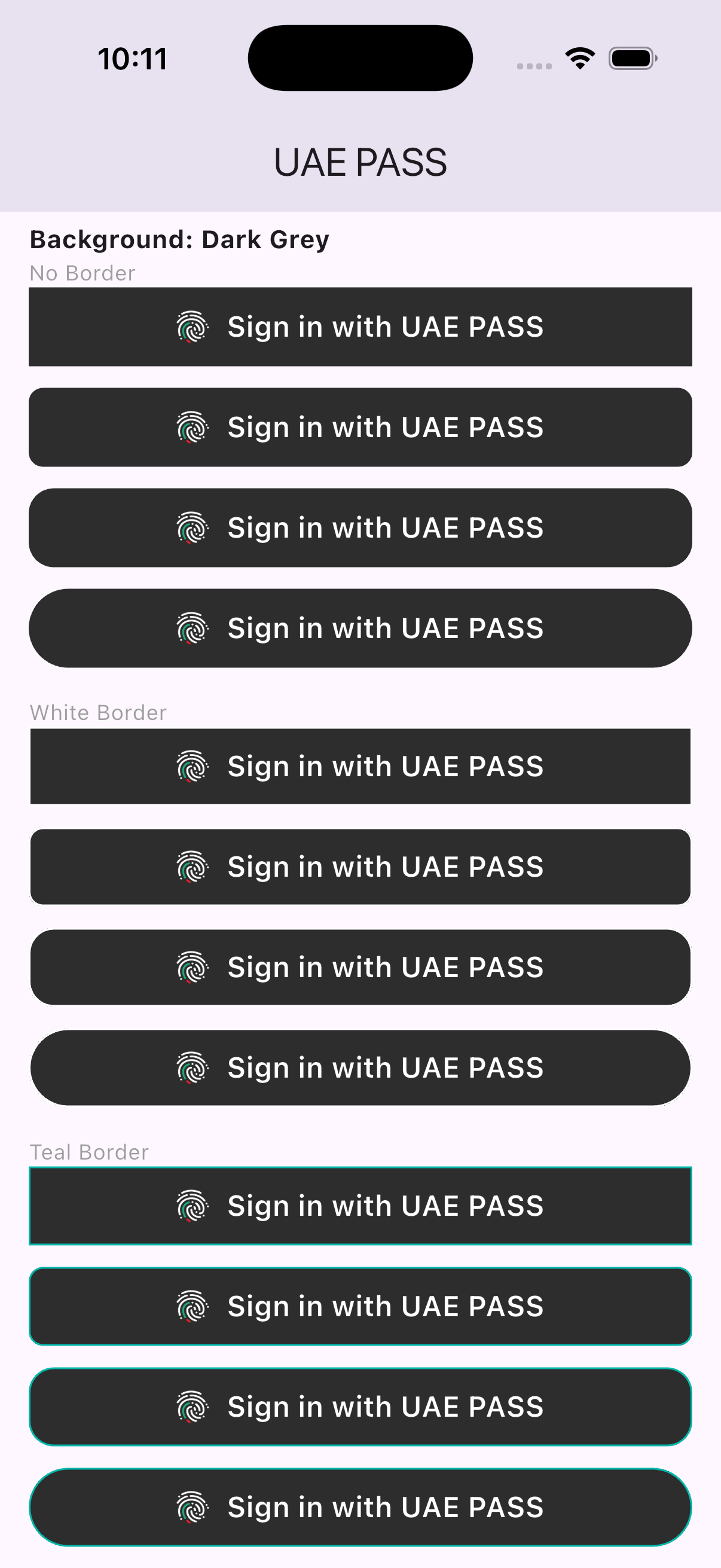
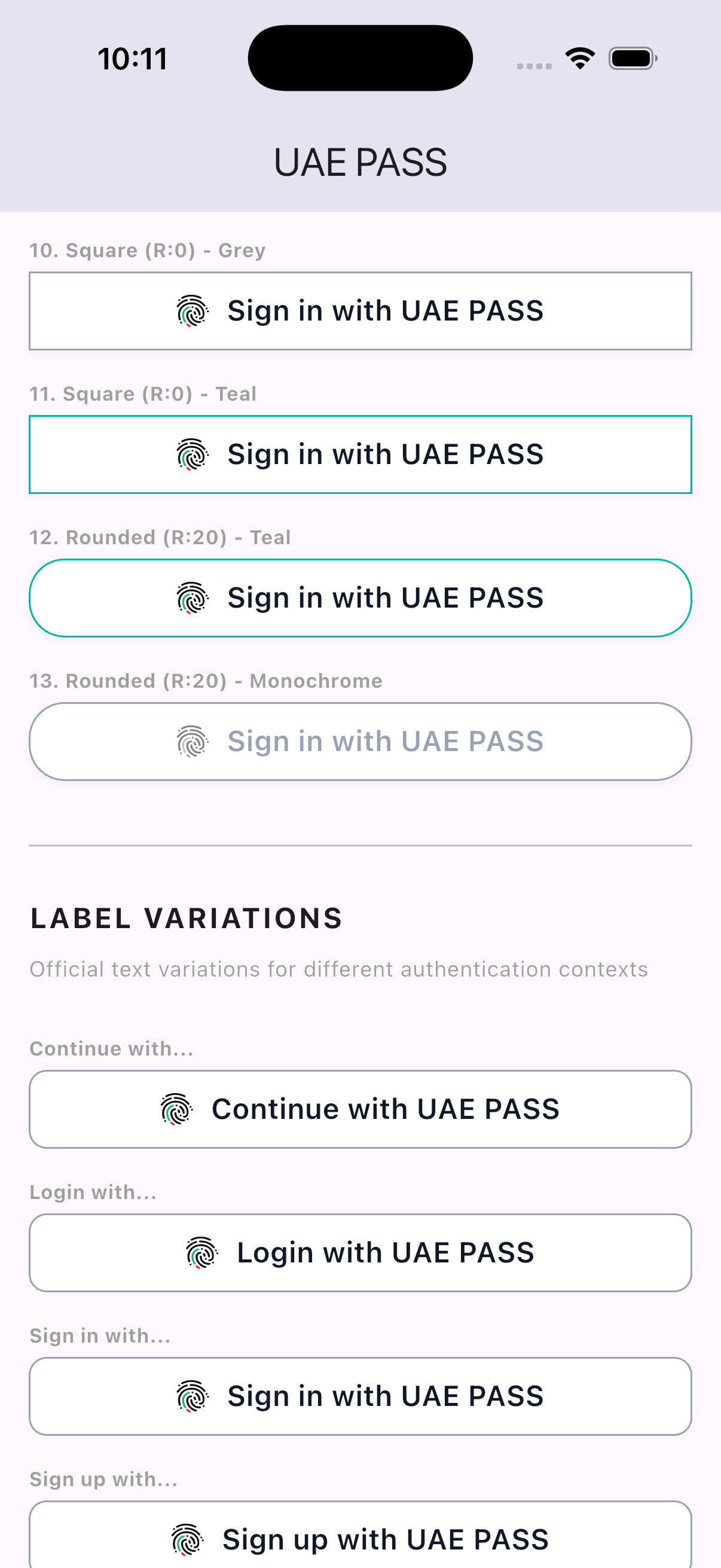
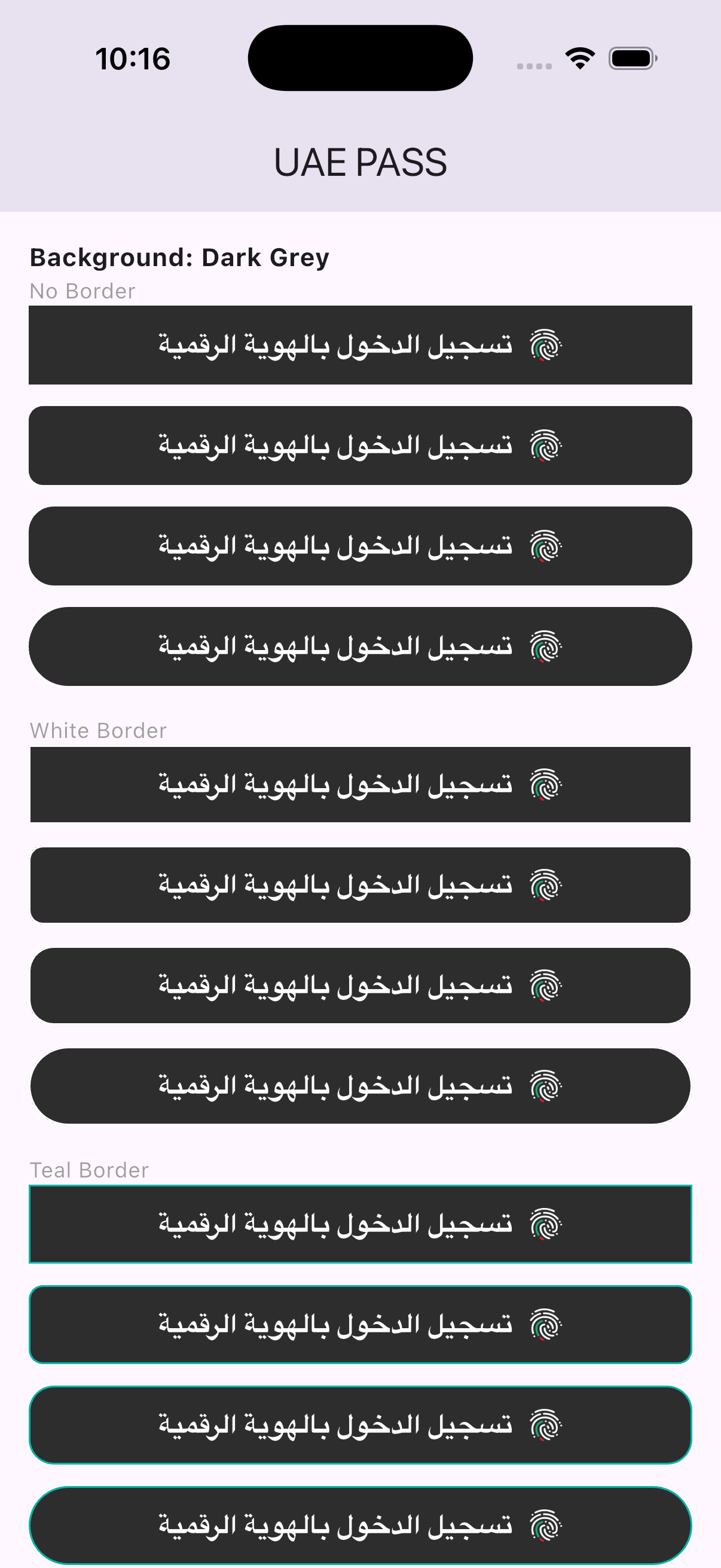
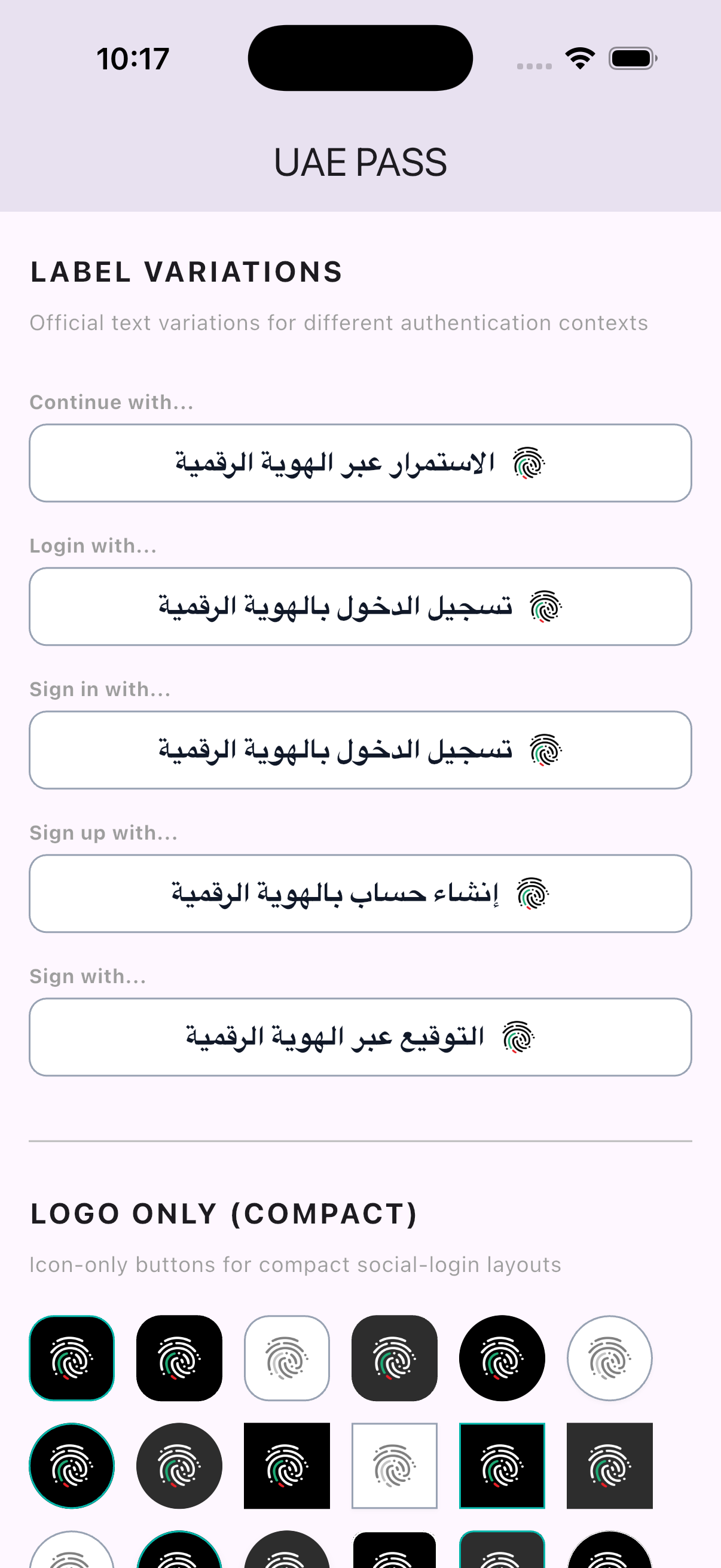
- 🎨 120+ UI Variations: Official-style buttons that fit any design system (Dark, Light, Outline, Labels).
🚀 Quick Start (3 Steps) #
Step 1: Configure Native Platforms (CRITICAL) #
To handle the "Coming back from UAE PASS" flow correctly, you must configure your native platforms to listen for your redirect URI.
🤖 Android (AndroidManifest.xml)
Copy-paste this structure into your android/app/src/main/AndroidManifest.xml:
<manifest xmlns:android="http://schemas.android.com/apk/res/android">
    <application ... >
        <activity
            android:name=".MainActivity"
            android:exported="true"
            <!-- 1. CRITICAL: Change launchMode to singleTask -->
            android:launchMode="singleTask"
            ...>

            <intent-filter>
                <action android:name="android.intent.action.MAIN"/>
                <category android:name="android.intent.category.LAUNCHER"/>
            </intent-filter>

            <!-- 2. ADD THIS: UAE PASS Custom Scheme Intent Filter -->
            <!-- Use your deepLinkScheme (e.g. ae.myapp.com) as the scheme -->
            <intent-filter android:autoVerify="true">
                <action android:name="android.intent.action.VIEW" />
                <category android:name="android.intent.category.DEFAULT" />
                <category android:name="android.intent.category.BROWSABLE" />
                <data android:scheme="ae.myapp.com" android:host="resume_authn" />
            </intent-filter>
        </activity>
    </application>

    <!-- 3. ADD THIS: Package Visibility (Required for Android 11+) -->
    <queries>
        <package android:name="ae.uaepass.mainapp" />
        <package android:name="ae.uaepass.mainapp.stg" />
        <package android:name="ae.uaepass.mainapp.qa" />
    </queries>
</manifest>
🍎 iOS (Info.plist)
Copy-paste this into your ios/Runner/Info.plist:
<key>CFBundleURLTypes</key>
<array>
    <dict>
        <key>CFBundleURLSchemes</key>
        <array>
            <string>ae.myapp.com</string>
        </array>
    </dict>
</array>

<key>LSApplicationQueriesSchemes</key>
<array>
    <string>uaepass</string>
    <string>uaepassstg</string>
    <string>uaepassqa</string>
</array>
Step 2: Implementation (Lazy Pattern) #
For apps with multiple login options (Google, Email, Phone), we recommend initializing the SDK only when the user selects UAE PASS. This keeps your startup lifecycle clean.
void _loginWithUaePass() async {
  // 1. Initialize locally (on-demand)
  final auth = AuthUaePass(
    config: const UaePassConfig(
      clientId: "your_client_id",
      clientSecret: "your_client_secret",
      redirectUri: "https://your-registered-callback.com",
      environment: UaePassEnvironment.staging,
      deepLinkScheme: "ae.myapp.com",
    ),
    onEvent: (event) {
      if (event == UaePassEvent.authStarted) HapticFeedback.mediumImpact();
    },
  );

  // 2. Start the flow
  final result = await auth.signInWithProfile(context);

  if (result.isSuccess) {
    print("Welcome, ${result.profile?.fullNameEN}");
  }
}
Tip
Cold Start Support: Even if the SDK is initialized "late," it automatically checks for any pending resumption links from the OS (e.g., if the app was killed in the background), ensuring the user's flow is never broken.
Step 3: Add the Official Button #
The UaePassLoginButton follows official brand guidelines and supports a built-in loading state.
UaePassLoginButton(
  onPressed: _login,
  isLoading: _myLoadingVariable,
  language: UaePassButtonLanguage.english, // or .arabic
)
🎨 UI Components Gallery #
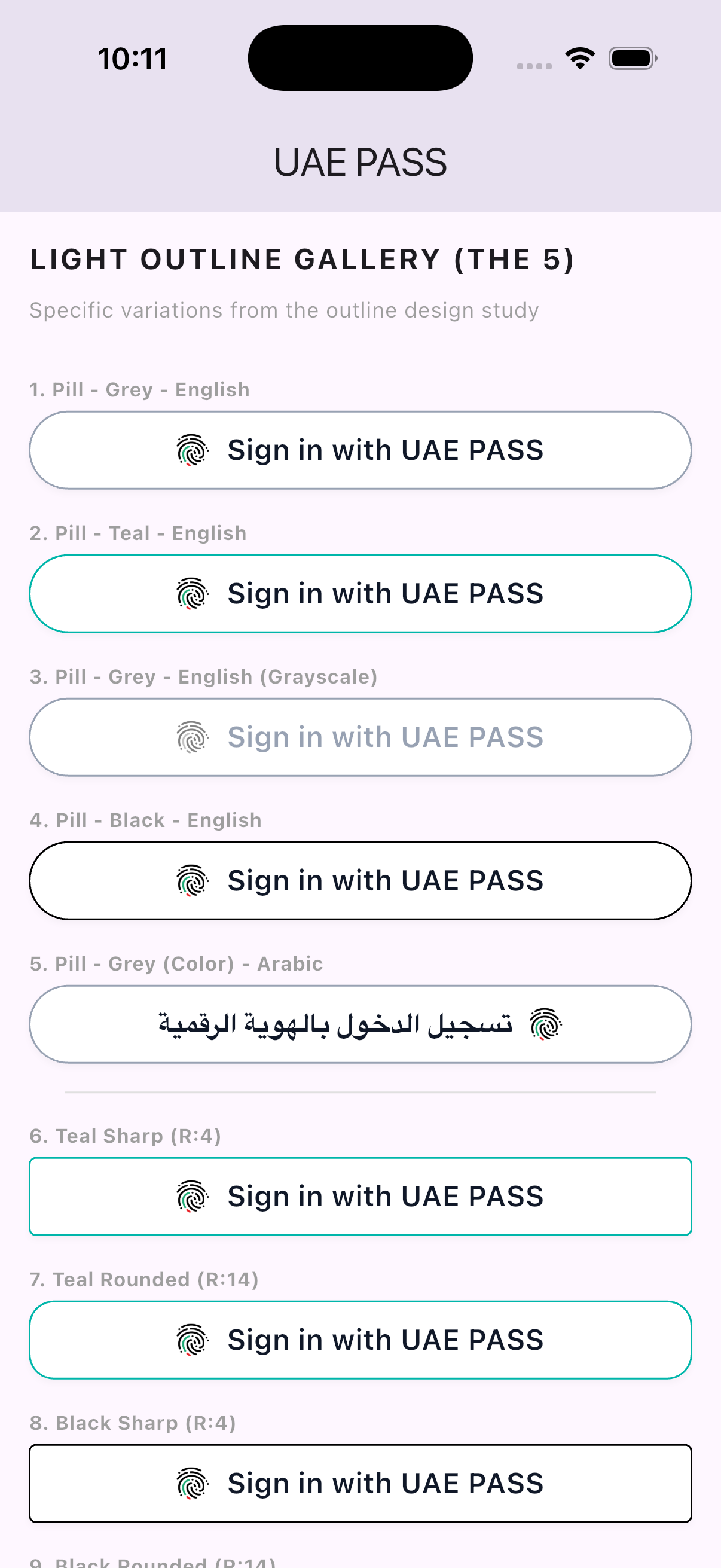
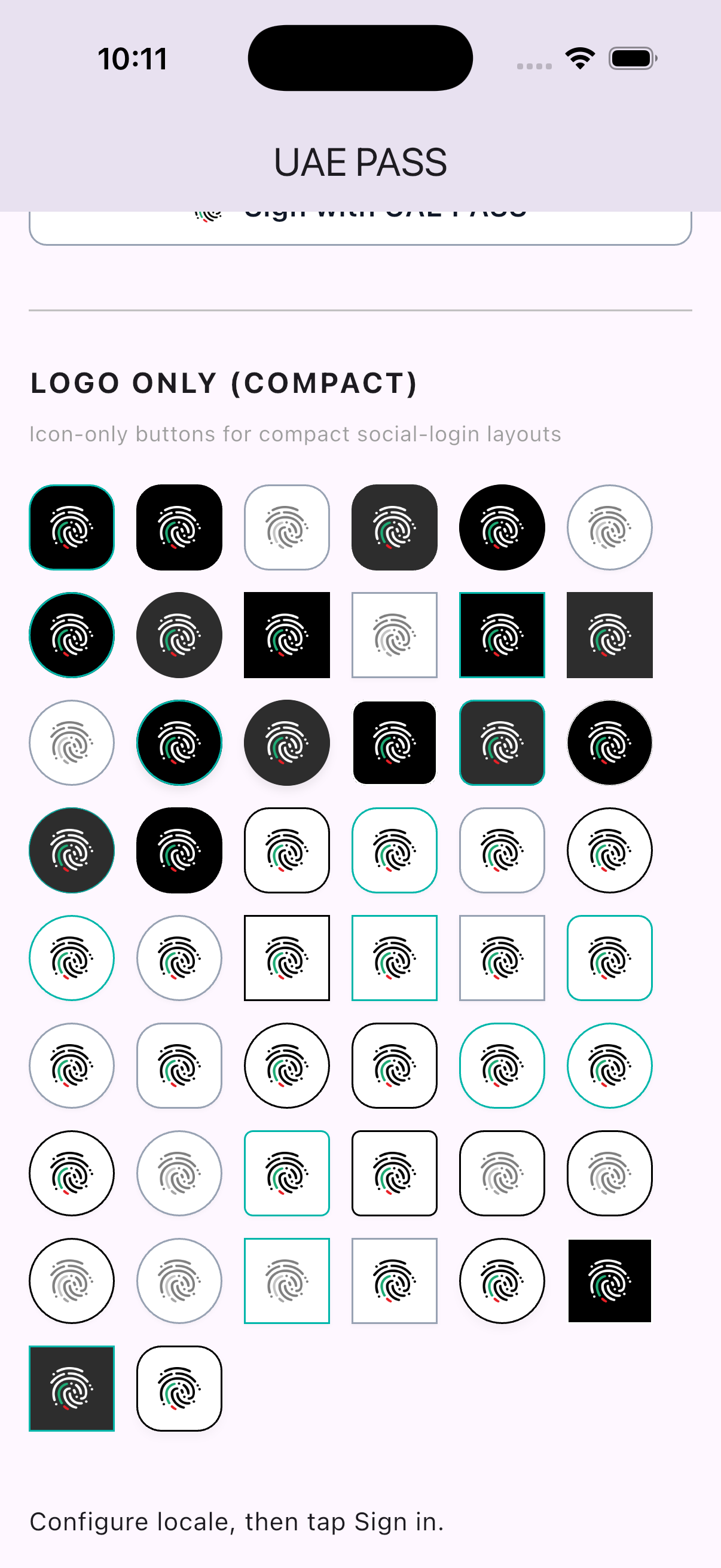
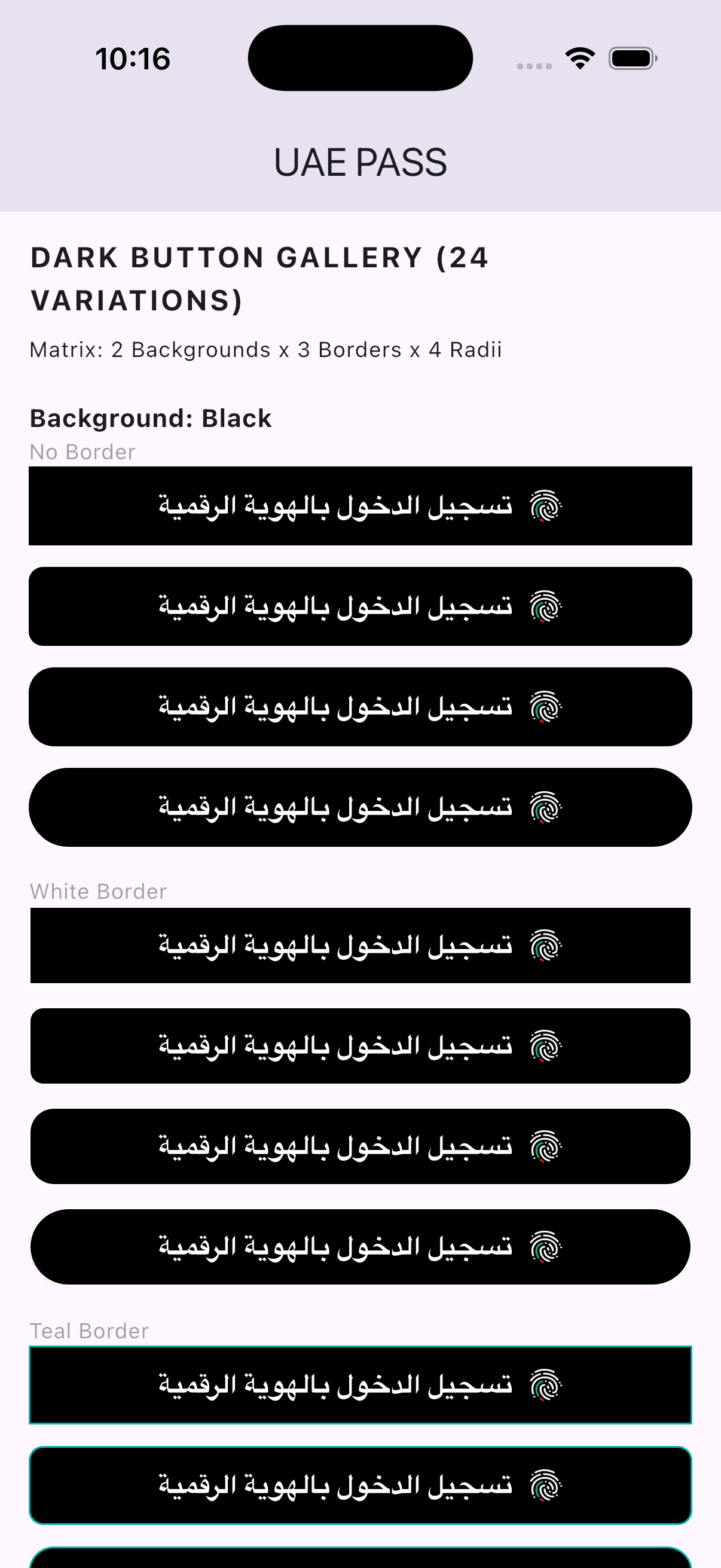
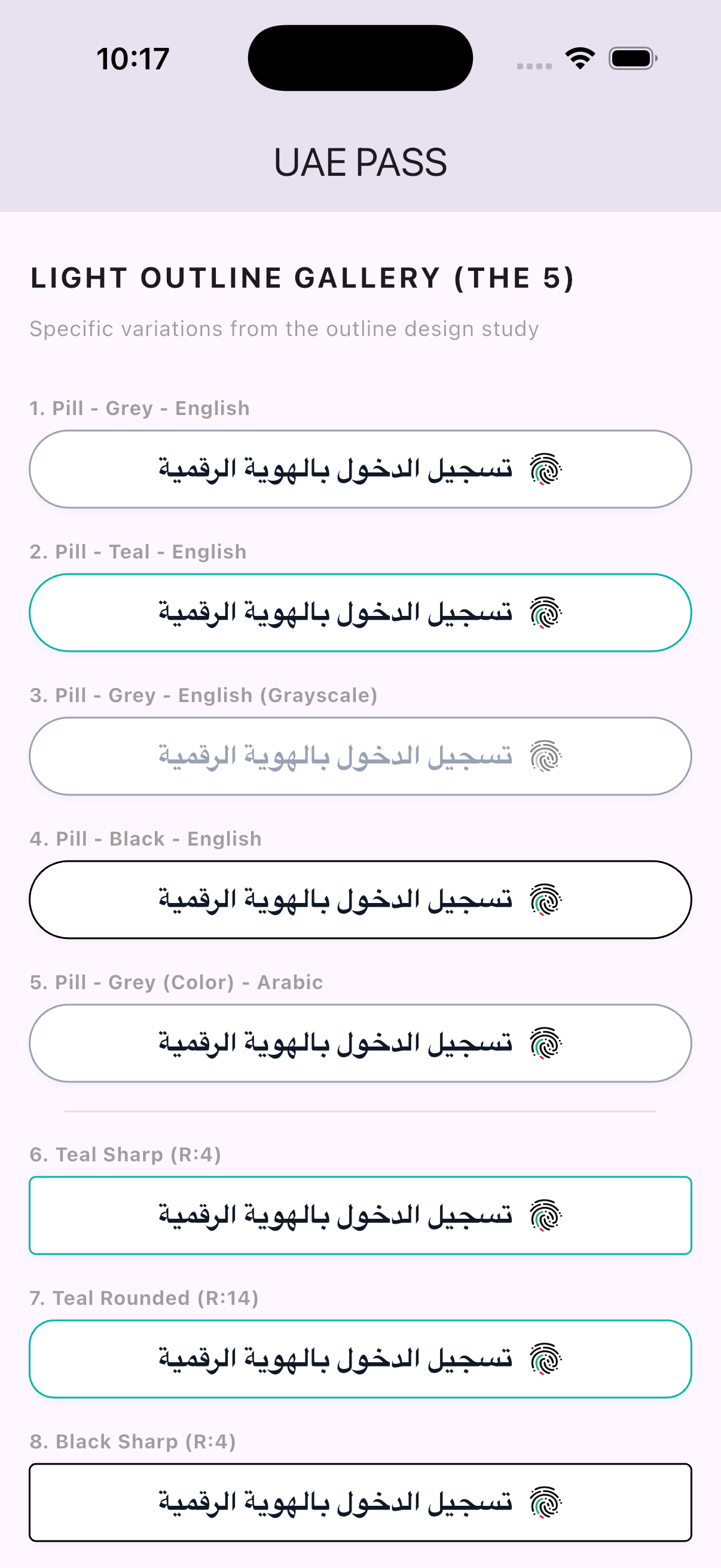
The SDK provides over 120+ variations of the official UAE PASS button, catering to every design system.
🖤 Button Gallery #
| Dark & Grey Variants | Outlined & Labels | Compact & Logo Only |
|---|---|---|
 |
 |
 |
| Dark Black (English) | Outlined (English) | Logo Only (Minimal) |
 |
 |
 |
| Dark Black (Arabic) | Outlined (Arabic) | |
 |
 |
|
| Dark Grey (English) | Labels (English) | |
 |
 |
|
| Dark Grey (Arabic) | Labels (Arabic) | |
 |
 |
🛠️ Key Concepts #
Success Of Person (SOP) Levels #
The SDK automatically detects the verification level used by the user. Perfect for apps requiring high-trust biometrics for financial or government services.
| Level | Name | Description | Verification Method |
|---|---|---|---|
sop1 |
Basic | User authenticated via password. | Password |
sop2 |
Verified | User authenticated via Fingerprint/FaceID. | Biometrics |
sop3 |
FaceID | Official government-verified face recognition. | Face Verification |
💎 Pro Features #
1. Global Event Stream #
You can provide an onEvent callback to track milestones like webviewLoaded or tokenExchanged. This is perfect for driving your own custom loading overlays or analytics.
final auth = AuthUaePass(
  config: myConfig,
  onEvent: (event) => MyAnalytics.log('UAE_PASS: $event'),
);
2. Dedicated SOP3 Upgrade #
For apps requiring high security (FaceID/Biometrics) for sensitive actions, use the specialized upgrade method.
void _verifyFaceID() async {
  final auth = AuthUaePass(config: myConfig);
  final result = await auth.upgradeToSOP3(context);
}
⚠️ Common Pitfalls #
1. The "Triple Slash" Intent Error #
Ensure your native configuration matches your deepLinkScheme exactly. The SDK is optimized to avoid URL parsing errors, but any mismatch in the AndroidManifest.xml host will cause the redirect to fail.
2. HTTPS vs Custom Schemes #
Your redirectUri must be the HTTPS URL registered in the UAE PASS portal. However, for mobile redirection, you should use a deepLinkScheme (e.g. ae.myapp.com) to ensure the response is captured by your app and not the external browser.
License #
MIT License - see LICENSE for details.
Metadata
Publisher
unverified uploader
Weekly Downloads
Metadata
Production-ready UAE PASS SDK for Flutter. Supports seamless login, Biometric FaceID (SOP3), and secure profile retrieval for UAE citizens and visitors.
Repository (GitHub)
View/report issues
Topics
#uae-pass #emirates-id #digital-id #identity #authentication
License
 unknown (license)
Dependencies
app_links, appcheck, flutter, flutter_inappwebview, http, plugin_platform_interface, url_launcher

