
adaptive_platform_ui 0.1.5+2  adaptive_platform_ui: ^0.1.5+2 copied to clipboard
 medialyra.com
Adaptive platform-specific widgets for Flutter. Automatically renders native iOS 26+ liquid glass designs, traditional Cupertino widgets for older iOS versions, and Material Design for Android.
Adaptive Platform UI #
A Flutter package that provides adaptive platform-specific widgets with native iOS 26+ designs, traditional Cupertino widgets for older iOS versions, and Material Design for Android.

iOS 26+ Native Toolbar & Tab Bar #


Native iOS 26 UIToolbar and UITabBar with Liquid Glass blur effects, minimize behavior, and native gesture handling.
Features #
AdaptiveApp - Unified app configuration for all platforms:
- Separate themes for Material (Android) and Cupertino (iOS)
- Full theme mode support (light, dark, system)
- Router support via
AdaptiveApp.router() - Zero configuration required
iOS 26+ Native Designs - Modern iOS 26 components with:
- Native UIToolbar - Liquid Glass blur effects with native iOS 26 design
- Native UITabBar - Tab bar with minimize behavior and smooth animations
- Native UIButton - Button styles with spring animations and haptic feedback
- Native UISegmentedControl - Segmented controls with SF Symbol support
- Native UISwitch & UISlider - Switches and sliders with native animations
- Native corner radius and shadows
- Smooth spring animations
- Dynamic color system (light/dark mode)
- Multiple component styles
iOS Legacy Support - Traditional Cupertino widgets for iOS 18 and below
Material Design - Full Material 3 support for Android
Automatic Platform Detection - Zero configuration required
Version-Aware Rendering - Automatically selects appropriate widget based on iOS version
Widget Showcase #
AdaptiveScaffold with Native Toolbar & Tab Bar #
Adaptive Appbar:

AdaptiveScaffold(
  title: 'My App',
  actions: [
    AdaptiveAppBarAction(
      onPressed: () {},
      iosSymbol: 'gear',
      androidIcon: Icons.settings,
    ),
  ],
  destinations: [
    AdaptiveNavigationDestination(
      icon: 'house.fill',
      label: 'Home',
    ),
    AdaptiveNavigationDestination(
      icon: 'person.fill',
      label: 'Profile',
    ),
  ],
  selectedIndex: 0,
  onDestinationSelected: (index) {},
  body: YourContent(),
)
iOS 26 Native Toolbar (Optional):
AdaptiveScaffold(
  title: 'My App',
  useNativeToolbar: true, // Enable native iOS 26 UIToolbar with Liquid Glass effects
  actions: [...],
  body: YourContent(),
)
Adaptive Bottom Navigation Bar (Destinations):

AdaptiveButton #
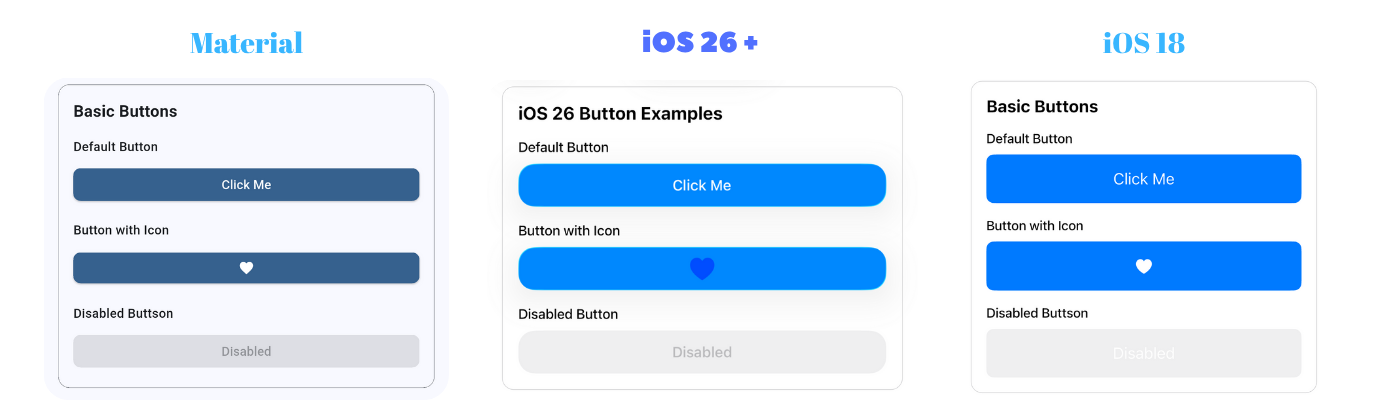
// Basic button with label
AdaptiveButton(
  onPressed: () {},
  label: 'Click Me',
)

// Button with custom child
AdaptiveButton.child(
  onPressed: () {},
  child: Row(
    children: [
      Icon(Icons.add),
      Text('Add Item'),
    ],
  ),
)

// Icon button
AdaptiveButton.icon(
  onPressed: () {},
  icon: Icons.favorite,
)
AdaptiveAlertDialog #
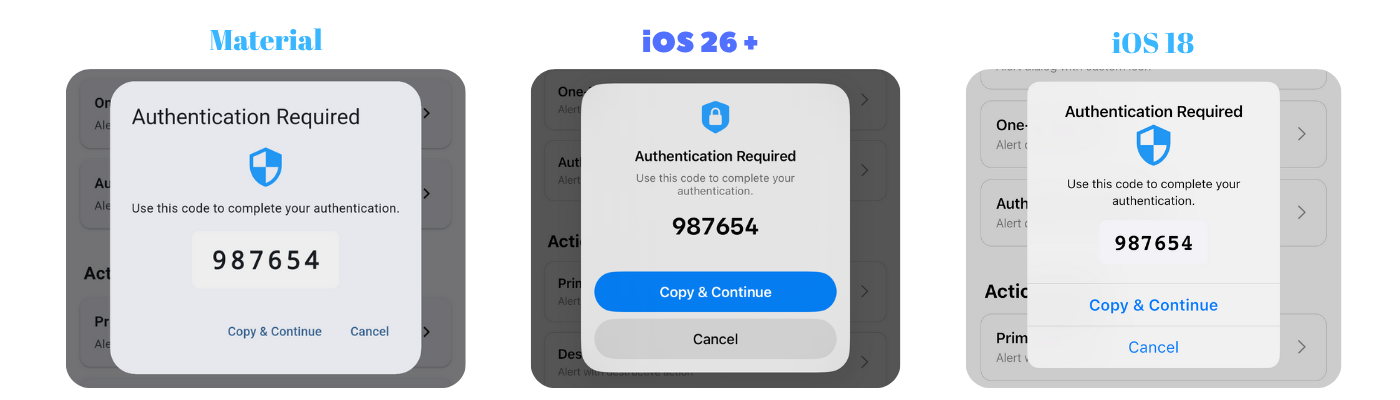
showAdaptiveAlertDialog(
  context: context,
  title: 'Confirm',
  message: 'Are you sure?',
  icon: 'checkmark.circle.fill',
  actions: [
    AlertAction(
      title: 'Cancel',
      style: AlertActionStyle.cancel,
      onPressed: () => Navigator.pop(context),
    ),
    AlertAction(
      title: 'Confirm',
      style: AlertActionStyle.primary,
      onPressed: () {
        Navigator.pop(context);
        // Do something
      },
    ),
  ],
);
AdaptivePopupMenuButton #
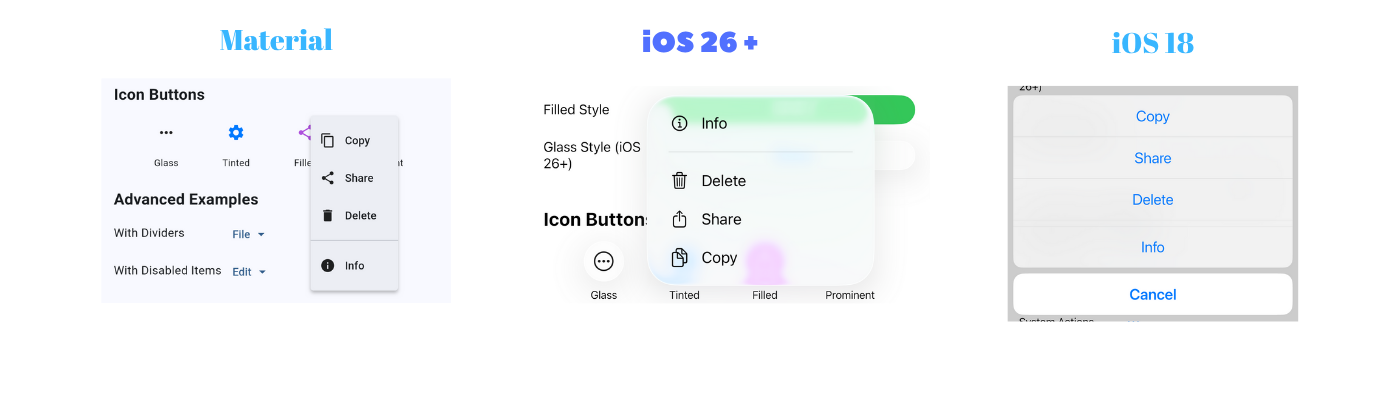
AdaptivePopupMenuButton<String>(
  buttonLabel: 'Options',
  items: [
    PopupMenuItem(value: 'edit', label: 'Edit', icon: 'pencil'),
    PopupMenuItem(value: 'delete', label: 'Delete', icon: 'trash', destructive: true),
    PopupMenuItem(value: 'share', label: 'Share', icon: 'square.and.arrow.up'),
  ],
  onSelected: (value) {
    print('Selected: $value');
  },
)
AdaptiveSegmentedControl #

AdaptiveSegmentedControl(
  labels: ['One', 'Two', 'Three'],
  selectedIndex: 0,
  onValueChanged: (index) {
    print('Selected: $index');
  },
)

// With icons (SF Symbols on iOS)
AdaptiveSegmentedControl(
  labels: [],
  sfSymbols: [
    'house.fill',
    'person.fill',
    'gear',
  ],
  selectedIndex: 0,
  onValueChanged: (index) {},
  iconColor: CupertinoColors.systemBlue,
)
AdaptiveSwitch #

AdaptiveSwitch(
  value: true,
  onChanged: (value) {
    print('Switch: $value');
  },
)
AdaptiveSlider #

AdaptiveSlider(
  value: 0.5,
  onChanged: (value) {
    print('Slider: $value');
  },
  min: 0.0,
  max: 1.0,
)
AdaptiveCheckbox #
AdaptiveCheckbox(
  value: true,
  onChanged: (value) {
    print('Checkbox: $value');
  },
)

// Tristate checkbox
AdaptiveCheckbox(
  value: null, // Can be true, false, or null
  tristate: true,
  onChanged: (value) {
    print('Checkbox: $value');
  },
)
AdaptiveRadio #
enum Options { option1, option2, option3 }
Options? _selectedOption = Options.option1;

AdaptiveRadio<Options>(
  value: Options.option1,
  groupValue: _selectedOption,
  onChanged: (Options? value) {
    setState(() {
      _selectedOption = value;
    });
  },
)
AdaptiveCard #
AdaptiveCard(
  padding: EdgeInsets.all(16),
  child: Text('Card Content'),
)

// Card with custom styling
AdaptiveCard(
  padding: EdgeInsets.all(16),
  color: Colors.blue.withValues(alpha: 0.1),
  borderRadius: BorderRadius.circular(20),
  elevation: 8, // Android only
  child: Column(
    children: [
      Text('Custom Card'),
      Text('With multiple elements'),
    ],
  ),
)
AdaptiveBadge #
AdaptiveBadge(
  count: 5,
  child: Icon(Icons.notifications),
)

// Badge with text label
AdaptiveBadge(
  label: 'NEW',
  backgroundColor: Colors.red,
  child: Icon(Icons.mail),
)

// Large badge
AdaptiveBadge(
  count: 99,
  isLarge: true,
  child: Icon(Icons.message),
)
AdaptiveTooltip #
AdaptiveTooltip(
  message: 'This is a tooltip',
  child: Icon(Icons.info),
)

// Tooltip positioned above
AdaptiveTooltip(
  message: 'Tooltip appears above',
  preferBelow: false,
  child: Icon(Icons.help),
)
AdaptiveSnackBar #
// Basic snackbar
AdaptiveSnackBar.show(
  context,
  message: 'Operation completed successfully!',
  type: AdaptiveSnackBarType.success,
)

// Snackbar with action button
AdaptiveSnackBar.show(
  context,
  message: 'File deleted',
  type: AdaptiveSnackBarType.info,
  action: 'Undo',
  onActionPressed: () {
    // Undo action
  },
)

// Custom duration
AdaptiveSnackBar.show(
  context,
  message: 'This will stay longer',
  duration: Duration(seconds: 8),
)

// Different types
AdaptiveSnackBar.show(context, message: 'Info', type: AdaptiveSnackBarType.info);
AdaptiveSnackBar.show(context, message: 'Success', type: AdaptiveSnackBarType.success);
AdaptiveSnackBar.show(context, message: 'Warning', type: AdaptiveSnackBarType.warning);
AdaptiveSnackBar.show(context, message: 'Error', type: AdaptiveSnackBarType.error);
iOS: Banner-style notification at the top with slide/fade animations, tap to dismiss, and icon indicators. Android: Material SnackBar at the bottom with standard Material Design appearance.
Usage #
Button Styles #
// Filled button (primary action)
AdaptiveButton(
  onPressed: () {},
  style: AdaptiveButtonStyle.filled,
  label: 'Filled',
)

// Tinted button (secondary action)
AdaptiveButton(
  onPressed: () {},
  style: AdaptiveButtonStyle.tinted,
  label: 'Tinted',
)

// Gray button (neutral action)
AdaptiveButton(
  onPressed: () {},
  style: AdaptiveButtonStyle.gray,
  label: 'Gray',
)

// Bordered button
AdaptiveButton(
  onPressed: () {},
  style: AdaptiveButtonStyle.bordered,
  label: 'Bordered',
)

// Plain text button
AdaptiveButton(
  onPressed: () {},
  style: AdaptiveButtonStyle.plain,
  label: 'Plain',
)
Button Sizes #
// Small button (28pt height on iOS)
AdaptiveButton(
  onPressed: () {},
  size: AdaptiveButtonSize.small,
  label: 'Small',
)

// Medium button (36pt height on iOS) - default
AdaptiveButton(
  onPressed: () {},
  size: AdaptiveButtonSize.medium,
  label: 'Medium',
)

// Large button (44pt height on iOS)
AdaptiveButton(
  onPressed: () {},
  size: AdaptiveButtonSize.large,
  label: 'Large',
)
Custom Styling #
AdaptiveButton(
  onPressed: () {},
  label: 'Custom Button',
  color: Colors.red,
  padding: EdgeInsets.symmetric(horizontal: 24, vertical: 12),
  borderRadius: BorderRadius.circular(16),
  minSize: Size(200, 50),
)
Disabled State #
AdaptiveButton(
  onPressed: () {},
  label: 'Disabled',
  enabled: false,
)
Platform Detection #
Use the PlatformInfo utility class to check platform and iOS version:
import 'package:adaptive_platform_ui/adaptive_platform_ui.dart';

// Check platform
if (PlatformInfo.isIOS) {
  print('Running on iOS');
}

if (PlatformInfo.isAndroid) {
  print('Running on Android');
}

// Check iOS version
if (PlatformInfo.isIOS26OrHigher()) {
  print('Using iOS 26+ features');
}

if (PlatformInfo.isIOS18OrLower()) {
  print('Using legacy iOS widgets');
}

// Get iOS version number
int version = PlatformInfo.iOSVersion; // e.g., 26

// Check version range
if (PlatformInfo.isIOSVersionInRange(24, 26)) {
  print('iOS version is between 24 and 26');
}

// Get platform description
String description = PlatformInfo.platformDescription; // e.g., "iOS 26"
Installation #
Add this to your package's pubspec.yaml file:
dependencies:
  adaptive_platform_ui: ^0.1.0
Then run:
flutter pub get
Quick Start #
AdaptiveApp - Platform-Specific App Configuration #
Use AdaptiveApp to automatically configure your app for each platform:
import 'package:adaptive_platform_ui/adaptive_platform_ui.dart';

void main() {
  runApp(const MyApp());
}

class MyApp extends StatelessWidget {
  const MyApp({super.key});

  @override
  Widget build(BuildContext context) {
    return AdaptiveApp(
      title: 'My App',
      themeMode: ThemeMode.system,
      materialLightTheme: ThemeData.light(),
      materialDarkTheme: ThemeData.dark(),
      cupertinoLightTheme: const CupertinoThemeData(
        brightness: Brightness.light,
      ),
      cupertinoDarkTheme: const CupertinoThemeData(
        brightness: Brightness.dark,
      ),
      home: const HomePage(),
    );
  }
}
With Router Support (GoRouter, etc.):
AdaptiveApp.router(
  routerConfig: router,
  title: 'My App',
  themeMode: ThemeMode.system,
  materialLightTheme: ThemeData.light(),
  materialDarkTheme: ThemeData.dark(),
  cupertinoLightTheme: const CupertinoThemeData(
    brightness: Brightness.light,
  ),
  cupertinoDarkTheme: const CupertinoThemeData(
    brightness: Brightness.dark,
  ),
)
Key Features:
- 🎨 Separate themes for Material (Android) and Cupertino (iOS)
- 🌓 Full theme mode support (light, dark, system)
- 🔄 Automatic platform detection
- 🚀 Router support via
AdaptiveApp.router() - 🛠️ Platform-specific callbacks for advanced configuration
iOS 26 Native Features #
When running on iOS 26+, widgets automatically use native UIKit platform views with Liquid Glass design:
Platform Architecture #
- Native UIKit Views: Uses
UiKitViewto render actual iOS 26 UIKit components - Platform Channels: Bidirectional communication between Flutter and native iOS code
- Liquid Glass Design: Authentic iOS 26 visual effects rendered by UIKit
- Zero Overhead: No custom painting or emulation - pure native rendering
Visual Features #
- Modern corner radius: Native iOS 26 design language
- Dynamic shadows: Subtle multi-layer shadows
- Spring animations: Smooth spring damping with 0.95x scale on press
- Native color system: Uses iOS system colors with proper light/dark mode support
- Liquid Glass effects: Native iOS 26 translucency and blur effects
- SF Symbols: Native SF Symbol rendering with hierarchical color support
Interaction #
- Press states: Visual feedback with scale animation
- Gesture handling: Native UIKit gesture recognizers
- Haptic feedback: Medium impact feedback on interactions
- Disabled states: Proper opacity and interaction blocking
Typography #
- SF Pro font: Native iOS system font with proper weights
- Dynamic Type: Respects system font size settings
- Weight: Appropriate font weights for each component
Example App #
Run the example app to see all widgets in action:
cd example
flutter run
The example app includes:
- Platform information display
- All widget types showcase
- Interactive demos
- Style and size comparisons
- Dark mode support
IOS26NativeSearchTabBar (EXPERIMENTAL) #
⚠️ WARNING: This is a highly experimental feature with significant limitations. Only use for prototyping and demos.
Native iOS 26+ search tab bar with UITabBarController that transforms the tab bar into a search bar when the search tab is selected.
import 'package:adaptive_platform_ui/adaptive_platform_ui.dart';

// Enable native search tab bar
await IOS26NativeSearchTabBar.enable(
  tabs: [
    const NativeTabConfig(
      title: 'Home',
      sfSymbol: 'house.fill',
    ),
    const NativeTabConfig(
      title: 'Search',
      sfSymbol: 'magnifyingglass',
      isSearchTab: true, // This tab transforms into search
    ),
    const NativeTabConfig(
      title: 'Profile',
      sfSymbol: 'person.fill',
    ),
  ],
  selectedIndex: 0,
  onTabSelected: (index) {
    print('Tab selected: $index');
  },
  onSearchQueryChanged: (query) {
    print('Search query: $query');
  },
  onSearchSubmitted: (query) {
    print('Search submitted: $query');
  },
  onSearchCancelled: () {
    print('Search cancelled');
  },
);

// Disable when done
await IOS26NativeSearchTabBar.disable();

// Programmatically show search
await IOS26NativeSearchTabBar.showSearch();
Features:
- ✨ Native UITabBarController integration
- 🔍 Search tab transforms into UISearchController
- 💎 iOS 26+ Liquid Glass effects
- 🎯 Method channel communication
- 📱 Native animations and gestures
Known Issues & Limitations:
This feature replaces Flutter's root view controller with a native UITabBarController, which creates fundamental architectural conflicts:
- Widget Lifecycle:
initState,dispose, and other lifecycle methods may not work correctly - Navigation Stack:
Navigator.pop()and related methods become unreliable - State Management: Provider, Riverpod, Bloc, etc. may lose state or behave unpredictably
- Hot Reload: Does not work properly - requires full app restart
- Memory Leaks: Potential memory management issues between Flutter and UIKit
- Gesture Conflicts: Native and Flutter gestures may interfere with each other
- Frame Synchronization: Potential visual stuttering during transitions
Why These Issues Occur:
The feature attempts to merge two incompatible architectural philosophies:
- Flutter: Single-threaded, declarative, expects to own entire screen
- UIKit: Multi-threaded, imperative, view controller-based
When UITabBarController becomes root, Flutter engine still believes it owns the screen, creating a parent-child relationship neither framework was designed to handle.
Recommendation:
- ✅ Use for prototyping and concept validation
- ✅ Use for demos and presentations
- ❌ Do NOT use in production apps
- ❌ Do NOT rely on Flutter navigation when active
- ❌ Do NOT expect hot reload to work
For production apps, use Flutter's built-in TabBar or implement search within the existing navigation structure.
See the example app's Native Search Tab demo page for detailed technical explanation.
Widget Catalog #
Currently available adaptive widgets:
- ✅ AdaptiveApp - Platform-specific app configuration with theme support and router
- ✅ AdaptiveScaffold - Scaffold with optional native iOS 26 toolbar and tab bar
- ✅ AdaptiveButton - Buttons with iOS 26+ native designs
- ✅ AdaptiveSegmentedControl - Native segmented controls
- ✅ AdaptiveSwitch - Native switches
- ✅ AdaptiveSlider - Native sliders
- ✅ AdaptiveCheckbox - Checkboxes with adaptive styling
- ✅ AdaptiveRadio - Radio button groups with adaptive styling
- ✅ AdaptiveCard - Cards with platform-specific styling
- ✅ AdaptiveBadge - Notification badges with adaptive styling
- ✅ AdaptiveTooltip - Platform-specific tooltips
- ✅ AdaptiveSnackBar - Platform-specific notification snackbars
- ✅ AdaptiveAlertDialog - Native alert dialogs
- ✅ AdaptivePopupMenuButton - Native popup menus
- ⚠️ IOS26NativeSearchTabBar - EXPERIMENTAL native search tab bar (iOS 26+ only)
Design Philosophy #
This package follows Apple's Human Interface Guidelines for iOS and Material Design guidelines for Android. The goal is to provide:
- Native Look & Feel: Widgets that feel at home on each platform
- Zero Configuration: Automatic platform detection and adaptation
- Version Awareness: Leverage new platform features while maintaining backward compatibility
- Consistency: Unified API across platforms
- Customization: Allow overrides when needed
iOS Version Support #
- iOS 26+: Modern native iOS 26 designs
- iOS 18 and below: Traditional Cupertino widgets
- Automatic fallback: Seamless degradation for older versions
Requirements #
- Flutter SDK: >=1.17.0
- Dart SDK: ^3.9.2
Contributing #
Contributions are welcome! Please feel free to submit a Pull Request.
License #
This project is licensed under the MIT License - see the LICENSE file for details.
Acknowledgments #
- Inspired by cupertino_native
- Design guidelines from Apple's Human Interface Guidelines
- Material Design guidelines from Google
Author #
Berkay Çatak
Support #
For issues, feature requests, or questions, please file an issue on the GitHub repository.
Metadata
Publisher
Weekly Downloads
Metadata
Adaptive platform-specific widgets for Flutter. Automatically renders native iOS 26+ liquid glass designs, traditional Cupertino widgets for older iOS versions, and Material Design for Android.
Repository (GitHub)
View/report issues
License
 unknown (license)
Dependencies
More
Packages that depend on adaptive_platform_ui
Packages that implement adaptive_platform_ui

