
Tooltip Pro
A powerful and flexible tooltip package for Flutter that goes beyond simple text. Create beautiful, highly customizable tooltips with rich content, shadows, blurs, and precise control over positioning and styling.
🚀 See it in action: Used in NutriScan
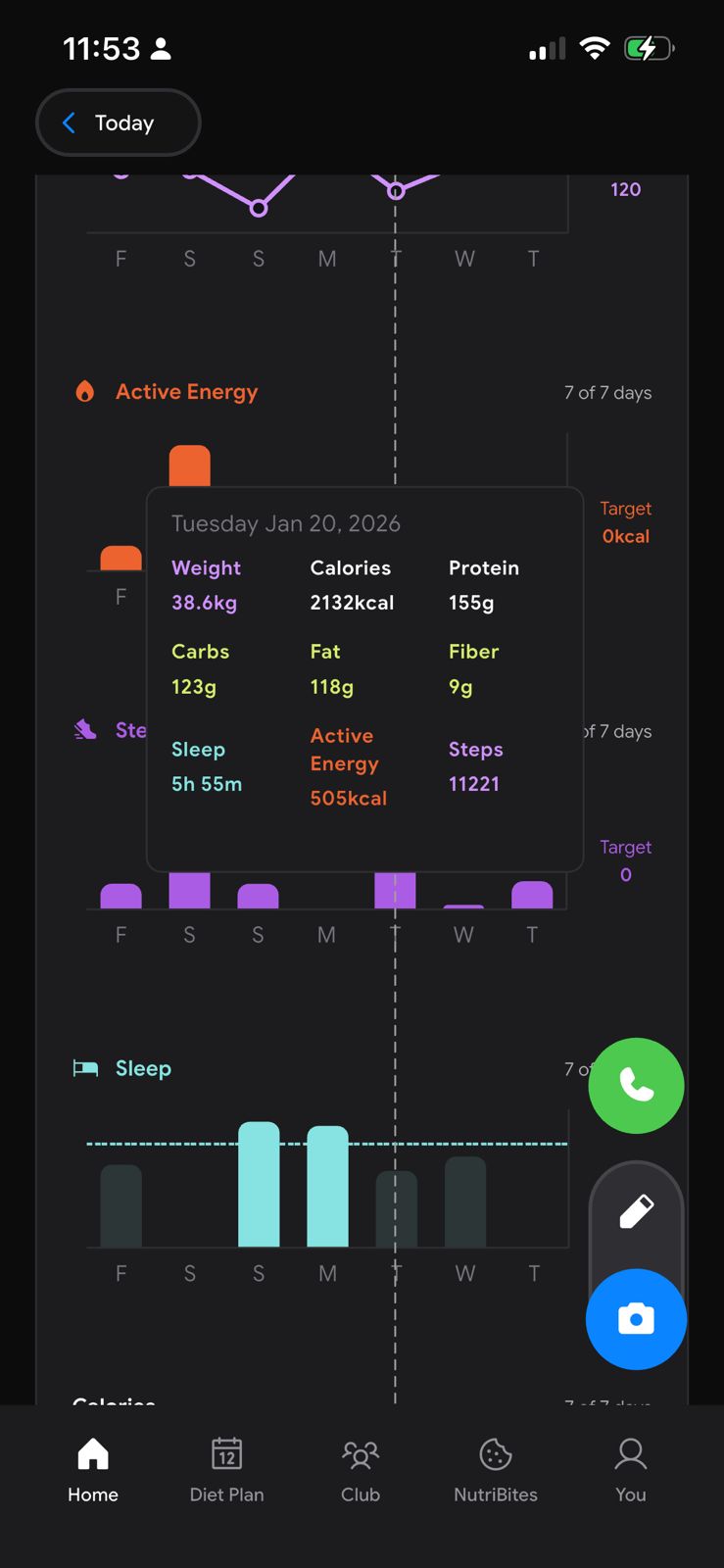 |
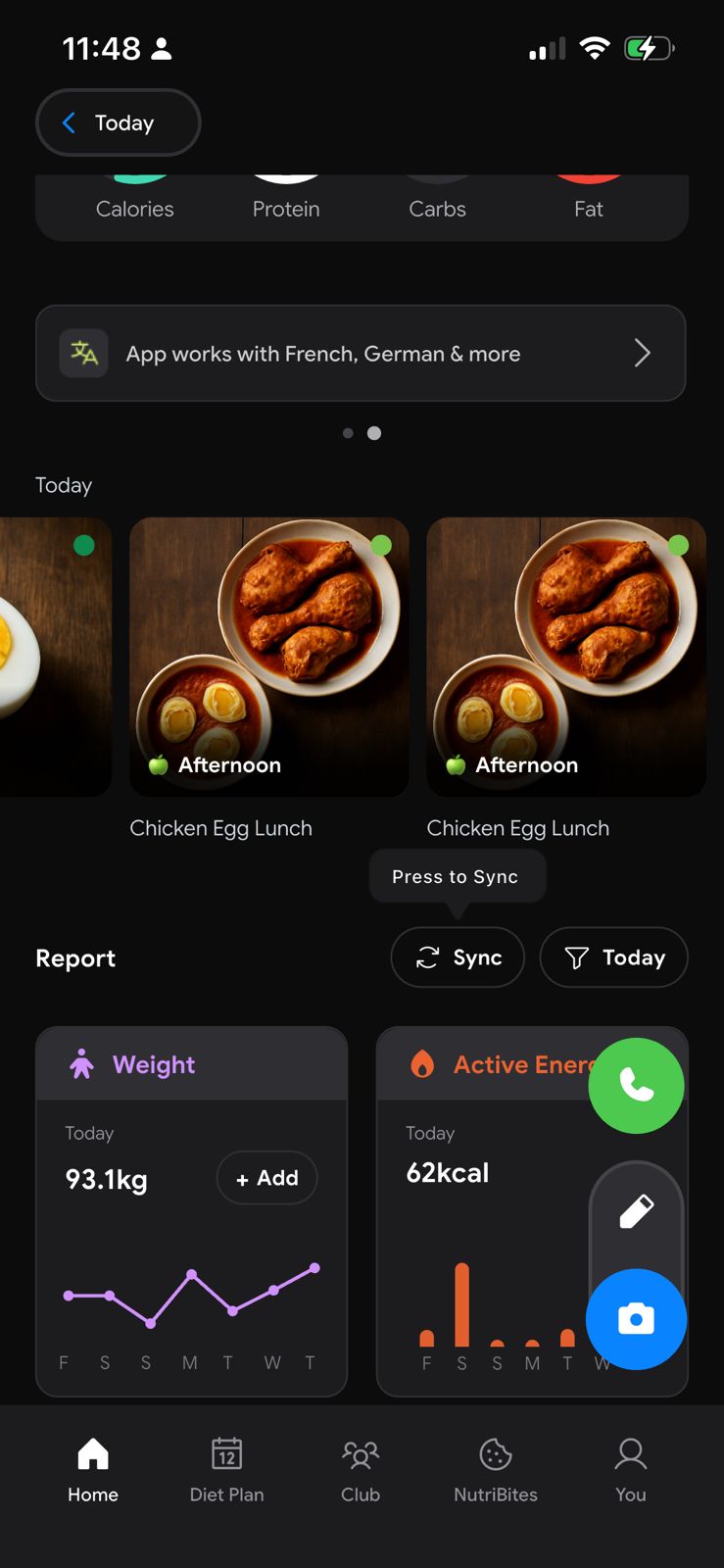 |
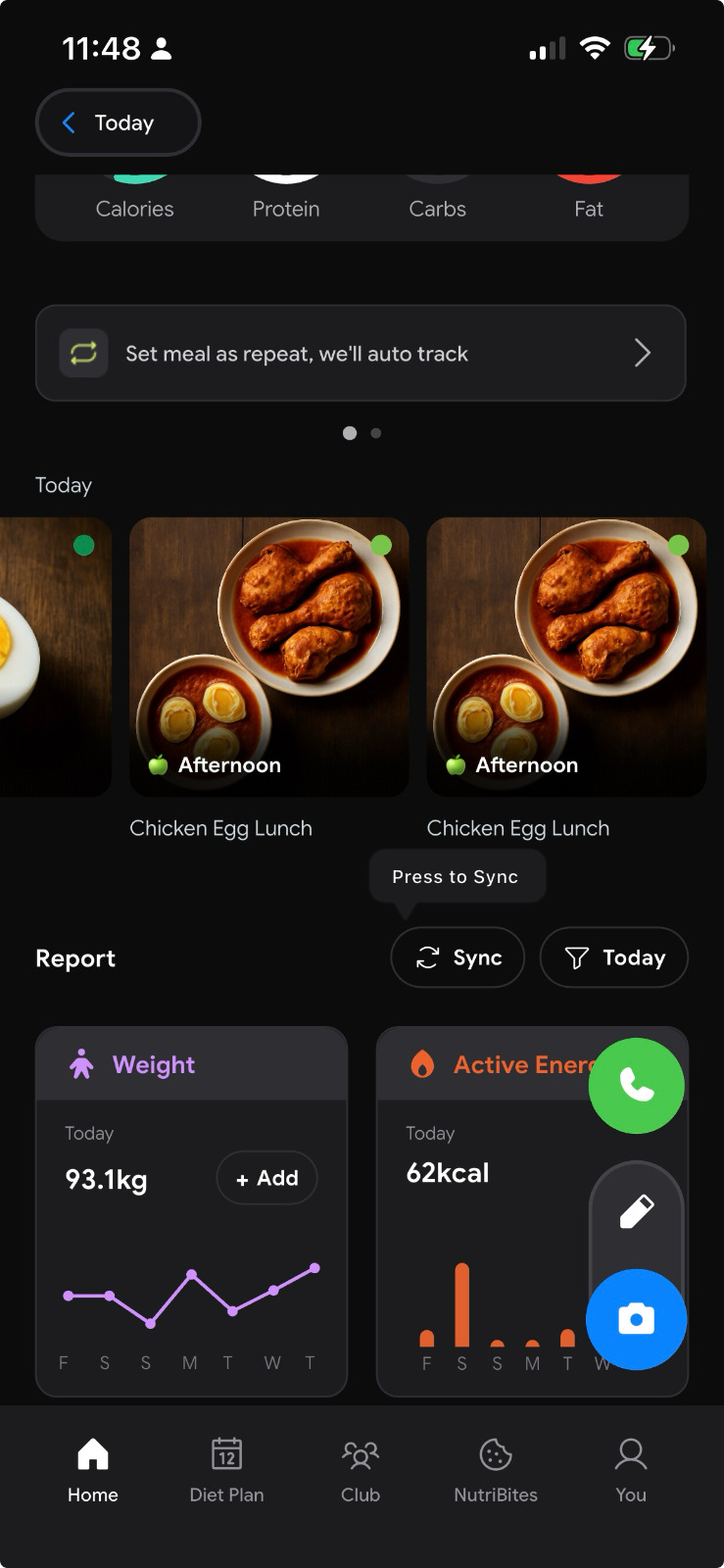 |
Features
- ✨ Rich Content Support: Create tooltips with titles, descriptions, icons, or any custom widget.
- 📍 Flexible Positioning: Position tooltips TOP, BOTTOM, LEFT, or RIGHT of the target.
- 👆 Tap Position: Option to show the tooltip exactly where the user tapped (
showAtTapPosition). - ✋ Hold to Show: Show tooltips on hold or tap (
triggerMode). - 🏹 Advanced Caret Control:
- Directions:
left,right,center,none, orcustom. - Full sizing control:
width,height, andoffset.
- Directions:
- 🎬 Animated Show: Choose fade, scale, slide, or combo.
- 🎨 Premium Styling:
- Borders: Color, width, and radius.
- Shadows: Color, elevation, and blur.
- Glassmorphism: Built-in background blur support.
- 🏭 Factory Constructors: Built-in
minimal,rich, anderrorfactories for quick and beautiful presets. - 🎛️ Programmatic Control: Trigger
show()andhide()usingTooltipProController. - ⏳ Auto-dismiss: Configurable auto-dismiss timer.
Getting started
Add tooltip_pro to your pubspec.yaml:
dependencies:
  tooltip_pro: ^0.0.12
Usage
1. Basic Usage
Wrap any widget with TooltipPro.
TooltipPro(
  tooltipContent: const Text("Hello World!", style: TextStyle(color: Colors.white)),
  tooltipColor: Colors.black,
  child: const Icon(Icons.info),
)
2. Factory Constructors
Quickly create styled tooltips without manual configuration.
Minimal (Text only)
TooltipPro.minimal(
  text: "Copied!",
  child: const Icon(Icons.copy),
)
Rich (Title + Description + Icon)
TooltipPro.rich(
  title: "Feature Unlocked",
  description: "You can now access premium features.",
  icon: Icons.star,
  child: const Icon(Icons.new_releases),
)
Error (Alert style)
TooltipPro.error(
  message: "Failed to connect.",
  child: const Icon(Icons.error),
)
3. Advanced Customization
🏹 Caret Configuration
Control the caret's existence, position, and size.
TooltipPro(
  // Remove the caret entirely
  caretDirection: TooltipCaretDirection.none,

  // OR Custom caret sizing
  caretWidth: 20.0,
  caretHeight: 15.0,

  // OR Custom position (0.0 = left/top edge, 1.0 = right/bottom edge)
  caretDirection: TooltipCaretDirection.custom,
  customCaretOffset: 0.2, // 20% from the start

  child: MyWidget(),
)
📍 Tap Position
Show the tooltip at the exact coordinates where the user touched the widget.
TooltipPro(
  showAtTapPosition: true, // <--- User's touch point determines tooltip position
  child: Container(
    height: 200,
    width: 200,
    color: Colors.grey,
  ),
)
✋ Hold to Show
Show the tooltip only while the user is holding the widget.
TooltipPro(
  triggerMode: TooltipProTriggerMode.hold,
  child: Container(
    height: 60,
    width: 120,
    color: Colors.grey,
  ),
)
🫳 Tap + Hold
Allow both tap and long-press triggers.
TooltipPro(
  triggerMode: TooltipProTriggerMode.tapAndHold,
  child: Icon(Icons.info),
)
🎨 Border & Shadows
Create premium looking UI elements.
TooltipPro(
  border: TooltipBorderConfig(
    enabled: true,
    color: Colors.blueAccent,
    width: 2.0,
    radius: 12.0,
  ),
  shadow: TooltipShadowConfig(
    enabled: true,
    color: Colors.blue.withOpacity(0.3),
    blurRadius: 15,
    elevation: 8,
  ),
  child: MyWidget(),
)
4. Builders
For dynamic content generation.
TooltipPro(
  tooltipContentBuilder: (context, hideTooltip) {
    return Column(
      mainAxisSize: MainAxisSize.min,
      children: [
        const Text("Dynamic Content"),
        ElevatedButton(
          onPressed: hideTooltip, // Close programmatically
          child: const Text("Close"),
        )
      ],
    );
  },
  child: MyWidget(),
)
5. Programmatic Control
Drive tooltips from external events using TooltipProController.
final controller = TooltipProController();

TooltipPro.minimal(
  controller: controller,
  text: "Controlled tooltip",
  child: const Icon(Icons.info_outline),
)

ElevatedButton(
  onPressed: controller.show,
  child: const Text("Show"),
)
API Reference
TooltipPro Properties
| Property | Type | Default | Use Case |
|---|---|---|---|
child |
Widget |
required | The widget that triggers the tooltip on tap or hold. |
direction |
TooltipDirection |
top |
top, bottom, left, right. Overall position relative to child. |
caretDirection |
TooltipCaretDirection |
center |
center, start, end, none, custom. Position of the caret on the tooltip bubble. |
showAtTapPosition |
bool |
false |
If true, tooltip appears exactly where you tapped, ignoring direction slightly to align with touch. |
triggerMode |
TooltipProTriggerMode |
tap |
tap, hold, tapAndHold. Hold disables auto-dismiss. |
customCaretOffset |
double |
0.5 |
Used when caretDirection is custom. 0.0 to 1.0. |
caretWidth |
double |
12.0 |
Width of the caret base. |
caretHeight |
double |
10.0 |
Height (length) of the caret. |
tooltipHeight |
double? |
null |
Optional fixed height; defaults to content size. |
tooltipWidth |
double? |
null |
Optional fixed width; defaults to content size. |
animation |
TooltipAnimationConfig |
const |
Configure show animation type, duration, and curve. |
spacing |
double |
10.0 |
Gap between the target widget and the tooltip. |
autoDismiss |
Duration? |
3s |
How long before it disappears. Set null to disable. |
onPressed |
VoidCallback? |
null |
Additional callback when target is tapped. |
controller |
TooltipProController? |
null |
Control tooltip show/hide programmatically. |
border |
TooltipBorderConfig |
const |
Configure border color, width, radius. |
shadow |
TooltipShadowConfig |
const |
Configure elevation and shadow color. |
blur |
TooltipBlurConfig |
const |
Configure background blur (glassmorphism). |
Configuration Classes
TooltipBorderConfig
TooltipBorderConfig({
  bool enabled = false,
  Color color = Colors.transparent,
  double width = 1.0,
  double radius = 8.0,
})
TooltipShadowConfig
TooltipShadowConfig({
  bool enabled = false,
  Color? color,
  double elevation = 4.0,
  double blurRadius = 4.0,
})
TooltipBlurConfig
TooltipBlurConfig({
  bool enabled = false,
  double sigma = 5.0,
  Color? color,       // Tint logic
  bool includeChild = false,
})
TooltipAnimationConfig
TooltipAnimationConfig({
  TooltipAnimationType type = TooltipAnimationType.none,
  Duration duration = const Duration(milliseconds: 200),
  TooltipAnimationCurve curve = TooltipAnimationCurve.easeOut,
})