
sqflite_dev
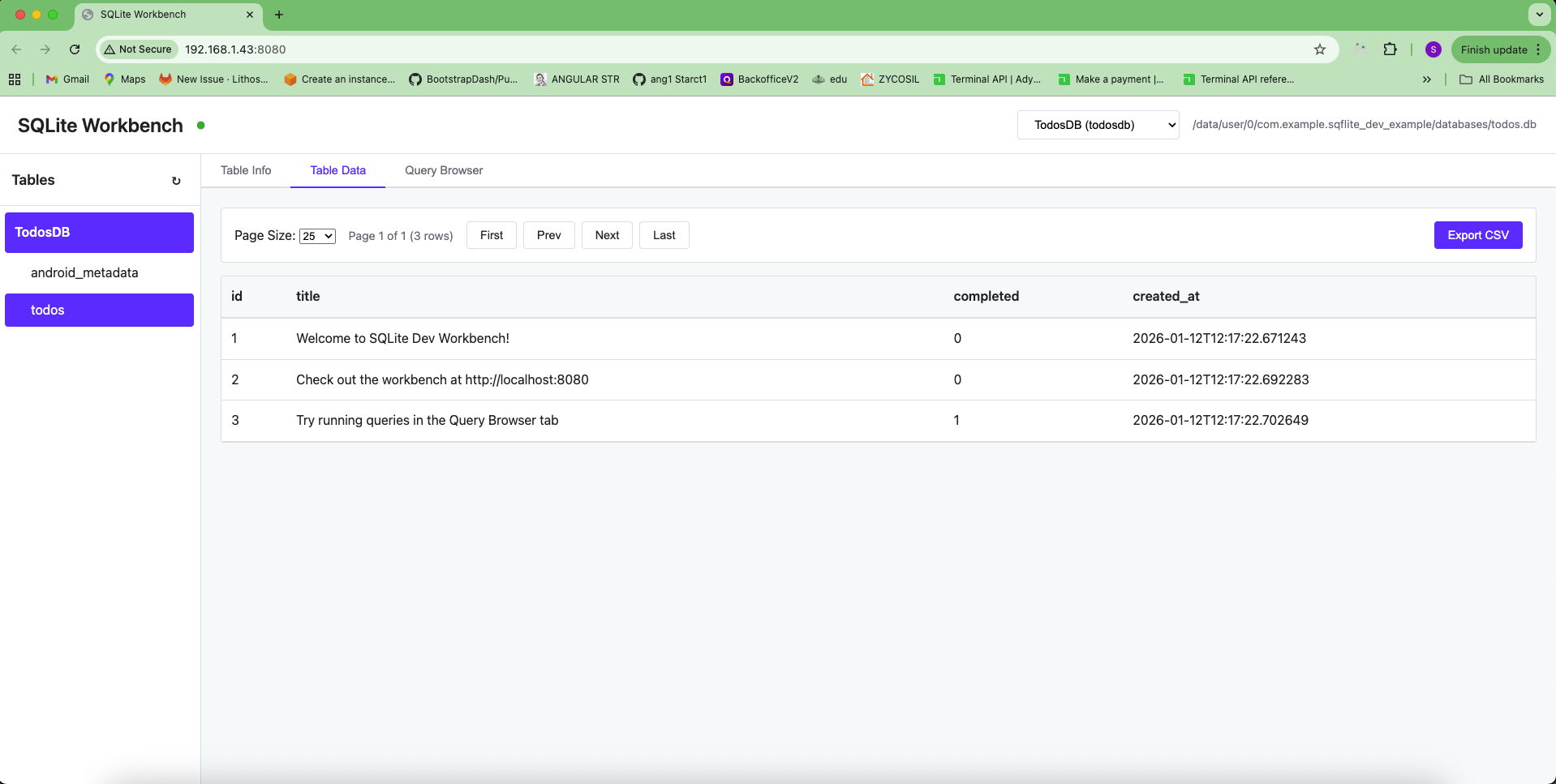
A developer dependency package that provides a web-based SQLite workbench for Flutter and pure Dart apps during development. Works with both sqflite (mobile) and sqflite_common_ffi (desktop).
⚠️ Important
This package is only for development use. Add it to your dev_dependencies, not dependencies. It will not be included in production builds.
Features
- 🌐 Web-based workbench accessible from any device on your network
- 📊 View and manage multiple SQLite databases simultaneously
- 📋 Browse tables with pagination
- 🔍 View table schemas, indexes, and CREATE statements
- 💻 SQL query editor with syntax highlighting
- 📤 Export data to CSV
- 📱 Works on both mobile (iOS/Android) and desktop (Linux/Windows/macOS) platforms
- 🔄 Real-time connection status
Platform Compatibility
- Mobile (iOS/Android/macOS): Use with
sqflitepackage - Desktop (Linux/Windows/macOS/Web): Use with
sqflite_common_ffipackage
Installation
Add this package to your dev_dependencies in pubspec.yaml:
dev_dependencies:
  sqflite_dev: ^1.0.8
Then run:
flutter pub get
Note: Make sure you also have either sqflite (for mobile) or sqflite_common_ffi (for desktop) in your dependencies section.
Usage
Method 1: Using WorkbenchHelper (Recommended - Similar to sqflite_orm)
This is the easiest way, similar to sqflite_orm's webDebug option:
import 'package:flutter/foundation.dart';
import 'package:sqflite/sqflite.dart'; // or sqflite_common_ffi for desktop
import 'package:sqflite_dev/sqflite_dev.dart';

void main() async {
  WidgetsFlutterBinding.ensureInitialized();

  // For desktop platforms, initialize FFI first
  // import 'package:sqflite_common_ffi/sqflite_ffi.dart';
  // sqfliteFfiInit();
  // databaseFactory = databaseFactoryFfi;

  // Open your database
  final db = await openDatabase(
    'my_database.db',
    version: 1,
    onCreate: (db, version) {
      // Your schema creation code
    },
  );

  // Enable workbench (automatically disabled in release builds)
  db.enableWorkbench(
    webDebug: !kReleaseMode, // Automatically disabled in release mode
    webDebugPort: 8080,
    webDebugName: 'MyAppDB',
  );

  runApp(MyApp());
}
Method 2: Manual Enable
You can also enable the workbench manually:
import 'package:sqflite/sqflite.dart';
import 'package:sqflite_dev/sqflite_dev.dart';

void main() async {
  WidgetsFlutterBinding.ensureInitialized();

  // Open your database
  final db = await openDatabase('my_database.db');

  // Enable workbench (only works in debug mode)
  db.enableWorkbench();

  runApp(MyApp());
}
Desktop (Linux/Windows/macOS) with sqflite_common_ffi
import 'package:flutter/foundation.dart';
import 'package:sqflite_common_ffi/sqflite_ffi.dart';
import 'package:sqflite_dev/sqflite_dev.dart';

void main() async {
  // Initialize FFI
  sqfliteFfiInit();
  databaseFactory = databaseFactoryFfi;

  // Open your database
  final db = await openDatabase('my_database.db');

  // Enable workbench (automatically disabled in release builds)
  db.enableWorkbench(
    webDebug: !kReleaseMode, // Automatically disabled in release mode
    webDebugPort: 8080,
    webDebugName: 'MyDatabase',
  );

  runApp(MyApp());
}
Multiple Databases
You can register multiple databases - they will all be accessible through the same web portal:
import 'package:flutter/foundation.dart';
import 'package:sqflite_dev/sqflite_dev.dart';

// Register multiple databases
final db1 = await openDatabase('main.db');
db1.enableWorkbench(
  webDebug: !kReleaseMode,
  webDebugName: 'MainDB',
  webDebugPort: 8080,
);

final db2 = await openDatabase('cache.db');
db2.enableWorkbench(
  webDebug: !kReleaseMode,
  webDebugName: 'CacheDB',
  webDebugPort: 8080, // Same port - all databases share the same server
);

final db3 = await openDatabase('user.db');
db3.enableWorkbench(
  webDebug: !kReleaseMode,
  webDebugName: 'UserDB',
  webDebugPort: 8080,
);
All databases will be accessible through the same web portal. Use the database selector dropdown in the header to switch between them. Each database can have its own custom name for easy identification.
Automatic Release Mode Detection
For best practices, use kReleaseMode to automatically disable the workbench in release builds:
import 'package:flutter/foundation.dart';
import 'package:sqflite_dev/sqflite_dev.dart';

// Enable workbench only in debug/profile builds
db.enableWorkbench(
  webDebug: !kReleaseMode, // Automatically disabled in release builds
  webDebugPort: 8080,
  webDebugName: 'MyDatabase',
);
This ensures the workbench is never enabled in production builds, even if you forget to set webDebug: false.
Custom Port
By default, the workbench runs on port 8080. You can change it:
// Using enableWorkbench directly
db.enableWorkbench(webDebugPort: 3000);

// Or using WorkbenchHelper
WorkbenchHelper.autoEnable(db, webDebugPort: 3000);
If the port is already in use, the server will try the next available port.
Accessing the Workbench
Once you run your app in debug mode, the workbench server will start automatically. You'll see output in your console:
═══════════════════════════════════════════════════════════
sqflite_dev: Workbench server started!
  Local:   http://localhost:8080
  Network: http://192.168.1.100:8080
═══════════════════════════════════════════════════════════
- Local: Access from the same device running the app
- Network: Access from any device on the same network (your development PC, other devices, etc.)
Workbench Features
Database Management
- View all registered databases
- Switch between databases using the dropdown selector
- See database path and connection status
Table Operations
- Table List: View all tables in the left sidebar, grouped by database
- Table Info Tab:
- View table schema (columns, types, constraints)
- See indexes
- View CREATE TABLE statement
- Table Data Tab:
- Browse table data with pagination (10, 25, 50, 100 rows per page)
- Sort columns by clicking headers
- Export data to CSV
- Query Browser Tab:
- Execute SQL queries (SELECT, INSERT, UPDATE, DELETE)
- View query results
- Query history
- Export results to CSV
- Keyboard shortcut:
Ctrl+Enterto execute
Security Considerations
- ✅ Should be in
dev_dependencies(excluded from production builds) - ✅ Accessible only on your local network
- ✅ User controls enablement via
webDebugparameter - ✅ Recommended: Use
webDebug: !kReleaseModeto automatically disable in release builds - ⚠️ Never use in production - this is a development tool only
- ⚠️ Always set
webDebug: falseor use!kReleaseModein production code - even though it's in dev_dependencies, be explicit
Troubleshooting
Workbench doesn't start
- Make sure
webDebug: trueis set when callingWorkbenchHelper.autoEnable()orenableWorkbench() - Check that the package is in
dev_dependencies - Verify the port isn't blocked by a firewall
- Ensure the database is opened before calling
enableWorkbench()orWorkbenchHelper.autoEnable()
Can't access from another device
- Ensure both devices are on the same network
- Check the network IP address shown in the console output
- Verify your firewall allows connections on the port
- On mobile devices, make sure the device and your PC are on the same Wi-Fi network
Web UI not loading
- The web UI is now embedded in the package (no external files needed)
- If you see connection errors, check the browser console for details
- Make sure you're accessing the correct URL (check console output for the exact address)
Tables not showing
- Make sure the database is opened and registered
- Try refreshing the tables list using the refresh button (↻) in the sidebar
- Check the browser console for errors
- Verify the database has tables (empty databases won't show tables)
License
This package is licensed under the MIT License. See the LICENSE file for details.
Contributing
Contributions are welcome! Please feel free to submit issues or pull requests.
Libraries
- sqflite_dev
- SQLite Dev Workbench - A development tool for inspecting SQLite databases