
Flutter Photo View
THIS LIBRARY IS BASED ON PHOTO_VIEW, ALLOWING YOU TO CREATE A PAGE VIEW THAT CAN CONTAIN IMAGES, GIFS, PDFS, DOCS, AND VIDEOS SIMULTANEOUSLY WHILE STILL ENABLING ZOOM FUNCTIONALITY FOR IMAGES AND GIFS WITHOUT DISPLAY ISSUES.
A simple zoomable image/content widget for Flutter.
PhotoView enables images to become able to zoom and pan with user gestures such as pinch, rotate and drag.
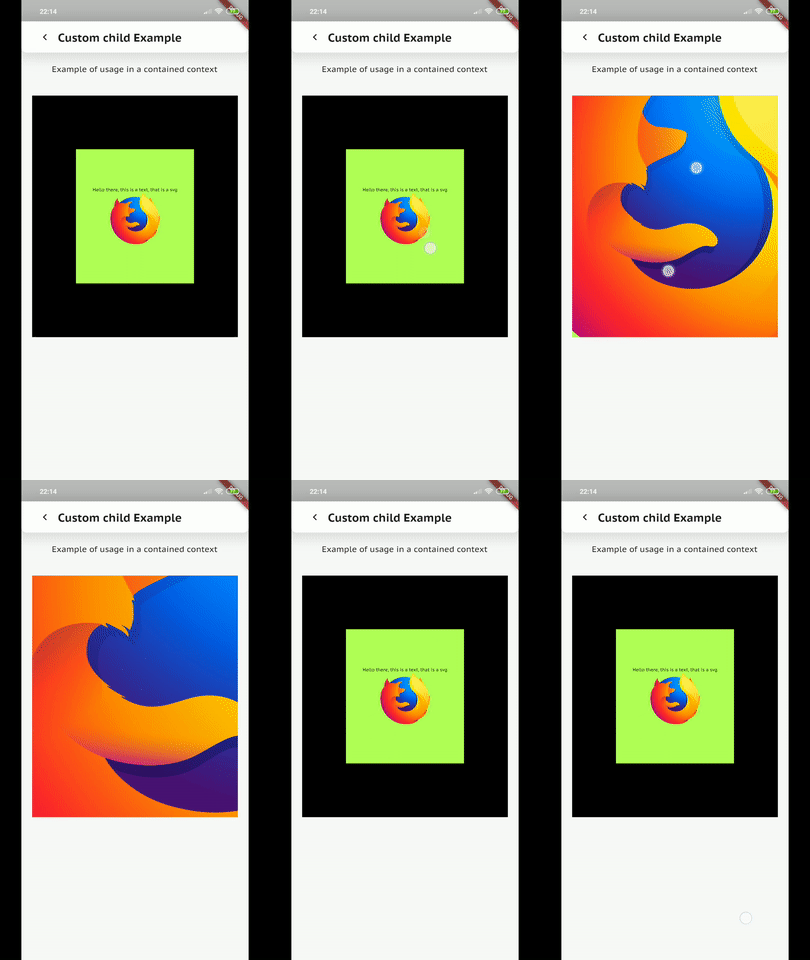
It also can show any widget instead of an image, such as Container, Text or a SVG.
Even though being super simple to use, PhotoView is extremely customizable though its options and the controllers.
Installation
Add media_list_view as a dependency in your pubspec.yaml file.
Import Photo View:
import 'package:media_list_view/media_list_view.dart';
Docs & API
The API Docs some detailed information about how to use PhotoView.
If you want to see it in practice, check the example app that explores most of Photo View's use cases or download the latest version apk on the releases page
(Very) Basic usage
Given a ImageProvider imageProvider (such as AssetImage or NetworkImage):
@override
Widget build(BuildContext context) {
  return Container(
    child: PhotoView(
      imageProvider: AssetImage("assets/large-image.jpg"),
    )
  );
}
Result:
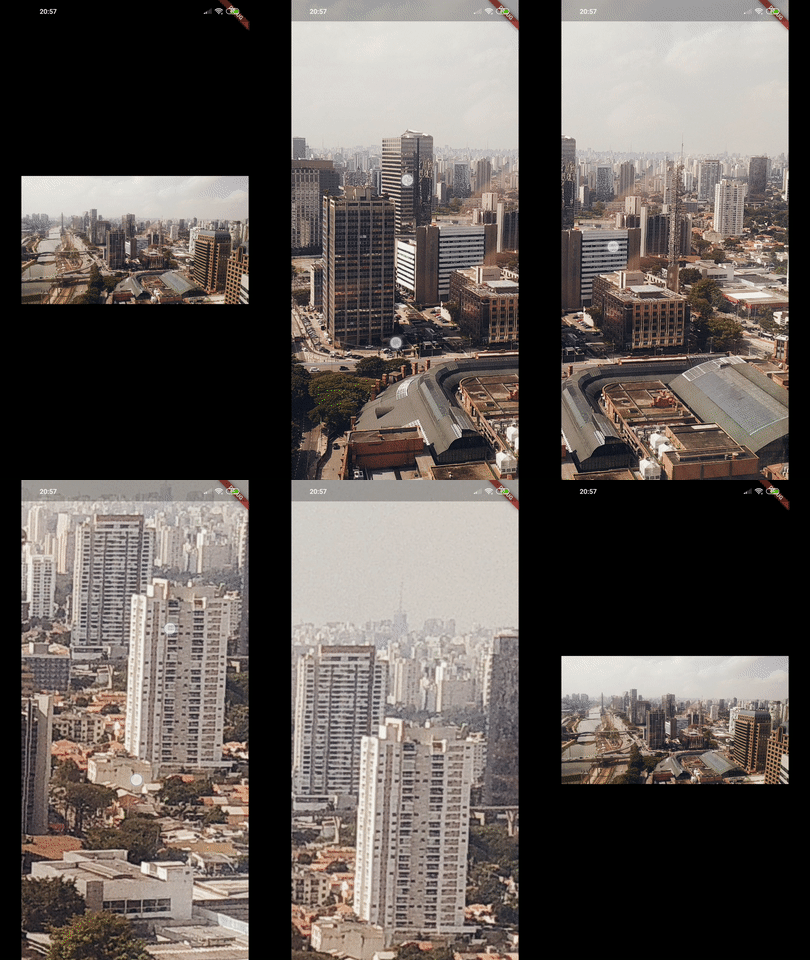
Read more about the PhotoView widget here.
Gallery
Show images and GIFs (zoomable) along with videos in a list, allowing users to navigate between them using PhotoViewGallery.
Read more about the gallery here.
class MainApp extends StatelessWidget {
  const MainApp({super.key});

  @override
  Widget build(BuildContext context) {
    const img =
        'https://cdn2.tuoitre.vn/thumb_w/480/471584752817336320/2024/7/29/tuoi-tre-cuoi-tram-hoat-hinh-01-1722239999290630742377.jpg';
    const img2 =
        'https://vn.portal-pokemon.com/play/resources/pokedex/img/pm/cf47f9fac4ed3037ff2a8ea83204e32aff8fb5f3.png';
    const listIms = [img, img2];
    const video =
        'https://commondatastorage.googleapis.com/gtv-videos-bucket/sample/BigBuckBunny.mp4';
    const listMedia = [
      img,
      img2,
      video,
      "https://shortpixel.com/blog/wp-content/uploads/2023/12/nyan-cat.gif"
    ];
    return MaterialApp(
      home: Scaffold(
        body: Center(
          child: PhotoViewGallery.builder(
            itemBuilder: (context, index) {
              if (index == 2) {
                return const VideoWidget(); //this is custom widget to show video not the from the lib
              }
              return PhotoAttachmentWidget(  //this is custom widget to show images not the from the lib
                img: listMedia[index],
              );
            },
            itemCount: listMedia.length,
          ),
        ),
      ),
    );
  }
}
Usage with controllers
When you need to interact with PhotoView's internal state values, PhotoViewController and PhotoViewScaleStateController are the way to.
Controllers, when specified to PhotoView widget, enables the author(you) to listen for state updates through a Stream and change those values externally.
Read more about controllers here.
In the example app, we can see what can be achieved with controllers:

More screenshots
| Custom background, small image and custom alignment |
Limited scale | Hero animation |
|---|---|---|
 |
 |
 |
| Part of the screen | Custom child | |
 |
 |