
flutter_ai_assistant
A drop-in AI assistant for Flutter apps. Understands your UI through the Semantics tree, executes multi-step tasks autonomously, and works with any LLM provider — Gemini, Claude, or OpenAI.
One widget. Full app control. Zero hardcoding.
AiAssistant(
  config: AiAssistantConfig(
    provider: GeminiProvider(apiKey: 'your-key'),
  ),
  child: MaterialApp(home: HomeScreen()),
)
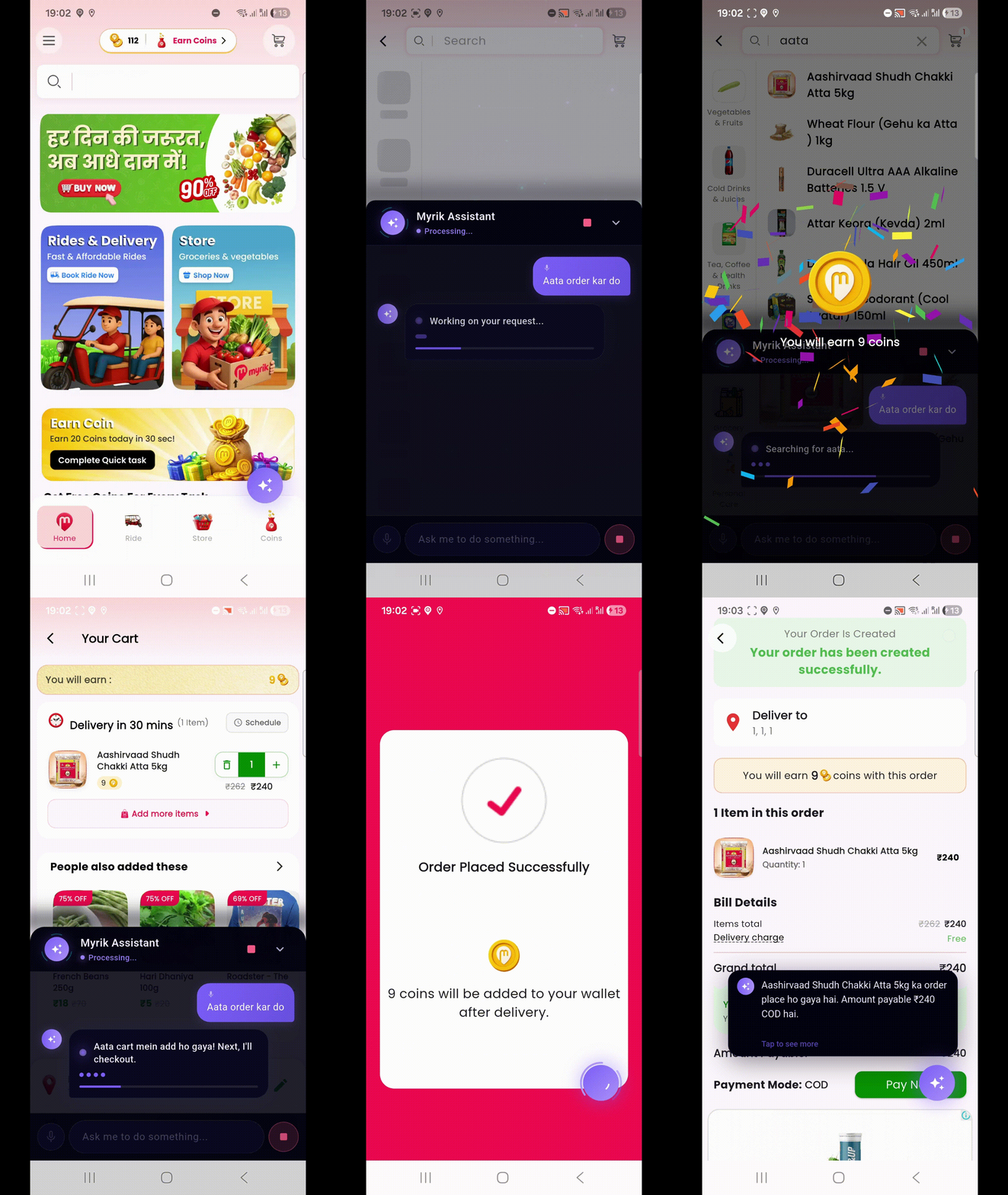
Your users can now say "order 2 onions from the store" and the assistant will navigate to the store, search for onions, add them to cart, adjust the quantity, and proceed to checkout — all autonomously.
Demo
Ordering from a Store
Booking a Ride
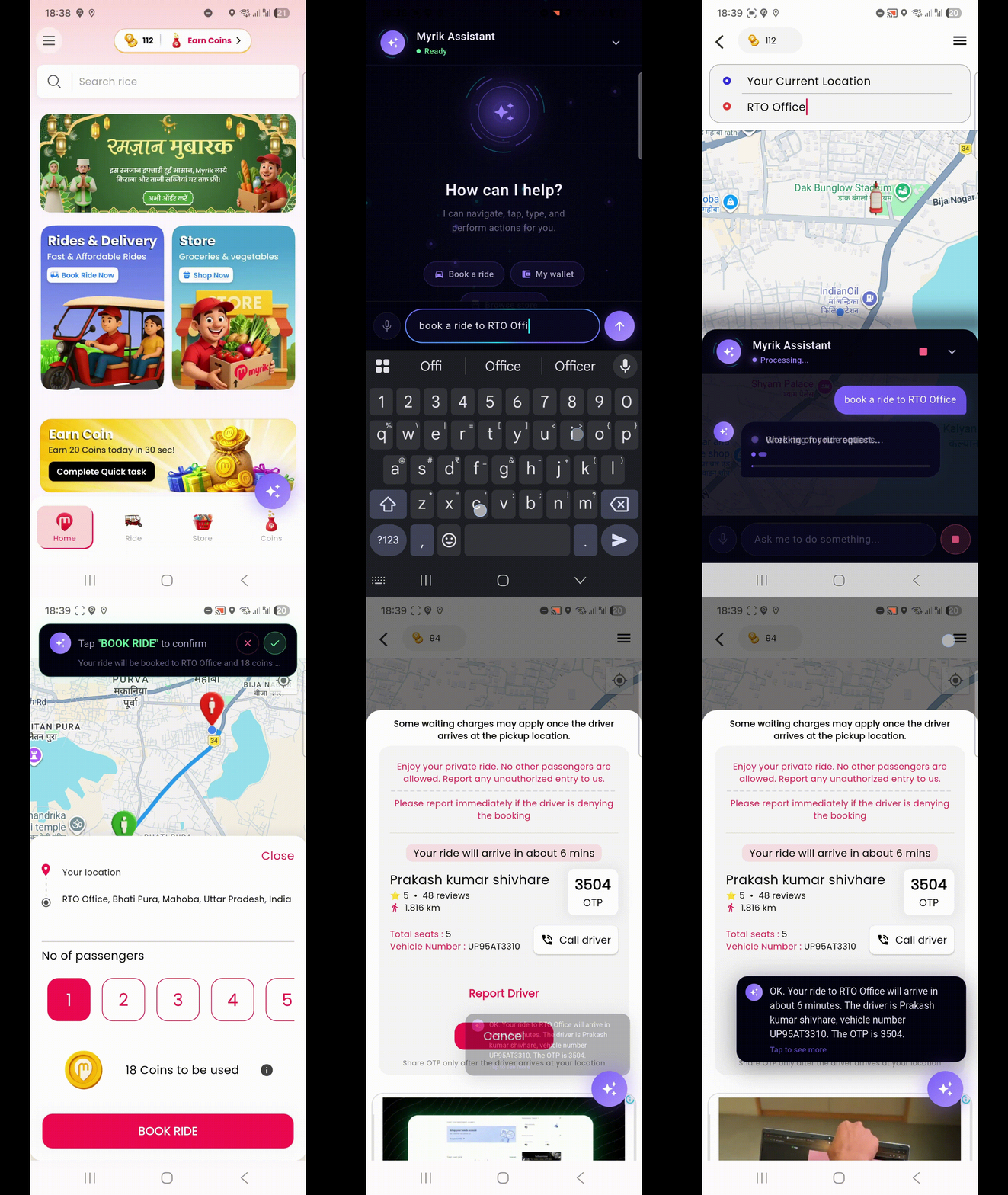
Table of Contents
- How It Works
- Features
- Quick Start
- Configuration Reference
- LLM Providers
- Custom Tools
- App Manifest (Code Generation)
- Voice I/O
- Analytics Events
- Rich Chat Content
- Architecture
- API Reference
How It Works
User speaks or types a command
        |
        v
+-------------------+
|  Semantics Walker  |  Reads the live UI tree — every button,
|  (Screen Context)  |  label, text field, and scrollable area
+-------------------+
        |
        v
+-------------------+
|    ReAct Agent     |  Reason -> Act -> Observe loop
|   (LLM + Tools)   |  Plans steps, calls tools, checks results
+-------------------+
        |
        v
+-------------------+
|  Action Executor   |  Taps buttons, fills text fields, scrolls,
|  (UI Automation)   |  navigates routes — like a real user
+-------------------+
        |
        v
    Task complete — user sees the result
The assistant doesn't use hardcoded screen coordinates or widget keys. It reads Flutter's Semantics tree — the same accessibility layer used by screen readers — to understand what's on screen and interact with it. This means it works with any Flutter app out of the box, regardless of your widget structure.
Features
Core Intelligence
- ReAct Agent Loop — Reason, Act, Observe cycle with automatic verification
- Multi-provider LLM — Gemini, Claude, and OpenAI out of the box; bring your own via
LlmProviderinterface - Built-in Tools — tap, type, scroll, navigate, go back, long press, increase/decrease values, ask user, hand off to user, read screen (10 always-on +
hand_off_to_userwhenconfirmDestructiveActionsis true) - Custom Tools — register your own business-logic tools (check inventory, call APIs, etc.)
- Conversation Memory — multi-turn context with automatic management
- Circuit Breaker — escalates after consecutive failures instead of looping forever
UI Understanding
- Semantics Tree Walking — reads every interactive element, label, and state on screen
- Progressive Screen Knowledge — remembers previously visited screens for smarter planning
- Screenshot Support — optional visual context for chart/image understanding (multimodal)
- Context Caching — avoids redundant tree walks with configurable TTL
- App Manifest — optional code-generated "building map" of your entire app for instant navigation
Voice
- Speech-to-Text — multi-locale recognition with automatic locale selection
- Text-to-Speech — auto-detects Hindi/English and switches voice accordingly
- Confidence Filtering — discards low-confidence noise before it reaches the LLM
- Summary Mode — speaks only the first sentence of long responses; full text stays in chat
UI
- Floating Action Button — draggable, edge-snapping, with processing indicator and unread badge
- Chat Overlay — full-screen chat with animated action feed showing live progress
- Rich Messages — text, images, interactive buttons, and cards in chat bubbles
- Handoff Mode — for irreversible actions, the overlay clears so the user can tap the final button themselves
- Response Popup — compact result card above the FAB after auto-close
- Suggestion Chips — configurable quick-start actions in empty state
- Post-task Chips — contextual follow-up buttons after task completion
- Auto-close — overlay closes after task completion; action results auto-dismiss, info results persist
Safety
- Destructive Action Handoff — purchases, deletions, and payments are handed to the user for the final tap
- ask_user Guards — code-level enforcement prevents the LLM from asking unnecessary confirmation questions
- Verification Passes — after the agent says "done", the system re-checks the screen to catch premature completion
- Max Iterations — hard cap on agent loop steps to prevent runaway execution
- Processing Timeout — 3-minute safety timeout on active processing
Quick Start
1. Add the dependency
dependencies:
  flutter_ai_assistant: ^0.1.0
2. Wrap your app and wire the navigator observer
The assistant needs two things: the AiAssistant widget wrapping your app, and its AiNavigatorObserver added to your MaterialApp so it can track route changes.
import 'package:flutter_ai_assistant/flutter_ai_assistant.dart';

class MyApp extends StatelessWidget {
  @override
  Widget build(BuildContext context) {
    return AiAssistant(
      config: AiAssistantConfig(
        provider: GeminiProvider(apiKey: 'YOUR_GEMINI_API_KEY'),
      ),
      child: Builder(
        builder: (context) {
          // Access the controller to get the navigator observer.
          final aiCtrl = AiAssistant.read(context);
          return MaterialApp(
            navigatorObservers: [aiCtrl.navigatorObserver],
            home: HomeScreen(),
          );
        },
      ),
    );
  }
}
That's it. A floating AI button appears. Users can tap it, type or speak a command, and the assistant executes it.
Why the
Builder?AiAssistant.read(context)requires theAiAssistantto be an ancestor in the widget tree. TheBuildercreates a new context belowAiAssistantso the controller is accessible. Without the navigator observer, the assistant won't know which screen the user is on.
3. Add routes and descriptions (recommended)
Telling the assistant about your app's screens makes it dramatically smarter:
AiAssistant(
  config: AiAssistantConfig(
    provider: GeminiProvider(apiKey: apiKey),
    knownRoutes: ['/home', '/store', '/cart', '/profile', '/settings'],
    routeDescriptions: {
      '/home': 'Main dashboard with quick actions',
      '/store': 'Browse and buy products',
      '/cart': 'Shopping cart with checkout',
      '/profile': 'User profile and account settings',
      '/settings': 'App preferences and configuration',
    },
  ),
  child: MaterialApp(...),
)
4. Add domain knowledge (recommended)
Teach the assistant your app's vocabulary and workflows:
AiAssistant(
  config: AiAssistantConfig(
    provider: GeminiProvider(apiKey: apiKey),

    // What your app does (for the LLM's understanding)
    appPurpose:
      'ShopApp is a grocery delivery app. Users browse products, '
      'add to cart, and checkout. "order"/"buy" = full purchase flow. '
      '"cart" = shopping cart. "balance" = wallet screen.',

    // Behavioral rules specific to your app
    domainInstructions:
      'QUANTITIES: Tap ADD first (sets qty=1), then tap "+" to increase. '
      '"5 onions" means ADD then "+" 4 times.\n\n'
      '"order X" means COMPLETE the full purchase: add to cart, '
      'go to cart, checkout, and hand off payment.',

    // Example flows the LLM should learn from
    fewShotExamples: [
      'User: "order 2 onions"\n'
      'Actions: navigate_to_route("/store") -> set_text("Search", "onion") -> '
      'tap_element("ADD", parentContext: "Onion") -> increase_value("+") -> '
      'navigate_to_route("/cart") -> tap_element("Checkout")\n'
      'Response: "2 onions added and ready for checkout!"',
    ],
  ),
  child: MaterialApp(...),
)
Configuration Reference
Every aspect of the assistant is configurable through AiAssistantConfig:
Required
| Parameter | Type | Description |
|---|---|---|
provider |
LlmProvider |
The LLM provider to use (Gemini, Claude, OpenAI, or custom) |
App Knowledge
| Parameter | Type | Default | Description |
|---|---|---|---|
knownRoutes |
List<String> |
[] |
All named routes in your app (e.g. ['/home', '/store']) |
routeDescriptions |
Map<String, String> |
{} |
Human-readable description for each route |
appPurpose |
String? |
null |
What your app does — domain vocabulary and user intent mapping |
domainInstructions |
String? |
null |
App-specific behavioral rules injected into the system prompt |
fewShotExamples |
List<String> |
[] |
Example User -> Actions -> Response flows for the LLM to learn |
appManifest |
AiAppManifest? |
null |
Rich hierarchical app description (code-generated) |
globalContextProvider |
Future<Map<String, dynamic>> Function()? |
null |
Callback providing app-level state (user info, cart, etc.) |
Behavior
| Parameter | Type | Default | Description |
|---|---|---|---|
confirmDestructiveActions |
bool |
true |
Hand off irreversible actions (purchases, deletions) to the user |
maxAgentIterations |
int |
30 |
Max reason-act-observe cycles per user message |
maxVerificationAttempts |
int |
2 |
Max post-completion verification passes |
contextCacheTtl |
Duration |
10 seconds |
How long to cache a screen's semantics snapshot |
navigateToRoute |
Future<void> Function(String)? |
null |
Custom navigation callback (default: uses NavigatorState) |
systemPromptOverride |
String? |
null |
Replace the entire built-in system prompt |
customTools |
List<AiTool> |
[] |
Additional tools the LLM can call |
Voice
| Parameter | Type | Default | Description |
|---|---|---|---|
voiceEnabled |
bool |
true |
Show mic button and enable voice input |
enableTts |
bool |
true |
Speak responses aloud via TTS |
preferredLocales |
List<String> |
['en_US'] |
Speech recognition locales in priority order |
enableHaptics |
bool |
true |
Vibrate on mic activation, progress, and completion |
UI
| Parameter | Type | Default | Description |
|---|---|---|---|
showFloatingButton |
bool |
true |
Show the floating AI chat button |
fabBottomPadding |
double |
72 |
Extra bottom padding to clear bottom nav bars |
fabDraggable |
bool |
true |
Allow dragging the FAB to reposition |
autoCloseOnComplete |
bool |
true |
Auto-close overlay after task completion |
assistantName |
String |
'AI Assistant' |
Display name shown in the chat header |
initialSuggestions |
List<AiSuggestionChip> |
[] |
Quick-start chips in empty chat state |
postTaskChipsBuilder |
PostTaskChipsBuilder? |
null |
Callback to build follow-up suggestion buttons |
Screenshots & Debugging
| Parameter | Type | Default | Description |
|---|---|---|---|
enableScreenshots |
bool |
false |
Capture screen images for multimodal LLM context |
enableLogging |
bool |
false |
Write debug logs via dart:developer |
Analytics
| Parameter | Type | Default | Description |
|---|---|---|---|
onEvent |
AiEventCallback? |
null |
Receive structured analytics events for every assistant action |
LLM Providers
The package includes three providers. All share the same LlmProvider interface, so switching is a one-line change.
Gemini (Google)
GeminiProvider(
  apiKey: 'your-gemini-api-key',
  model: 'gemini-2.0-flash',     // default
  temperature: 0.2,               // default
  requestTimeout: Duration(seconds: 45),
)
Uses the google_generative_ai package. Supports function calling and multimodal (images).
Claude (Anthropic)
ClaudeProvider(
  apiKey: 'sk-ant-...',
  model: 'claude-sonnet-4-20250514',  // default
  maxTokens: 4096,
  temperature: 0.2,
  baseUrl: 'https://api.anthropic.com/v1',  // override for proxies
)
Uses the Anthropic Messages API via HTTP. No additional SDK dependency.
OpenAI (GPT-4)
OpenAiProvider(
  apiKey: 'sk-...',
  model: 'gpt-4o',               // default
  temperature: 0.2,
  baseUrl: 'https://api.openai.com/v1',  // override for Azure
)
Uses the Chat Completions API via HTTP. Override baseUrl for Azure OpenAI or proxies.
Bring Your Own Provider
Implement the LlmProvider interface:
abstract class LlmProvider {
  Future<LlmResponse> sendMessage({
    required List<LlmMessage> messages,
    required List<ToolDefinition> tools,
    String? systemPrompt,
  });

  void dispose() {}
}
The package handles conversation format, tool schemas, and response parsing — your provider just needs to translate between LlmMessage/LlmResponse and your API's format.
Built-in error handling: All HTTP providers share typed exceptions (RateLimitException, ContextOverflowException, AuthenticationException, ContentFilteredException) and automatic retry with exponential backoff on rate limits.
Best Practices
Securing LLM API Keys
Never ship API keys in your app binary. Hardcoded keys can be extracted from your APK/IPA in minutes. Instead, serve the key from your backend at runtime:
// DON'T do this — key is extractable from the binary
GeminiProvider(apiKey: 'AIzaSy...')

// DO this — fetch key from your authenticated backend
final apiKey = await myBackend.getLlmApiKey(userToken: authToken);
GeminiProvider(apiKey: apiKey)
Recommended architecture:
- User authenticates with your backend normally
- Your backend returns a short-lived LLM API key (or proxies LLM calls entirely)
- The app uses the key only in memory — never persisted to disk
Even better — proxy through your backend:
// Your backend proxies calls to Gemini/Claude/OpenAI
// This way the LLM key never leaves your server
ClaudeProvider(
  apiKey: userSessionToken,              // your own auth token
  baseUrl: 'https://api.yourapp.com/ai', // your proxy endpoint
)
This also lets you add rate limiting, cost tracking, content filtering, and audit logging server-side.
Handling Sensitive Screens
If your app has screens with sensitive data (bank details, passwords) that the assistant shouldn't read or act on, you can exclude Semantics nodes using Flutter's built-in ExcludeSemantics widget:
ExcludeSemantics(
  child: CreditCardForm(...),
)
The assistant only sees what's in the Semantics tree — excluded subtrees are invisible to it.
Domain Instructions
Invest time in domainInstructions and fewShotExamples. These are the highest-leverage configuration options — a few well-written examples dramatically improve the agent's accuracy and reduce unnecessary tool calls. Write them for your most common user flows first.
Custom Tools
Register business-logic tools that the LLM can call during task execution:
AiAssistantConfig(
  provider: GeminiProvider(apiKey: apiKey),
  customTools: [
    AiTool(
      name: 'check_inventory',
      description: 'Check if a product is in stock and get its current price.',
      parameters: {
        'productName': const ToolParameter(
          type: 'string',
          description: 'The name of the product to check.',
        ),
      },
      required: ['productName'],
      handler: (args) async {
        final name = args['productName'] as String;
        final result = await inventoryService.check(name);
        return {
          'inStock': result.inStock,
          'price': result.price,
          'quantity': result.available,
        };
      },
    ),
  ],
)
The LLM sees your tool's name, description, and parameters alongside the built-in tools. When it decides your tool is relevant, it calls it — the return map is fed back as the tool result.
Built-in Tools
These are registered automatically and work on any Flutter app:
| Tool | What it does |
|---|---|
tap_element |
Taps a button, link, or interactive element by its label. Supports parentContext for disambiguation. |
set_text |
Enters text into any text field — auto-finds hidden/unfocused fields, activates search bars. |
scroll |
Scrolls up, down, left, or right to find off-screen content. |
navigate_to_route |
Navigates to a named route (e.g. /store, /cart). |
go_back |
Pops the current route (back button). |
get_screen_content |
Re-reads the current screen's semantics tree for fresh context. |
long_press_element |
Long presses an element (for context menus, etc.). |
increase_value |
Increases a quantity stepper or slider value. |
decrease_value |
Decreases a quantity stepper or slider value. |
ask_user |
Asks the user a question and waits for their response. Used only when genuinely ambiguous. |
hand_off_to_user |
Clears the overlay so the user can tap the final irreversible action button themselves. Only available when confirmDestructiveActions: true (default). |
App Manifest (Code Generation)
For large apps, you can generate a rich "building map" that gives the assistant detailed knowledge of every screen without having to visit them first:
dart run flutter_ai_assistant:generate \
  --routes-file=lib/models/routes.dart \
  --router-file=lib/app/router.dart \
  --api-key=YOUR_GEMINI_KEY \
  --output=lib/ai_app_manifest.g.dart
Or with an env file:
dart run flutter_ai_assistant:generate --env=.env.staging
This scans your route definitions and widget source code, sends each screen to Gemini for analysis, and generates a Dart file containing an AiAppManifest with:
- Screen descriptions — what each screen does, its sections, and interactive elements
- Navigation links — how screens connect to each other
- Multi-step flows — common user journeys spanning multiple screens
- Global navigation — bottom nav tabs, side menu structure
Pass the generated manifest to the config:
import 'ai_app_manifest.g.dart';

AiAssistantConfig(
  provider: GeminiProvider(apiKey: apiKey),
  appManifest: aiAppManifest,
)
The manifest provides a two-tier context system:
- Tier 1 (always loaded): App overview, all screens, navigation structure, flows
- Tier 2 (on-demand): Detailed screen sections, elements, and actions for the current screen
Voice I/O
Speech-to-Text (Input)
The assistant uses speech_to_text with intelligent locale resolution:
AiAssistantConfig(
  voiceEnabled: true,
  preferredLocales: ['en_US', 'hi_IN', 'es_ES'],  // your priority order
)
- On first listen, queries the device for available locales
- Picks the best match from your preferred list (supports exact match, hyphen variants, and language prefix matching)
- Partial transcription shown live as the user speaks
- Low-confidence results are filtered before reaching the LLM
Text-to-Speech (Output)
The assistant uses flutter_tts with automatic language detection:
AiAssistantConfig(
  enableTts: true,
)
- Auto-detects language: Devanagari script or Hindi/Hinglish particles -> Hindi voice; otherwise English
- Summary mode: Long responses are truncated to the first sentence for TTS; full text stays in chat
- Progress updates: During multi-step tasks, the assistant speaks status updates ("Opening the store...", "Searching for onions...")
Analytics Events
Every significant action in the assistant lifecycle emits a structured AiEvent:
AiAssistantConfig(
  onEvent: (event) {
    analytics.logEvent(
      name: 'ai_${event.type.name}',
      parameters: event.properties.map(
        (k, v) => MapEntry(k, v?.toString() ?? ''),
      ),
    );
  },
)
Event Categories
Conversation lifecycle: conversationStarted, conversationCompleted, conversationError, messageSent, messageReceived, conversationCleared
Agent loop: agentIterationStarted, agentIterationCompleted, agentCancelled, agentTimeout, agentMaxIterationsReached, agentOrientationCheckpoint, agentCircuitBreakerFired
LLM communication: llmRequestSent, llmResponseReceived, llmError, llmEmptyResponse
Tool execution: toolExecutionStarted, toolExecutionCompleted, screenContentCaptured, screenStabilizationAttempted
Voice: voiceInputStarted, voiceInputCompleted, voiceInputError, ttsStarted
UI interactions: chatOverlayOpened, chatOverlayClosed, suggestionChipTapped, buttonTapped, handoffStarted, handoffCompleted, askUserStarted, askUserCompleted, stopRequested, responsePopupShown
Navigation: routeChanged, navigationExecuted
Each event includes relevant properties (documented on the AiEventType enum). For example, toolExecutionCompleted includes toolName, arguments, success, error, durationMs, and iteration.
Rich Chat Content
Chat messages support rich content blocks beyond plain text:
Interactive Buttons
// Post-task follow-up chips
AiAssistantConfig(
  postTaskChipsBuilder: (response) {
    final addedToCart = response.actions.any((a) =>
      a.toolName == 'tap_element' &&
      (a.arguments['label'] as String?)?.contains('ADD') == true);

    if (addedToCart) {
      return ButtonsContent(
        buttons: [
          ChatButton(label: 'View my cart', icon: Icons.shopping_cart),
          ChatButton(label: 'Continue shopping', icon: Icons.store),
        ],
      );
    }
    return null;
  },
)
Suggestion Chips
AiAssistantConfig(
  initialSuggestions: [
    AiSuggestionChip(
      icon: Icons.directions_car,
      label: 'Book a ride',
      message: 'Book me a ride',
    ),
    AiSuggestionChip(
      icon: Icons.storefront,
      label: 'Browse store',
      message: 'Take me to the store',
    ),
    AiSuggestionChip(
      icon: Icons.account_balance_wallet,
      label: 'Check balance',
      message: 'Show my wallet balance',
    ),
  ],
)
Content Types
| Type | Description |
|---|---|
TextContent |
Plain text block |
ImageContent |
Inline image (URL or bytes) with optional caption |
ButtonsContent |
Group of tappable quick-reply buttons (wrap or column layout) |
CardContent |
Rich card with title, subtitle, image, and action buttons |
Button styles: primary (filled), outlined (default), destructive (red), success (green).
Architecture
flutter_ai_assistant/
  lib/
    flutter_ai_assistant.dart    # Barrel file — public API
    src/
      core/
        ai_assistant.dart        # AiAssistant widget (wrap your app)
        ai_assistant_config.dart # All configuration options
        ai_assistant_controller.dart # Central orchestrator
        ai_event.dart            # Analytics event system
        ai_logger.dart           # Debug logging
      llm/
        llm_provider.dart        # Abstract provider interface
        react_agent.dart         # ReAct agent loop
        conversation_memory.dart # Multi-turn memory management
        providers/
          gemini_provider.dart   # Google Gemini
          claude_provider.dart   # Anthropic Claude
          openai_provider.dart   # OpenAI GPT-4
      action/
        action_executor.dart     # Executes UI actions (tap, type, scroll)
        scroll_handler.dart      # Smart scrolling
      context/
        semantics_walker.dart    # Reads the Flutter Semantics tree
        screen_context.dart      # Structured screen representation
        context_cache.dart       # TTL-based caching
        context_invalidator.dart # Cache invalidation on UI changes
        route_discovery.dart     # Progressive route learning
        screenshot_capture.dart  # Screen capture for multimodal
        ai_navigator_observer.dart # NavigatorObserver for route tracking
      tools/
        built_in_tools.dart      # Built-in UI interaction tools
        tool_definition.dart     # Tool schema (AiTool, ToolParameter)
        tool_registry.dart       # Tool registration and lookup
        tool_result.dart         # Structured tool results
      manifest/
        ai_app_manifest.dart     # Hierarchical app description
        ai_screen_manifest.dart  # Per-screen detail
        ai_section_manifest.dart # Screen sections
        ai_element_manifest.dart # Interactive elements
        ai_flow_manifest.dart    # Multi-step user journeys
        ai_nav_entry.dart        # Global navigation entries
        ai_action_manifest.dart  # Screen-level actions
        ai_navigation_link.dart  # Screen-to-screen links
        manifest.dart            # Barrel file re-exporting all manifest types
      voice/
        voice_input_service.dart # Speech-to-text
        voice_output_service.dart # Text-to-speech with language detection
      ui/
        chat_overlay.dart        # Full chat UI
        chat_bubble.dart         # Message bubbles with rich content
        action_feed_overlay.dart # Live action progress feed
        handoff_indicator.dart   # Handoff mode indicator
        response_popup.dart      # Compact result popup above FAB
      models/
        chat_message.dart        # Chat message model
        chat_content.dart        # Rich content types (text, image, buttons, cards)
        action_step.dart         # Action progress tracking
        agent_action.dart        # Executed action records
        app_context_snapshot.dart # Full app state for LLM
        ui_element.dart          # UI element representation
  bin/
    generate.dart                # CLI manifest generator
Data Flow
- User input (text or voice) ->
AiAssistantController - Context capture ->
SemanticsWalkerreads the UI tree,ContextCachemanages freshness - Agent loop ->
ReactAgentsends context + history + tools to theLlmProvider - Tool execution -> LLM returns tool calls,
ActionExecutorperforms them on the live UI - Observation -> Screen is re-read, results fed back to the LLM
- Repeat until the LLM returns a text response (task complete)
- Verification -> System re-checks the screen to confirm task completion
- Response -> Shown in chat, spoken via TTS if voice-initiated
API Reference
Accessing the Controller
From anywhere in the widget tree below AiAssistant:
// With rebuild on changes (in build methods)
final ctrl = AiAssistant.of(context);

// Without rebuild (in callbacks, initState)
final ctrl = AiAssistant.read(context);
Controller Methods
| Method | Description |
|---|---|
sendMessage(String text, {bool isVoice}) |
Send a text command to the assistant |
startVoiceInput() |
Activate the microphone |
stopVoiceInput() |
Stop listening |
toggleOverlay() |
Show/hide the chat overlay |
showOverlay() |
Show the chat overlay |
hideOverlay() |
Hide the chat overlay |
requestStop() |
Stop the current agent execution |
cancelHandoff() |
Cancel a pending handoff (user decides not to act) |
clearConversation() |
Clear all chat messages and memory |
dismissResponsePopup() |
Programmatically dismiss the response popup above the FAB |
Controller State (Getters)
| Getter | Type | Description |
|---|---|---|
messages |
List<AiChatMessage> |
All chat messages |
isProcessing |
bool |
Whether the agent is currently executing |
isListening |
bool |
Whether the mic is active |
isOverlayVisible |
bool |
Whether the chat overlay is showing |
isHandoffMode |
bool |
Whether waiting for user to tap final action |
isWaitingForUserResponse |
bool |
Whether an ask_user question is pending |
isActionFeedVisible |
bool |
Whether the action feed is showing in the overlay |
isResponsePopupVisible |
bool |
Whether the response popup is showing above the FAB |
progressText |
String? |
Current agent status text |
finalResponseText |
String? |
The final response text (for action feed display) |
actionSteps |
List<ActionStep> |
Live action progress steps |
hasUnreadResponse |
bool |
Whether there's an unread response (FAB badge) |
partialTranscription |
String? |
Live partial speech recognition text while user speaks |
config |
AiAssistantConfig |
The current configuration (read-only access) |
handoffButtonLabel |
String? |
Label of the button the user should tap during handoff |
handoffSummary |
String? |
Description of what happens when the user taps the handoff button |
responsePopupType |
AiResponseType |
Type of the response popup (action confirmation vs info card) |
responsePopupText |
String? |
Text content shown in the response popup |
Controller Properties
| Property | Type | Description |
|---|---|---|
navigatorObserver |
AiNavigatorObserver |
Add this to your MaterialApp.navigatorObservers for route tracking |
Platform Support
| Platform | Supported |
|---|---|
| Android | Yes |
| iOS | Yes |
| Web | Yes |
| macOS | Yes |
| Linux | Yes |
| Windows | Yes |
Voice features (speech-to-text, text-to-speech) depend on platform availability. The assistant gracefully degrades to text-only on platforms without voice support.
Requirements
- Flutter >= 3.32.0
- Dart SDK >= 3.8.1
Dependencies
| Package | Purpose |
|---|---|
google_generative_ai |
Gemini provider |
http |
Claude and OpenAI providers (HTTP API calls) |
speech_to_text |
Voice input |
flutter_tts |
Voice output |
uuid |
Unique message and action IDs |
License
MIT — see LICENSE for details.
Libraries
- flutter_ai_assistant
- Drop-in AI assistant for any Flutter app.