
Easy Terminal
A fully customizable terminal-style UI toolkit for Flutter that brings the power and aesthetics of command-line interfaces to your mobile and desktop applications.



API Documentation
Complete API documentation is available at pub.dev/documentation/easy_terminal. All public APIs are fully documented with examples and usage instructions.
Example
A complete example application demonstrating all package features is available in the /example directory. Run it with:
cd example
flutter run
The example includes:
- Basic terminal implementation
- Custom theming
- Command handling
- All widget demonstrations
- Interactive tutorials
Usage Examples
These screenshots demonstrate the practical implementation of the package features:
- Responsive Design: The interface adapts well to different screen sizes
- User Experience: Clean, intuitive navigation and interaction patterns
- Feature Integration: Seamless integration of package functionality within the demo app
- Customization: Various configuration options available to developers
Feature Demonstrations
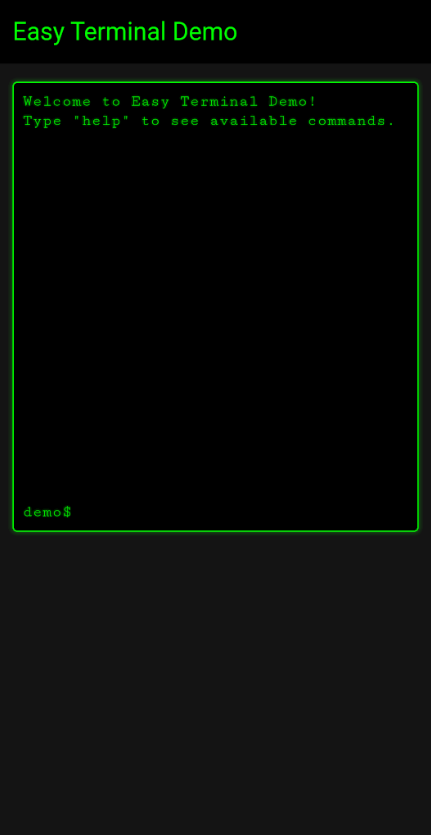
Main application interface showing the primary features and layout |

Demonstration of key package functionality in action |

Additional feature showcase highlighting package capabilities |
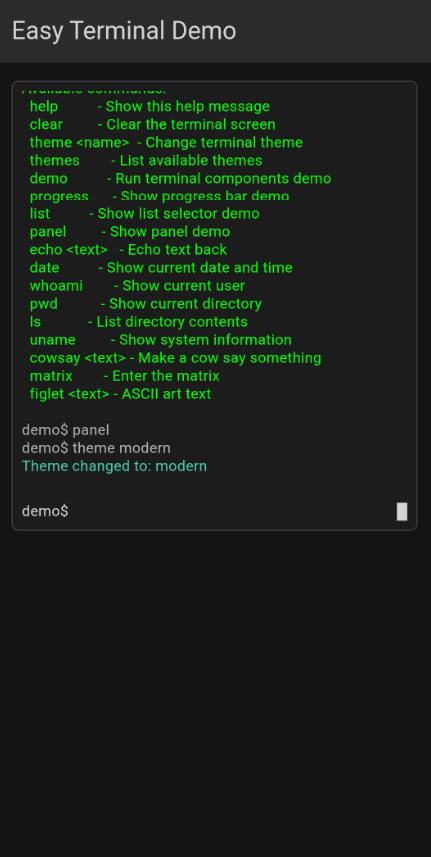
Configuration interface demonstrating package customization options |
Getting Started
To integrate similar functionality in your own project, refer to the package documentation on pub.dev and use these screenshots as reference for expected behavior and UI patterns.
Features
- Terminal View - Complete terminal emulation with command input, output display, and history
- Input Components - Advanced terminal-style input fields with autocomplete and command history
- List Selectors - Interactive terminal-style selection menus with keyboard navigation
- Progress Bars - ASCII-style progress indicators with customizable styling
- Panels - Bordered containers with optional titles for organizing terminal content
- Themes - Comprehensive theming system with support for colors, fonts, effects, and styling
- Command Parsing - Built-in command parser with support for arguments and flags
- Keyboard Handling - Full keyboard support including history navigation, shortcuts, and special keys
- Box Drawing - Extensive collection of Unicode box drawing characters and utilities
- Visual Effects - Optional scanlines, glow effects, and retro styling
Use Cases
This package is perfect for:
- Developer Tools - Build CLI-style interfaces for development tools, debuggers, and IDEs
- System Monitoring - Create dashboards with terminal aesthetics for server monitoring
- Games - Develop retro-style games, hacking simulators, or text-based adventures
- Educational Apps - Build interactive coding tutorials or command-line learning tools
- Admin Panels - Design system administration interfaces with terminal styling
- Data Entry - Create efficient forms with terminal-style input and navigation
- IoT Interfaces - Build control panels for embedded systems and IoT devices
- Prototyping - Quickly mock up CLI tools and terminal applications
Installation
Add this to your package's pubspec.yaml file:
dependencies:
  easy_terminal: ^0.0.1
Then run:
flutter pub get
Quick Start
Basic Terminal View
import 'package:flutter/material.dart';
import 'package:easy_terminal/easy_terminal.dart';

class MyTerminal extends StatefulWidget {
  @override
  _MyTerminalState createState() => _MyTerminalState();
}

class _MyTerminalState extends State<MyTerminal> {
  final GlobalKey<TerminalViewState> _terminalKey = GlobalKey<TerminalViewState>();

  final TerminalTheme theme = TerminalTheme(
    backgroundColor: Color(0xFF000000),
    foregroundColor: Color(0xFF00FF00),
    cursorColor: Color(0xFF00FF00),
    fontFamily: 'Courier New',
    fontSize: 14.0,
  );

  @override
  Widget build(BuildContext context) {
    return Scaffold(
      body: TerminalView(
        key: _terminalKey,
        theme: theme,
        prompt: 'user@system:~\$ ',
        onCommand: _handleCommand,
        initialText: [
          'Welcome to Easy Terminal!',
          'Type "help" for available commands.',
        ],
      ),
    );
  }

  void _handleCommand(TerminalCommand command) {
    switch (command.command.toLowerCase()) {
      case 'help':
        _terminalKey.currentState?.addOutput(
          'Available commands:\n'
          '  help - Show this help message\n'
          '  clear - Clear the screen\n'
          '  echo <text> - Echo text back\n'
          '  date - Show current date',
        );
        break;
      case 'clear':
        _terminalKey.currentState?.clearScreen();
        break;
      case 'echo':
        _terminalKey.currentState?.addOutput(command.args.join(' '));
        break;
      case 'date':
        _terminalKey.currentState?.addOutput(DateTime.now().toString());
        break;
      default:
        _terminalKey.currentState?.addOutput(
          'Command not found: ${command.command}',
          color: theme.errorColor,
        );
    }
  }
}
Terminal Input with Autocomplete
TerminalInput(
  theme: theme,
  prompt: 'Enter command: ',
  placeholder: 'Type a command...',
  suggestions: ['help', 'clear', 'echo', 'date', 'exit'],
  onSubmitted: (input) {
    print('Command entered: $input');
  },
  enableHistory: true,
)
List Selector
TerminalListSelector<String>(
  items: ['Option 1', 'Option 2', 'Option 3', 'Option 4'],
  theme: theme,
  title: 'Select an option:',
  onSelected: (item, index) {
    print('Selected: $item at index $index');
  },
  showNumbers: true,
  selectedIndicator: '▶ ',
  unselectedIndicator: '  ',
)
Progress Bar
TerminalProgressBar(
  progress: 0.75,
  theme: theme,
  label: 'Loading...',
  width: 40,
  showPercentage: true,
  fillChar: '█',
  emptyChar: '░',
)
Themed Panel
TerminalPanel(
  title: 'System Information',
  theme: theme,
  child: Column(
    crossAxisAlignment: CrossAxisAlignment.start,
    children: [
      TerminalText(text: 'CPU: 45%', theme: theme),
      TerminalText(text: 'Memory: 2.1GB / 8GB', theme: theme),
      TerminalText(text: 'Disk: 156GB / 512GB', theme: theme),
    ],
  ),
)
Theming
Easy Terminal provides extensive theming capabilities:
final customTheme = TerminalTheme(
  backgroundColor: Color(0xFF1E1E1E),
  foregroundColor: Color(0xFF00D4AA),
  cursorColor: Color(0xFFFFFFFF),
  selectionColor: Color(0x4000D4AA),
  borderColor: Color(0xFF00D4AA),
  errorColor: Color(0xFFFF5555),
  successColor: Color(0xFF50FA7B),
  warningColor: Color(0xFFFFB86C),
  fontFamily: 'Fira Code',
  fontSize: 16.0,
  lineHeight: 1.4,
  enableScanlines: true,
  enableGlow: true,
  glowRadius: 2.0,
  borderRadius: 8.0,
  borderWidth: 2.0,
);
Components Overview
Core Components
| Component | Description |
|---|---|
TerminalView |
Complete terminal interface with command input/output |
TerminalInput |
Advanced input field with history and autocomplete |
TerminalText |
Styled text rendering with theme support |
TerminalPanel |
Bordered container for organizing content |
TerminalListSelector |
Interactive selection menu with keyboard navigation |
TerminalProgressBar |
ASCII-style progress indicators |
Models
| Model | Purpose |
|---|---|
TerminalTheme |
Comprehensive theming configuration |
TerminalBuffer |
Text buffer management with scrolling |
TerminalCommand |
Command parsing with arguments and flags |
TerminalCursor |
Cursor state and positioning |
Utilities
| Utility | Features |
|---|---|
KeyboardHandler |
Command history, keyboard shortcuts, special keys |
BoxDrawing |
Unicode box drawing characters and utilities |
ColorUtils |
Color manipulation and effects |
Advanced Features
Command Parsing
final command = TerminalCommand.parse('git commit -m "Initial commit" --verbose');
print(command.command); // 'git'
print(command.args); // ['commit']
print(command.flags); // {'m': 'Initial commit', 'verbose': 'true'}
Box Drawing
// Create a box
final box = BoxDrawing.createBox(20, 10, doubleLine: true);

// Progress bar
final progress = BoxDrawing.createProgressBar(0.7, 30,
  fillChar: BoxDrawing.fullBlock,
  emptyChar: BoxDrawing.lightShade,
);
Buffer Management
final buffer = TerminalBuffer(maxLines: 1000);
buffer.addText('Hello, Terminal!');
buffer.addLine(TerminalLine(
  content: 'Error occurred',
  color: Colors.red,
  isInput: false,
));

// Get visible lines for display
final visibleLines = buffer.getVisibleLines(25);
Keyboard Shortcuts
Easy Terminal supports standard terminal keyboard shortcuts:
Ctrl+C- Clear current inputCtrl+L- Clear screenCtrl+D- EOF signal↑/↓- Navigate command historyTab- Autocomplete suggestionsEsc- Close suggestions/cancelEnter- Execute commandBackspace- Delete characterHome/End- Navigate to line start/end
Examples
The package includes several example implementations:
- Basic Terminal - Simple command-line interface
- File Manager - Terminal-style file browser
- System Monitor - Resource monitoring dashboard
- Code Editor - Terminal-based text editor
- Game Terminal - Interactive text adventure
- Developer Console - Debug console for applications
Documentation Standards
This package follows Dart documentation standards with comprehensive dartdoc comments for all public APIs. Key documentation features include:
- Complete API Coverage - All public classes, methods, and properties documented
- Usage Examples - Practical code examples for every component
- Parameter Descriptions - Detailed explanations of all parameters
- Return Value Documentation - Clear descriptions of return values
- Exception Documentation - Documented exceptions and error conditions
- Cross-References - Linked references between related APIs
Testing
The package includes comprehensive tests covering:
- Unit tests for all core functionality
- Widget tests for UI components
- Integration tests for complete workflows
- Performance tests for large datasets
- Platform-specific tests for all supported platforms
Run tests with:
flutter test
Performance Considerations
- Text rendering is optimized for large amounts of terminal output
- Buffer management automatically handles memory limits
- Keyboard input is debounced for smooth performance
- Themes support hardware acceleration for visual effects
Platform Support
Easy Terminal works on all Flutter platforms:
- iOS
- Android
- Web
- Windows
- macOS
- Linux
Migration Guide
From version 0.0.1 to latest
No breaking changes in current version. All existing code remains compatible.
Troubleshooting
Common Issues
Issue: Terminal not responding to keyboard input
Solution: Ensure the terminal widget has focus and is wrapped in a Focus widget.
Issue: Custom fonts not loading
Solution: Verify font files are included in pubspec.yaml and flutter clean has been run.
Issue: Performance issues with large output
Solution: Use TerminalBuffer.maxLines to limit buffer size and enable virtual scrolling.
Debug Mode
Enable debug mode for additional logging:
TerminalView(
  debugMode: true,
  // ... other properties
)
Contributing
Contributions are welcome! Please read our contributing guidelines and submit pull requests to our GitHub repository.
Development Setup
- Fork the repository
- Create a feature branch
- Make your changes
- Add tests for new functionality
- Ensure all tests pass
- Update documentation
- Submit a pull request
Code Style
This project follows the official Dart style guide and uses the following linting rules:
flutter_lintsfor Flutter-specific rulespublic_member_api_docsfor documentation requirements- Custom rules for terminal-specific code patterns
License
This project is licensed under the MIT License - see the LICENSE file for details.
Changelog
See CHANGELOG.md for a detailed history of changes.
Support
If you find this package helpful, please consider:
- Giving it a star on GitHub
- Reporting issues and bugs
- Contributing improvements
- Sharing it with other developers
For questions and support, please open an issue on our GitHub repository.
Acknowledgments
Special thanks to the Flutter community and contributors who helped make this package possible.
Related Packages
- flutter_terminal - Alternative terminal implementation
- console - Console utilities for Dart
- terminal_view - Basic terminal view widget
Badges and Quality Metrics



This package is actively maintained and regularly updated. Please check the changelog for the latest updates and improvements.