
Platform Support
| Android | iOS | | :-----: | :-: | | ✔️ | ✔️
Installation
Add this line to pubspec.yaml
yaml dependencies: dynamic_size: <latest_version>
Usage
Import package
import 'package:dynamic_size/dynamic_z.dart';
Add Design Screen Size In Class Constructor
dynamicsize size = dynamicsize(context, 849, 393);
Add height & Width
  dynamicsize size = dynamicsize(context, 849, 393);
  height = size.h(20);
  width = size.w(20);
  HeightSpace(20);
  WidthSpace(20);
  Pop(context);
  NewScreen(context,Screen());
  ReplaceScreen(context,Screen());
#HTTP
A composable, Future-based library for making HTTP requests.
This package contains a set of high-level functions and classes that make it easy to consume HTTP resources. It's multi-platform, and supports mobile, desktop, and the browser.
Using
The easiest way to use this library is via the top-level functions. They allow you to make individual HTTP requests with minimal hassle:
var url = Uri.https('example.com', 'whatsit/create');
var response = await http.post(url, body: {'name': 'doodle', 'color': 'blue'});
print('Response status: ${response.statusCode}');
print('Response body: ${response.body}');

print(await http.read(Uri.https('example.com', 'foobar.txt')));
If you're making multiple requests to the same server, you can keep open a persistent connection by using a Client rather than making one-off requests. If you do this, make sure to close the client when you're done:
var client = http.Client();
try {
  var response = await client.post(
      Uri.https('example.com', 'whatsit/create'),
      body: {'name': 'doodle', 'color': 'blue'});
  var decodedResponse = jsonDecode(utf8.decode(response.bodyBytes)) as Map;
  var uri = Uri.parse(decodedResponse['uri'] as String);
  print(await client.get(uri));
} finally {
  client.close();
}
You can also exert more fine-grained control over your requests and responses by creating Request or StreamedRequest objects yourself and passing them to Client.send.
This package is designed to be composable. This makes it easy for external libraries to work with one another to add behavior to it. Libraries wishing to add behavior should create a subclass of BaseClient that wraps another Client and adds the desired behavior:
class UserAgentClient extends http.BaseClient {
  final String userAgent;
  final http.Client _inner;

  UserAgentClient(this.userAgent, this._inner);

  Future<http.StreamedResponse> send(http.BaseRequest request) {
    request.headers['user-agent'] = userAgent;
    return _inner.send(request);
  }
}
Retrying requests
package:http/retry.dart provides a class RetryClient to wrap
an underlying Client which transparently retries failing
requests.
import 'package:http/http.dart' as http;
import 'package:http/retry.dart';

Future<void> main() async {
  final client = RetryClient(http.Client());
  try {
    print(await client.read(Uri.http('example.org', '')));
  } finally {
    client.close();
  }
}
By default, this retries any request whose response has status code 503
Temporary Failure up to three retries. It waits 500ms before the first retry,
and increases the delay by 1.5x each time. All of this can be customized using
the new RetryClient constructor.
Shimmer
A package provides an easy way to add shimmer effect in Flutter project
How to use
SizedBox(
  width: 200.0,
  height: 100.0,
  child: Shimmer.fromColors(
    baseColor: Colors.red,
    highlightColor: Colors.yellow,
    child: Text(
      'Shimmer',
      textAlign: TextAlign.center,
      style: TextStyle(
        fontSize: 40.0,
        fontWeight:
        FontWeight.bold,
      ),
    ),
  ),
);
SVG
How to use
final String assetName = 'assets/image.svg';
final Widget svg = Sp.asset(
  assetName,
  semanticsLabel: 'Acme Logo'
);
You can color/tint the image like so:
final String assetName = 'assets/up_arrow.svg';
final Widget svgIcon = Sp.asset(
  assetName,
  color: Colors.red,
  semanticsLabel: 'A red up arrow'
);
// Will print error messages to the console.
final String assetName = 'assets/image_that_does_not_exist.svg';
final Widget svg = Sp.asset(
  assetName,
);

final Widget networkSvg = Sp.network(
  'https://site-that-takes-a-while.com/image.svg',
  semanticsLabel: 'A shark?!',
  placeholderBuilder: (BuildContext context) => Container(
      padding: const EdgeInsets.all(30.0),
      child: const CircularProgressIndicator()),
);
If you'd like to render the SVG to some other canvas, you can do something like:
import 'package:flutter_svg/flutter_svg.dart';
final String rawSvg = '''<svg viewBox="...">...</svg>''';
final DrawableRoot svgRoot = await svg.fromSvgString(rawSvg, rawSvg);

// If you only want the final Picture output, just use
final Picture picture = svgRoot.toPicture();

// Otherwise, if you want to draw it to a canvas:
// Optional, but probably normally desirable: scale the canvas dimensions to
// the SVG's viewbox
svgRoot.scaleCanvasToViewBox(canvas);

// Optional, but probably normally desireable: ensure the SVG isn't rendered
// outside of the viewbox bounds
svgRoot.clipCanvasToViewBox(canvas);
// The second parameter is not used
svgRoot.draw(canvas, null);
Check SVG compatibility
As not all SVG features are supported by this library (see below), sometimes we have to dynamically check if an SVG contains any unsupported features resulting in broken images. You might also want to throw errors in tests, but only warn about them at runtime. This can be done by using the snippet below:
final SvgParser parser = SvgParser();
try {
  parser.parse(svgString, warningsAsErrors: true);
  print('SVG is supported');
} catch (e) {
  print('SVG contains unsupported features');
}
NetImage
How to use
The NetImage can be used directly or through the ImageProvider. Both the NetImage as OptimizedCacheImageProvider have minimal support for web. It currently doesn't include caching.
With a placeholder:
NetImage(
        imageUrl: "http://via.placeholder.com/350x150",
        placeholder: (context, url) => CircularProgressIndicator(),
        errorWidget: (context, url, error) => Icon(Icons.error),
     ),
Or with a progress indicator:
NetImage(
       imageUrl: "http://via.placeholder.com/350x150",
       progressIndicatorBuilder: (context, url, downloadProgress) =>
               CircularProgressIndicator(value: downloadProgress.progress),
       errorWidget: (context, url, error) => Icon(Icons.error),
    ),
Image(image: NetImageProvider(url))
When you want to have both the placeholder functionality and want to get the imageprovider to use in another widget you can provide an imageBuilder:
NetImage(
  imageUrl: "http://via.placeholder.com/200x150",
  imageBuilder: (context, imageProvider) => Container(
    decoration: BoxDecoration(
      image: DecorationImage(
          image: imageProvider,
          fit: BoxFit.cover,
          colorFilter:
              ColorFilter.mode(Colors.red, BlendMode.colorBurn)),
    ),
  ),
  placeholder: (context, url) => CircularProgressIndicator(),
  errorWidget: (context, url, error) => Icon(Icons.error),
),
fluttertoast
Toast Library for Flutter
Now this toast library supports two kinds of toast messages one which requires BuildContext other with No BuildContext
Toast with no context
Supported Platforms
- Android
- IOS
- Web (Uses Toastify-JS)
This one has limited features and no control over UI
Toast Which requires BuildContext
Supported Platforms
- ALL
- Full Control of the Toast
- Toasts will be queued
- Remove a toast
- Clear the queue
How to Use
Toast with No Build Context (Android & iOS)
toast.show(
        msg: "This is Center Short Toast",
        toastLength: Toast.LENGTH_SHORT,
        gravity: ToastGravity.CENTER,
        timeInSecForIosWeb: 1,
        backgroundColor: Colors.red,
        textColor: Colors.white,
        fontSize: 16.0
    );
| property | description | default |
|---|---|---|
| msg | String (Not Null)(required) | required |
| toastLength | Toast.LENGTH_SHORT or Toast.LENGTH_LONG (optional) | Toast.LENGTH_SHORT |
| gravity | ToastGravity.TOP (or) ToastGravity.CENTER (or) ToastGravity.BOTTOM (Web Only supports top, bottom) | ToastGravity.BOTTOM |
| timeInSecForIosWeb | int (for ios & web) | 1 (sec) |
| backgroundColor | Colors.red | null |
| textcolor | Colors.white | null |
| fontSize | 16.0 (float) | null |
| webShowClose | false (bool) | false |
| webBgColor | String (hex Color) | linear-gradient(to right, #00b09b, #96c93d) |
| webPosition | String (left, center or right) |
right |
To cancel all the toasts call
Fluttertoast.cancel()
Note Android
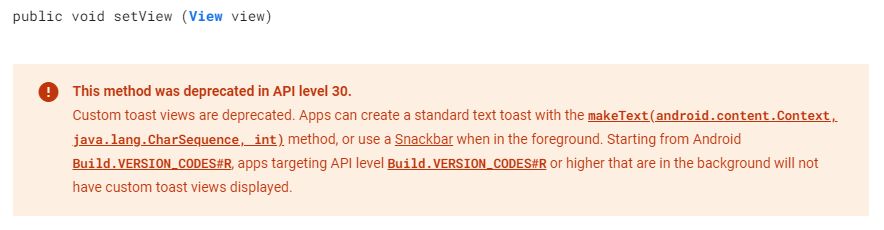
Custom Toast will not work on android 11 and above, it will only use msg and toastLength remaining all properties are ignored
Custom Toast For Android
Create a file named toast_custom.xml in your project app/res/layout folder and do custom styling
<?xml version="1.0" encoding="utf-8"?>
<FrameLayout xmlns:android="http://schemas.android.com/apk/res/android"
    xmlns:tools="http://schemas.android.com/tools"
    android:layout_width="wrap_content"
    android:layout_height="wrap_content"
    android:layout_gravity="center_horizontal"
    android:layout_marginStart="50dp"
    android:background="@drawable/corner"
    android:layout_marginEnd="50dp">

    <TextView
        android:id="@+id/text"
        android:layout_width="wrap_content"
        android:layout_height="wrap_content"
        android:background="#CC000000"
        android:paddingStart="16dp"
        android:paddingTop="10dp"
        android:paddingEnd="16dp"
        android:paddingBottom="10dp"
        android:textStyle="bold"
        android:textColor="#FFFFFF"
        tools:text="Toast should be short." />
</FrameLayout>
Toast with BuildContext (All Platforms)
FToast fToast;

@override
void initState() {
    super.initState();
    fToast = FToast();
    fToast.init(context);
}

_showToast() {
    Widget toast = Container(
        padding: const EdgeInsets.symmetric(horizontal: 24.0, vertical: 12.0),
        decoration: BoxDecoration(
        borderRadius: BorderRadius.circular(25.0),
        color: Colors.greenAccent,
        ),
        child: Row(
        mainAxisSize: MainAxisSize.min,
        children: [
            Icon(Icons.check),
            SizedBox(
            width: 12.0,
            ),
            Text("This is a Custom Toast"),
        ],
        ),
    );


    fToast.showToast(
        child: toast,
        gravity: ToastGravity.BOTTOM,
        toastDuration: Duration(seconds: 2),
    );

    // Custom Toast Position
    fToast.showToast(
        child: toast,
        toastDuration: Duration(seconds: 2),
        positionedToastBuilder: (context, child) {
          return Positioned(
            child: child,
            top: 16.0,
            left: 16.0,
          );
        });
}
Now Call _showToast()
For more details check example project
| property | description | default |
|---|---|---|
| child | Widget (Not Null)(required) | required |
| toastDuration | Duration (optional) | |
| gravity | ToastGravity.* |
To cancel all the toasts call
// To remove present shwoing toast
fToast.removeCustomToast()

// To clear the queue
fToast.removeQueuedCustomToasts();
File Picker
A package that allows you to use the native file explorer to pick single or multiple files, with extensions filtering support.
Currently supported features
- Uses OS default native pickers
- Supports multiple platforms (Mobile, Web, Desktop and Flutter GO)
- Pick files using custom format filtering — you can provide a list of file extensions (pdf, svg, zip, etc.)
- Pick files from cloud files (GDrive, Dropbox, iCloud)
- Single or multiple file picks
- Different default type filtering (media, image, video, audio or any)
- Picking directories
- Load file data immediately into memory (
Uint8List) if needed; - Open a save-file / save-as dialog (a dialog that lets the user specify the drive, directory, and name of a file to save)
If you have any feature that you want to see in this package, please feel free to issue a suggestion. 🎉
Compatibility Chart
| API | Android | iOS | Linux | macOS | Windows | Web |
|---|---|---|---|---|---|---|
| clearTemporaryFiles() | :white_check_mark: | :white_check_mark: | :x: | :x: | :x: | :x: |
| getDirectoryPath() | :white_check_mark: | :white_check_mark: | :white_check_mark: | :white_check_mark: | :white_check_mark: | :x: |
| pickFiles() | :white_check_mark: | :white_check_mark: | :white_check_mark: | :white_check_mark: | :white_check_mark: | :white_check_mark: |
| saveFile() | :x: | :x: | :white_check_mark: | :white_check_mark: | :white_check_mark: | :x: |
Usage
Quick simple usage example:
Single file
FilePickerResult? result = await FilePicker.platform.pickFiles();

if (result != null) {
  File file = File(result.files.single.path);
} else {
  // User canceled the picker
}
Multiple files
FilePickerResult? result = await FilePicker.platform.pickFiles(allowMultiple: true);

if (result != null) {
  List<File> files = result.paths.map((path) => File(path)).toList();
} else {
  // User canceled the picker
}
Multiple files with extension filter
FilePickerResult? result = await FilePicker.platform.pickFiles(
  type: FileType.custom,
  allowedExtensions: ['jpg', 'pdf', 'doc'],
);
Pick a directory
String? selectedDirectory = await FilePicker.platform.getDirectoryPath();

if (selectedDirectory == null) {
  // User canceled the picker
}
Save-file / save-as dialog
String? outputFile = await FilePicker.platform.saveFile(
  dialogTitle: 'Please select an output file:',
  fileName: 'output-file.pdf',
);

if (outputFile == null) {
  // User canceled the picker
}
Load result and file details
FilePickerResult? result = await FilePicker.platform.pickFiles();

if (result != null) {
  PlatformFile file = result.files.first;

  print(file.name);
  print(file.bytes);
  print(file.size);
  print(file.extension);
  print(file.path);
} else {
  // User canceled the picker
}
Pick and upload a file to Firebase Storage with Flutter Web
FilePickerResult? result = await FilePicker.platform.pickFiles();

if (result != null) {
  Uint8List fileBytes = result.files.first.bytes;
  String fileName = result.files.first.name;

  // Upload file
  await FirebaseStorage.instance.ref('uploads/$fileName').putData(fileBytes);
}
connectivity_plus
This plugin allows Flutter apps to discover network connectivity and configure themselves accordingly. It can distinguish between cellular vs WiFi connection.
Note that on Android, this does not guarantee connection to Internet. For instance, the app might have wifi access but it might be a VPN or a hotel WiFi with no access.
Platform Support
| Android | iOS | MacOS | Web | Linux | Windows |
|---|---|---|---|---|---|
| ✔️ | ✔️ | ✔️ | ✔️ | ✔️ | ✔️ |
Usage
Sample usage to check current status:
import 'package:connectivity_plus/connectivity_plus.dart';

var connectivityResult = await (Connectivity().checkConnectivity());
if (connectivityResult == ConnectivityResult.mobile) {
  // I am connected to a mobile network.
} else if (connectivityResult == ConnectivityResult.wifi) {
  // I am connected to a wifi network.
}
@override
initState() {
  super.initState();

  subscription = Connectivity().onConnectivityChanged.listen((ConnectivityResult result) {
    // Got a new connectivity status!
  })
}

// Be sure to cancel subscription after you are done
@override
dispose() {
  super.dispose();

  subscription.cancel();
}
Shared preferences plugin
Wraps platform-specific persistent storage for simple data (NSUserDefaults on iOS and macOS, SharedPreferences on Android, etc.). Data may be persisted to disk asynchronously, and there is no guarantee that writes will be persisted to disk after returning, so this plugin must not be used for storing critical data.
Supported data types are int, double, bool, String and List<String>.
| Android | iOS | Linux | macOS | Web | Windows | |
|---|---|---|---|---|---|---|
| Support | SDK 16+ | 9.0+ | Any | 10.11+ | Any | Any |
Examples
Here are small examples that show you how to use the API.
Write data
// Obtain shared preferences.
final prefs = await SharedPreferences.getInstance();

// Save an integer value to 'counter' key.
await prefs.setInt('counter', 10);
// Save an boolean value to 'repeat' key.
await prefs.setBool('repeat', true);
// Save an double value to 'decimal' key.
await prefs.setDouble('decimal', 1.5);
// Save an String value to 'action' key.
await prefs.setString('action', 'Start');
// Save an list of strings to 'items' key.
await prefs.setStringList('items', <String>['Earth', 'Moon', 'Sun']);
Read data
// Try reading data from the 'counter' key. If it doesn't exist, returns null.
final int? counter = prefs.getInt('counter');
// Try reading data from the 'repeat' key. If it doesn't exist, returns null.
final bool? repeat = prefs.getBool('repeat');
// Try reading data from the 'decimal' key. If it doesn't exist, returns null.
final double? decimal = prefs.getDouble('decimal');
// Try reading data from the 'action' key. If it doesn't exist, returns null.
final String? action = prefs.getString('action');
// Try reading data from the 'items' key. If it doesn't exist, returns null.
final List<String>? items = prefs.getStringList('items');
Remove an entry
// Remove data for the 'counter' key.
final success = await prefs.remove('counter');
Testing
You can populate SharedPreferences with initial values in your tests by running this code:
Map<String, Object> values = <String, Object>{'counter': 1};
SharedPreferences.setMockInitialValues(values);
Storage location by platform
| Platform | Location |
|---|---|
| Android | SharedPreferences |
| iOS | NSUserDefaults |
| Linux | In the XDG_DATA_HOME directory |
| macOS | NSUserDefaults |
| Web | LocalStorage |
| Windows | In the roaming AppData directory |
Libraries
- Dynamic
- Http/browser_client
- Http/http
- A composable, Future-based library for making HTTP requests.
- Http/io_client
- Http/retry
- Http/src/base_client
- Http/src/base_request
- Http/src/base_response
- Http/src/boundary_characters
- Http/src/browser_client
- Http/src/byte_stream
- Http/src/client
- Http/src/client_stub
- Http/src/exception
- Http/src/io_client
- Http/src/io_streamed_response
- Http/src/mock_client
- Http/src/multipart_file
- Http/src/multipart_file_io
- Http/src/multipart_file_stub
- Http/src/multipart_request
- Http/src/request
- Http/src/response
- Http/src/streamed_request
- Http/src/streamed_response
- Http/src/utils
- Http/testing
- This library contains testing classes for the HTTP library.
- OptimizedImage/src/cache/default_image_cache_manager
- OptimizedImage/src/cache/image_cache_manager
- OptimizedImage/src/debug_tools
- OptimizedImage/src/image_provider/_image_provider_io
- OptimizedImage/src/image_provider/_image_provider_web
- OptimizedImage/src/image_provider/_load_async_web
- OptimizedImage/src/image_provider/multi_image_stream_completer
- OptimizedImage/src/image_provider/optimized_cached_image_provider
- OptimizedImage/src/oci_widget
- OptimizedImage/src/transformer/image_transformer
- OptimizedImage/src/transformer/scale_info
- Routs/Routs
- Simmer/shimmer
-
- author: hunghd
- email: hunghd.yb@gmail.com
- Size/dynamic_size
- SVG/avd
- SVG/flutter_svg
- SVG/parser
- SVG/src/avd/xml_parsers
- SVG/src/avd_parser
- SVG/src/picture_cache
- SVG/src/picture_provider
- SVG/src/picture_stream
- SVG/src/render_picture
- SVG/src/svg/default_theme
- SVG/src/svg/parser_state
- SVG/src/svg/parsers
- SVG/src/svg/theme
- SVG/src/utilities/_file_io
- SVG/src/utilities/_file_none
- SVG/src/utilities/_http_io
- SVG/src/utilities/_http_web
- SVG/src/utilities/errors
- SVG/src/utilities/file
- SVG/src/utilities/http
- SVG/src/utilities/numbers
- SVG/src/utilities/xml
- SVG/src/vector_drawable
- SVG/svg
- Toast/Toast