
auto_skeleton


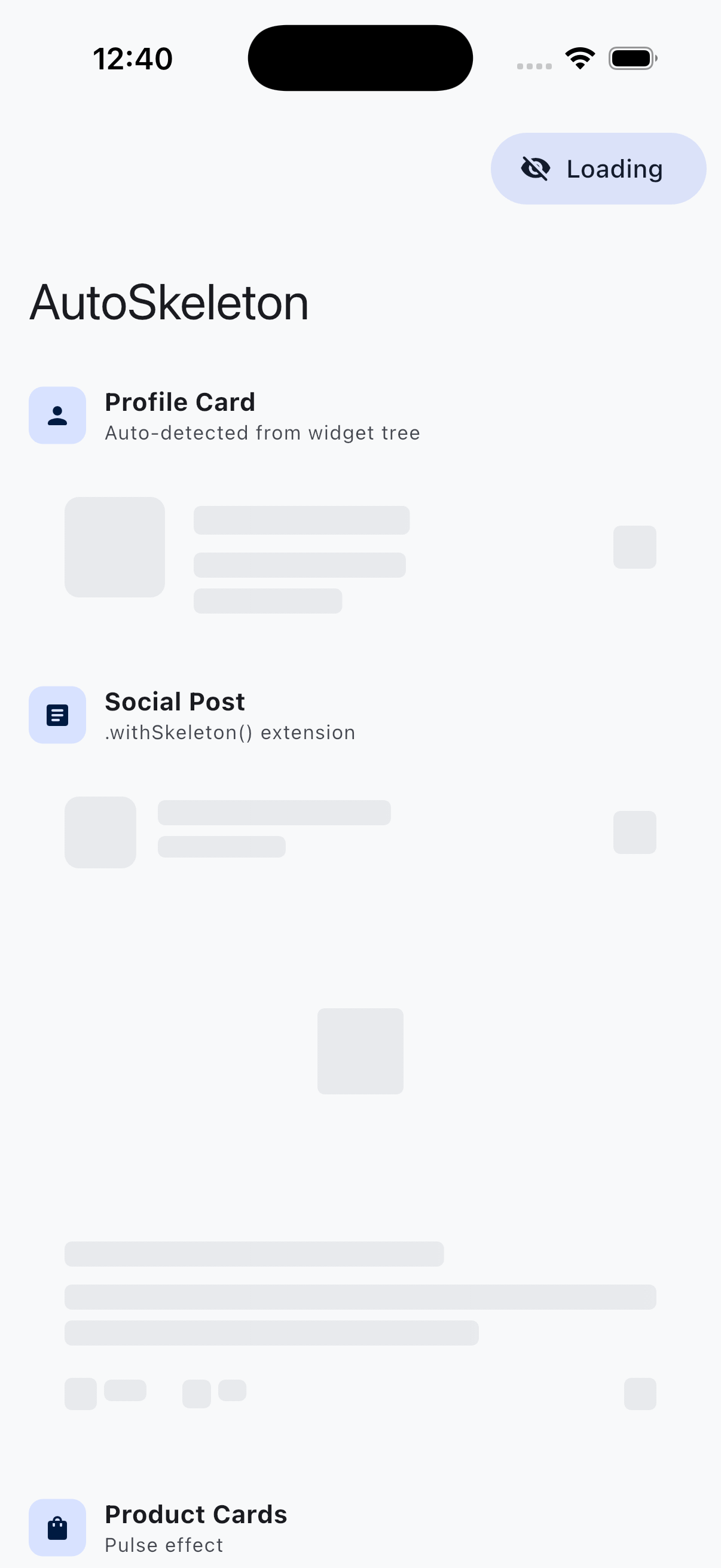
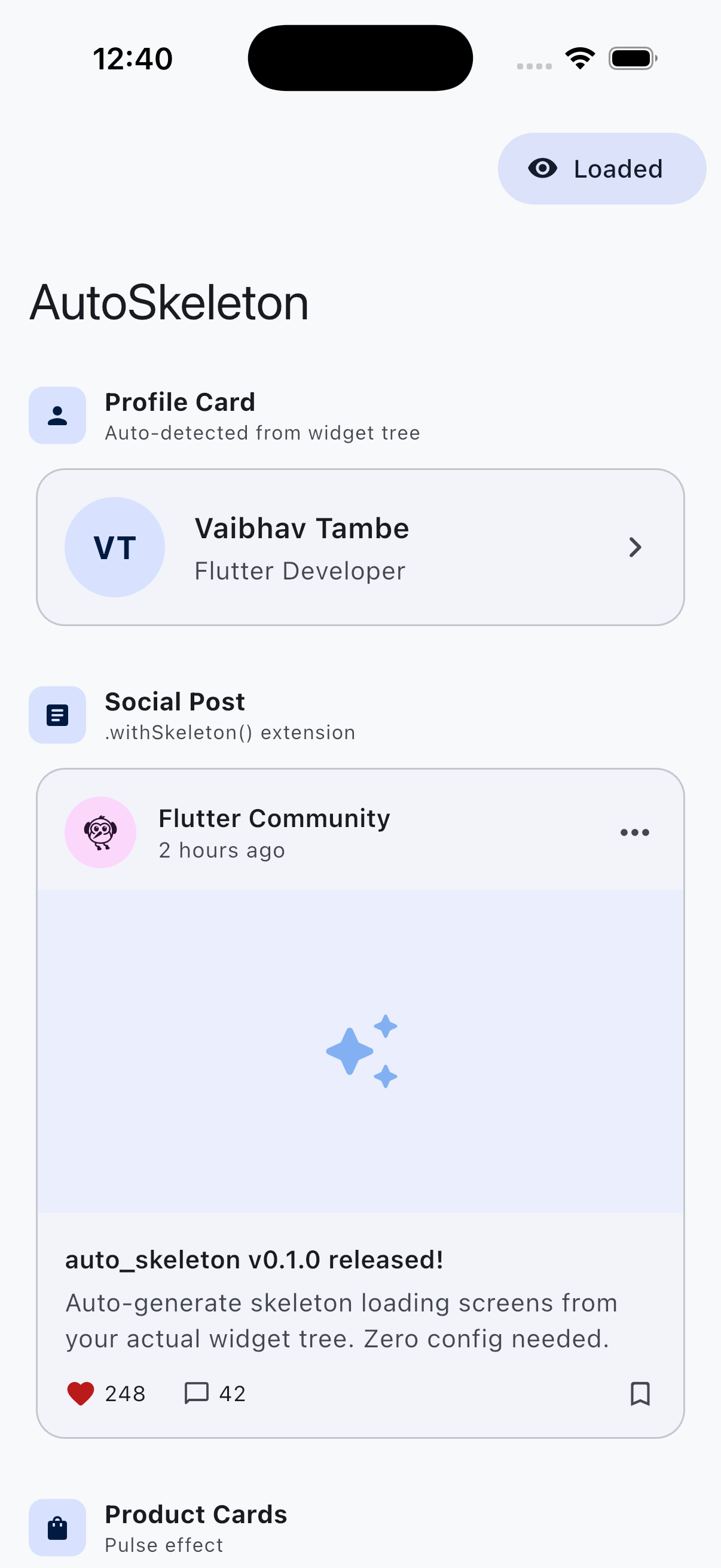
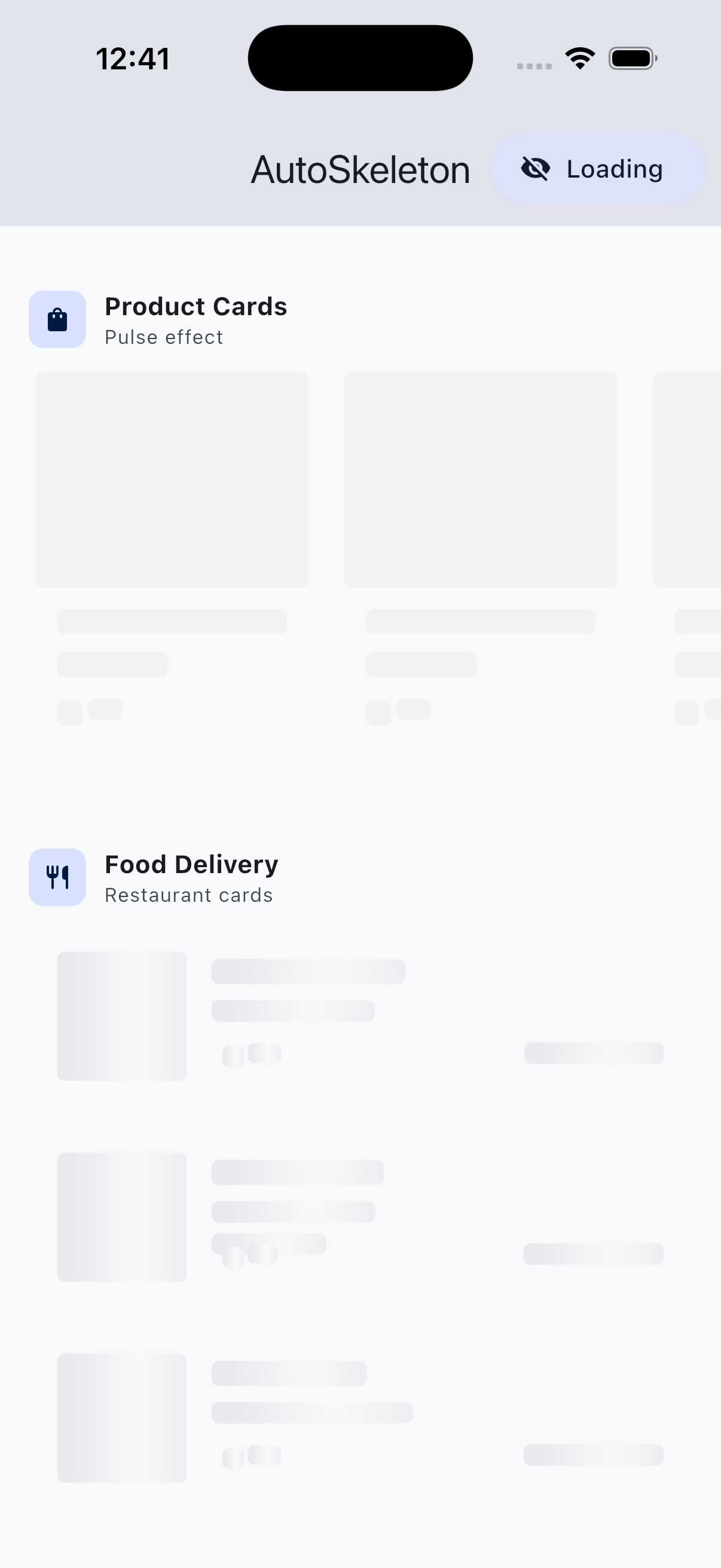
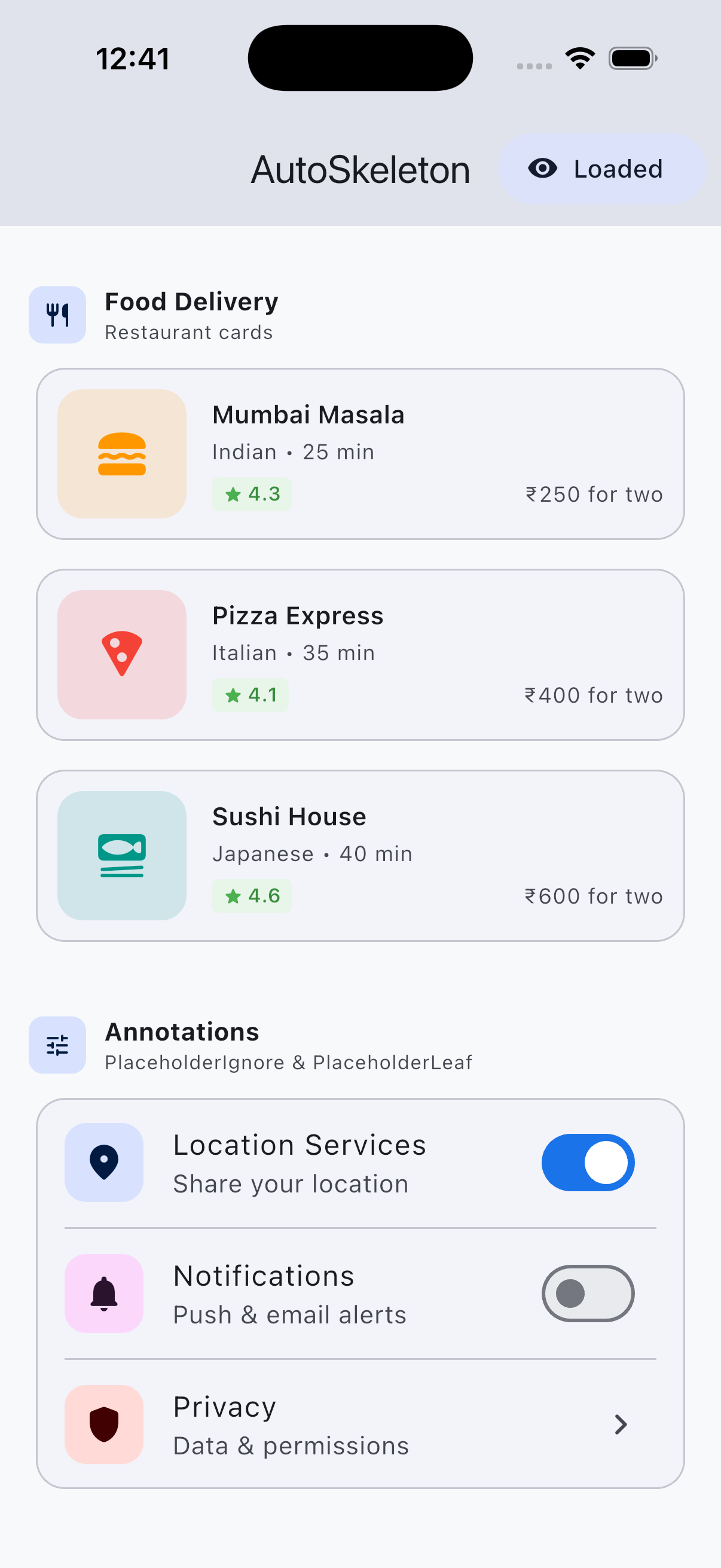
Auto-generate skeleton/shimmer loading screens from your actual widget tree. No fake data needed — just wrap your widget and get a matching placeholder shape automatically.
Screenshots
| Skeleton (Loading) | Loaded (Content) |
|---|---|
 |
 |
 |
 |
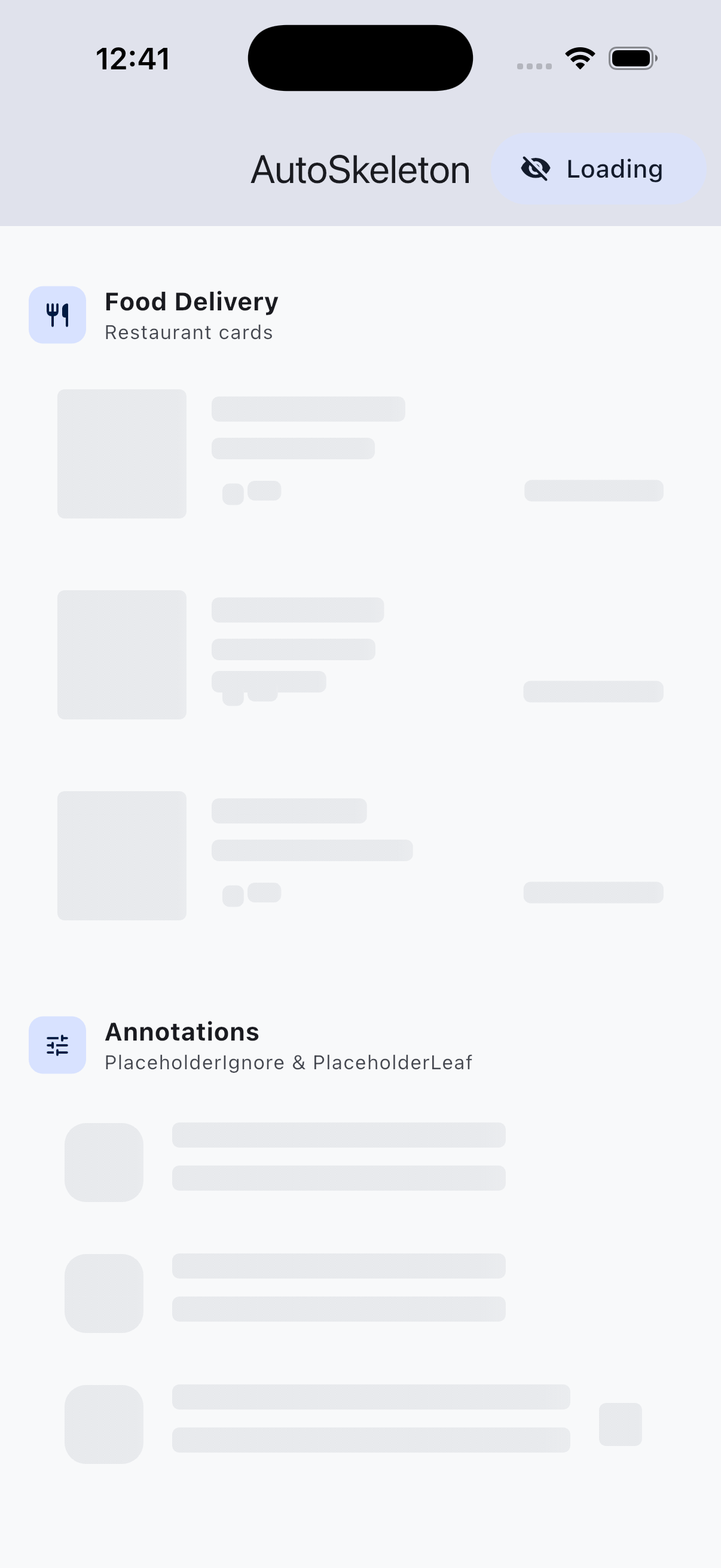
Annotations: Fine-grained Control
| Annotation Skeleton | Annotation Loaded |
|---|---|
 |
|
PlaceholderIgnore— the toggle switches are hidden during loading (not relevant to skeleton)PlaceholderLeaf— the colored icon boxes are treated as solid rectangles (no child traversal)
Why auto_skeleton?
Building skeleton loading UIs manually is tedious and goes out of sync with your real layouts. auto_skeleton solves this by introspecting your widget tree at render time and generating matching bone shapes for every content widget (Text, Image, Icon, Button, etc.).
How It Compares
| Feature | auto_skeleton | skeletonizer | shimmer |
|---|---|---|---|
| Auto-detect widget shapes | Yes | Yes | No |
| Zero fake data needed | Yes | No (needs mock data) | No |
| Async builder (no setState) | Yes | No | No |
| Future + Stream support | Yes | No | No |
| Theme-aware colors | Yes | No | No |
Extension syntax .withSkeleton() |
Yes | No | No |
| Pre-built presets | Yes | No | No |
| Multiple effects (shimmer, pulse, solid) | Yes | Yes | Shimmer only |
| Annotation system | Yes | Yes | No |
| Switch animation | Yes | Yes | No |
| Dark mode auto-detection | Yes | Yes | No |
Comparison based on default features of each package as of March 2026. All packages are actively maintained and excellent in their own right.
Installation
dependencies:
  auto_skeleton: ^0.1.1
flutter pub get
Quick Start
Basic Usage
Wrap any widget with AutoSkeleton:
AutoSkeleton(
  enabled: _isLoading,
  child: Card(
    child: ListTile(
      leading: CircleAvatar(child: Icon(Icons.person)),
      title: Text('John Doe'),
      subtitle: Text('Software Developer'),
      trailing: Icon(Icons.chevron_right),
    ),
  ),
)
That's it! When enabled: true, the package scans the widget tree and renders matching skeleton bones with a shimmer animation. When enabled: false, your actual content is shown.
Colors are automatically derived from your app's theme — works in both light and dark mode with zero configuration.
AutoSkeletonBuilder — Zero setState
Handle async data loading with automatic skeleton. No setState, no _isLoading boolean:
AutoSkeletonBuilder<User>(
  future: fetchUser(),
  skeleton: ListTile(
    leading: CircleAvatar(child: Icon(Icons.person)),
    title: Text('Placeholder name'),
    subtitle: Text('Loading...'),
  ),
  builder: (context, user) => ListTile(
    leading: CircleAvatar(backgroundImage: NetworkImage(user.avatar)),
    title: Text(user.name),
    subtitle: Text(user.bio),
  ),
)
Works with Stream too:
AutoSkeletonBuilder<List<Post>>(
  stream: postStream(),
  skeleton: MyPostListSkeleton(),
  builder: (context, posts) => PostList(posts),
  errorBuilder: (context, error) => ErrorWidget(error),
)
Extension Syntax
Even simpler — use the .withSkeleton() extension:
Card(
  child: ListTile(
    title: Text('Hello World'),
    subtitle: Text('This is a subtitle'),
  ),
).withSkeleton(loading: _isLoading)
Migrating from Other Packages
From shimmer
// Before (shimmer) — manual layout, no auto-detection
Shimmer.fromColors(
  baseColor: Colors.grey[300]!,
  highlightColor: Colors.grey[100]!,
  child: Column(
    children: [
      Container(width: 48, height: 48, color: Colors.white),
      Container(width: 200, height: 16, color: Colors.white),
      Container(width: 150, height: 14, color: Colors.white),
    ],
  ),
)

// After (auto_skeleton) — one line, auto-detected
AutoSkeleton(
  enabled: _isLoading,
  child: myActualWidget,  // your real widget, real data
)
From skeletonizer
// Before (skeletonizer) — requires fake/mock data
Skeletonizer(
  enabled: _isLoading,
  child: ListTile(
    title: Text('Fake Name Here'),        // fake data!
    subtitle: Text('Fake email@test.com'), // fake data!
    leading: CircleAvatar(
      backgroundImage: NetworkImage('https://fake-url.com/img'), // fake!
    ),
  ),
)

// After (auto_skeleton) — zero fake data
AutoSkeleton(
  enabled: _isLoading,
  child: myActualWidget,  // same widget, real data, no mocks
)
Key differences when migrating:
- No fake data needed — use your actual widgets
- Colors are theme-aware by default (remove manual color setup)
- Use
.withSkeleton(loading: true)for even cleaner syntax - Use
AutoSkeletonBuilderto eliminatesetState+_isLoadingboilerplate entirely
Color Customization
Layer 1: Theme-aware (zero config)
Colors are automatically derived from your app's ColorScheme. Just works in light and dark mode.
Layer 2: Global override
Set colors once at the app root:
AutoSkeletonConfig(
  data: AutoSkeletonConfigData(
    baseColor: Colors.grey.shade300,
    highlightColor: Colors.grey.shade100,
  ),
  child: MaterialApp(...),
)
Layer 3: Per-widget override
Override on a specific widget:
AutoSkeleton(
  enabled: _isLoading,
  effect: ShimmerEffect(baseColor: Colors.blue.shade200),
  child: myWidget,
)
Effects
Shimmer (Default)
AutoSkeleton(
  enabled: _isLoading,
  effect: ShimmerEffect(
    baseColor: Colors.grey.shade300,
    highlightColor: Colors.grey.shade100,
    duration: Duration(milliseconds: 1500),
    direction: ShimmerDirection.ltr,
  ),
  child: MyWidget(),
)
Pulse
A gentle breathing/fade animation:
AutoSkeleton(
  enabled: _isLoading,
  effect: PulseEffect(
    color: Colors.blue.shade100,
    duration: Duration(milliseconds: 1200),
  ),
  child: MyWidget(),
)
Solid
Static placeholder with no animation:
AutoSkeleton(
  enabled: _isLoading,
  effect: SolidEffect(color: Colors.grey.shade200),
  child: MyWidget(),
)
Annotations
Control how specific widgets are skeletonized:
PlaceholderIgnore
Hide a widget completely during loading — useful for interactive elements (switches, buttons) that don't make sense in a skeleton:
AutoSkeleton(
  enabled: _isLoading,
  child: ListTile(
    title: Text('Notifications'),
    subtitle: Text('Push & email alerts'),
    trailing: PlaceholderIgnore(
      child: Switch(value: true, onChanged: (_) {}),
    ),
  ),
)
PlaceholderLeaf
Mark complex widgets (charts, maps, custom painters) as a single solid bone instead of traversing their children:
PlaceholderLeaf(
  borderRadius: BorderRadius.circular(12),
  child: MyComplexChartWidget(),
)
PlaceholderReplace
Replace a widget with a completely custom placeholder:
PlaceholderReplace(
  replacement: Container(
    width: 48, height: 48,
    decoration: BoxDecoration(
      color: Colors.grey.shade300,
      shape: BoxShape.circle,
    ),
  ),
  child: CircleAvatar(
    backgroundImage: NetworkImage(user.avatarUrl),
  ),
)
Pre-built Presets
Ready-to-use skeleton patterns for common UI layouts:
// List with avatar, title, subtitle
SkeletonPresets.listTile(itemCount: 5)

// E-commerce product card
SkeletonPresets.productCard(width: 160.0)

// Food delivery restaurant card
SkeletonPresets.foodCard()

// Horizontal scrollable card row
SkeletonPresets.horizontalCardRow(itemCount: 4)
Global Configuration
Set defaults for your entire app:
AutoSkeletonConfig(
  data: AutoSkeletonConfigData(
    baseColor: Color(0xFFE8E8E8),
    highlightColor: Color(0xFFF8F8F8),
    textBorderRadius: 4.0,
    containerBorderRadius: 8.0,
    enableSwitchAnimation: true,
  ),
  child: MaterialApp(...),
)
Sliver Support
For use inside CustomScrollView:
CustomScrollView(
  slivers: [
    SliverAutoSkeleton(
      enabled: _isLoading,
      child: MyListContent(),
    ),
  ],
)
How It Works
- Layout Phase: The child widget tree is built and laid out (invisibly on the first frame).
- Scan Phase:
WidgetTreeScannerwalks the element tree and identifies content widgets. - Bone Generation: For each content widget, a
BoneRectis created matching its position and size. - Paint Phase:
BonePainterrenders the chosen effect over each bone rectangle. - Transition: When loading completes, the skeleton fades out and real content fades in.
Supported Widgets
The scanner automatically detects and creates bones for:
Text&RichText(with multi-line support)Image,Icon,CircleAvatarElevatedButton,TextButton,OutlinedButton,IconButtonFloatingActionButtonSwitch,Checkbox,Radio,Chip
Containers (Card, Container, Padding, etc.) are traversed to find their content children.
Example
Check the example directory for a complete demo app showing all features.
Contributing
Contributions are welcome! Please feel free to submit a Pull Request.
License
BSD 3-Clause License
Copyright (c) 2026, Vaibhav Tambe
Libraries
- auto_skeleton
- Auto-generate skeleton/shimmer loading screens from your actual widget tree.